About AP purchase invoice approvals in Accounts Payable
Related information
 Related topics
Use AP purchase invoice approvals to control who reviews and approves AP purchase invoices before payment. Approval policies determine which users approve AP purchase invoices based on criteria such as supplier, department, or AP purchase invoice amount.
After an AP purchase invoice is approved, you can pay it from the Pay AP purchase invoices page.
Approvals for customer refunds
AP purchase invoices created from customer refunds can participate in standard AP purchase invoice approval workflows. Admins can configure Accounts Payable to skip AP purchase invoice approvals for AP purchase invoices created from customer refunds.
AP purchase invoices created from customer refunds cannot be recalled after submission for approval.
Approver requirements
To be added as an approver, a user must meet the following criteria:
-
Be either a business or employee user
-
Have the necessary Approve AP purchase invoices permissions in Accounts Payable
-
Have no department or entity restrictions
To ensure that approvers are able to review and approve all AP purchase invoices routed to them, it's important that approvers are unrestricted. If you add a user as an approver, and then later restrict the user to certain departments or entities, the following happens:
-
The user stops receives notifications when AP purchase invoices are awaiting their approval, if they had previously signed up for notifications.
-
AP purchase invoices with line items outside the users restrictions will not be routed to the user's approval queue. If there are no other approvers for the rule, the AP purchase invoice can get stuck in submitted mode.
The approval policy
An approval policy defines how AP purchase invoices are routed for approval. You can route approval requests based on supplier, approval amounts, departments, or specific users.
AP purchase invoices created from customer refunds follow the same approval policy rules as other AP purchase invoices unless approval bypass options are enabled.
Your approval policy can route AP purchase invoice approval requests to any of the following users:
-
People assigned to oversee specific suppliers
-
People who need to approve any AP purchase invoice that fall between certain amounts
-
Managers who need to sign off on AP purchase invoices coded to their department
-
A specific individual who needs to approve all AP purchase invoices
Each different kind of routing is defined by a rule type. Your approval policy can be simple, containing a single rule type, or complex, containing a combination of rule types. It’s all dependent on your organization's needs.
There are 4 rule types for AP purchase invoice approvals so you can create the approval system you need for your company. Depending on which rule type you select, there might be further set-up steps to follow.
| To route to... | Set up this rule type... |
|---|---|
|
Users assigned to approving AP purchase invoices for a specific supplier |
Supplier-based approval: AP purchase invoices are routed to the user or user group that's assigned as the AP purchase invoice approver on the supplier record. If there's no assigned approver, supplier-based approval is skipped for that supplier's AP purchase invoices. Set up: Assign AP purchase invoice approvers for each supplier who has a designated approver in your organization. You can do this on the supplier record. Planning to create a policy that combines supplier-based approval and department approval? Learn the specifics of how supplier-based approval and department approval work together.
|
|
Users who approve the transaction value for AP purchase invoices, according to their spending authority |
Value Approval: Based on the amount of the AP purchase invoice and the value approval levels that you set up, AP purchase invoices are sent directly to the approvers for the level in which the total AP purchase invoice amount falls. Approval routing starts with the first approver and continues to each successive approver until the purchase amount falls below the next approver's limits. Set up: Specify the rules of your value approvals on the Value Approval Rule page. Then assign users to Approve AP purchase invoices: List and Level permission that corresponds to their authority. |
|
Users who approve transactions with line items coded to their department, according to their spending authority |
Value Approval: Transaction Department: Approval requests are routed based on the department selected on an AP purchase invoice line item and the total AP purchase invoice amount. Value approval rules define who receives approval requests for a department and the amounts requiring approval. While one value approval rule might work for the majority of your departments, other departments might need their own rules with different approvers and/or approval amounts. Planning to create a policy that combines supplier-based approval and department approval? Learn the specifics of how supplier-based approval and department approval work together.
For AP purchase invoices that will go through department approval, only one department can be selected on the AP purchase invoice.
Create and specify your value approval rules based on transaction department on the Value Approval Rule Set page. |
|
Specific users who must approve all AP purchase invoices |
User Level: Select this rule type, then select a user from the dropdown list in the User column. A user must have AP purchase invoice approvals: List permissions in Accounts Payable to appear in the list. |
In a small organization, you might route an AP purchase invoice to the department manager and then to a specific person in the Finance department.
In a large organization, duties might be more segregated and decision making might be more centralized. For example, you might first route an AP purchase invoice to the person who approves AP purchase invoices only for that supplier, then to other users based on the transaction amount, and finally, to a specific user who has final approval.
Supplier-based Approval rule type
Supplier-based Approval routes AP purchase invoices to a AP purchase invoice approver that you specify in the supplier record. The AP purchase invoice approver can be an individual user or a user group. If the approver is a user group, all users in the group must meet the criteria to act as approvers.
You can assign AP purchase invoice approvers to every supplier in your list or only some of them. When an AP purchase invoice is submitted for a supplier who has no AP purchase invoice approver assigned, the Supplier-based Approval rule is bypassed.
When Supplier-based Approval is combined with Value Approval - Transaction Department, a submitted AP purchase invoice follows departmental approval only if no supplier-specific approver is assigned. When an AP purchase invoice approver is designated for the supplier, departmental approval is bypassed, allowing AP purchase invoice allocation across multiple departments. Learn more about how these rule sets work together.
Value approval rule types
There are 2 types of Value approval rule types for AP purchase invoices: Value Approval and Value Approval, Transaction Department. Each rule type is set up slightly differently from the Accounts Payable AP purchase invoice approval policy page.
Value approval
Approval requests are routed based on the total AP purchase invoice amount. Value approvals are created with value approval rules which determine the levels of approval and the approval amounts at each level. Approval requests are sent directly to the level in which the total AP purchase invoice amount falls.
Assume you want approvals for AP purchase invoices to be approved based on the total AP purchase invoice amount. The approval request will be routed directly to the user who has permission for the appropriate level in which the total AP purchase invoice amount falls.
After selecting a Rule type of Value approval, select edit to add the value approval rules.
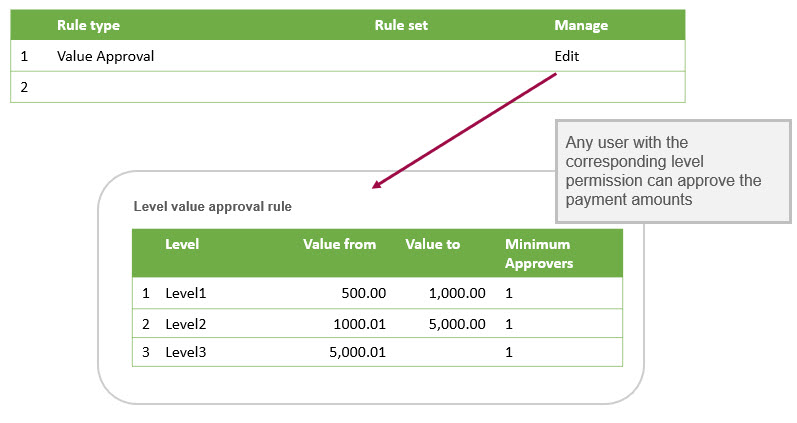
Assume that your value approval rule is defined with the following three levels:
- Level 1: $500 - $1,000
- Level 2: $1,000.01 - $5,000
- Level 3: $5,000.01 - no-maximum-limit
If the total AP purchase invoice amount is:
- $2,500: the approval requests would be sent directly to all users with level 2 permissions. Any user with level 2 permissions can approve.
- $10,000: because there’s no maximum for level 3, any user with level 3 approval permissions will receive approval requests.
- $400: the AP purchase invoice will automatically post and won't require approval because it's below what is defined for level 1.
Permissions
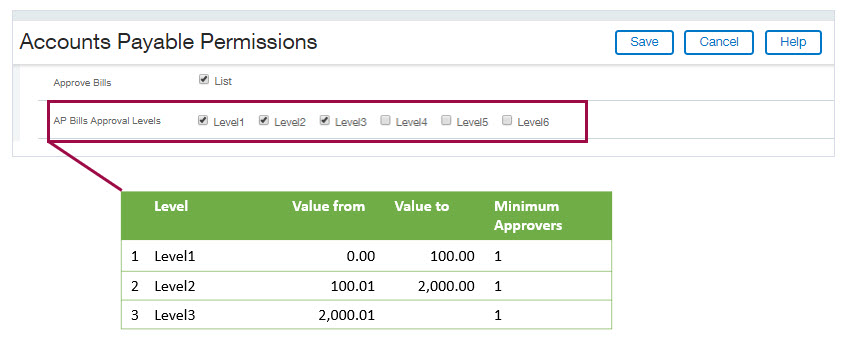
The Value Approval rule type require users have permissions based on the approval amount levels determined on the Value approval rule page. Any user with permission approval for a given level can approve.
For example, say you have a user with Level 1, Level 2, and Level 3 AP purchase invoice approval permissions. This user can approve any AP purchase invoice that has a total amount that falls within the value ranges that you define for these levels.
Value approval: Transaction department
Approval requests are routed based on the department selected in the transaction as well as the total AP purchase invoice amount. Value approval rules define who receives approval requests for a department and the amounts requiring approval. While one value approval rule might work for the majority of your departments, other departments might need their own rules with different approvers and/or approval amounts.
Rule sets
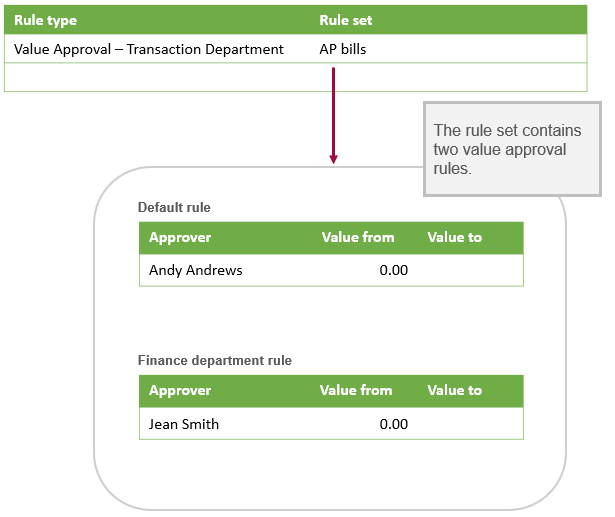
If you selected Value Approval - Transaction Department as a rule type, you must set up a rule set. A rule set enables you to define a collection of value approval rules for the Value Approval: Transaction Department rule type. A value approval rule defines the approvers you want and their approval amounts.
A rule set contains:
- Default value approval rules: The default value approval rules for any department that doesn’t have its own specific value approval rule. For example, you might not want to set up a rule for every department if your company has many departments. Instead, set up a default rule that will be used across all departments.
- Department-specific value approval rules: While one default value approval rule might work for the majority of your departments, other departments might need their own rules with different approvers and/or approval amounts. Use department-specific value approval rules for any departments that need their own specific rules.
Learn more about rule sets for transaction department value approvals.
User level rule type
Add a User Level rule type when you want all AP purchase invoices to be approved by a single user, at any point in the approval process.
When you select User Level as the rule type, you are automatically advanced to the User column to select an approver. A user is included in the list when they have the correct approval permissions and they do not have any restrictions. For any other rule type, the User column is not editable.
Automatic approvals
In some cases, a step in the approval sequence is automatically approved and approval progresses to the next approver. Automatic approval occurs when, for either a department-based or permission-based value approval, the amount falls below the minimum amount for the first approver or the first level.
For example, assume that your value approval rule is defined with the following three levels:
- Level 1: $500 - $1,000
- Level 2: $1,000.01 - $5,000
- Level 3: $5,000.01 - no-maximum-limit
If the total AP purchase invoice amount is below $500, the AP purchase invoice will automatically post and will not require approval.
In addition, if you’re using the Supplier-based approval rule type, AP purchase invoices from suppliers for whom you have not designated an AP purchase invoice approver are automatically approved.
If your AP purchase invoice approval policy includes multiple rule types, an automatic approval applies only to the rule being executed. After an automatic approve, Sage Intacct executes the next rule and routes the AP purchase invoice as directed by your policy.
Email notification
Want to let approvers know when their approval is required? First, enable Email notifications in Configure Accounts Payable. Then, inform approvers that they need to select to receive email notifications on their Preferences page.
