Run a consolidation
Related information
 Related topics
Global Consolidation enables you to combine operational entities, with their respective functional currencies, into a reporting book with its own reporting currency.
When using multiple base or operating currencies, you cannot use simple roll-up reporting to get a consolidated financial view because the currencies are not the same. Global Consolidation enables you to combine one or more entities into one or more consolidation books and perform currency translation. Each consolidation book could be a different combination of entities, or a different currency, or both. You can then run financial reports from the consolidation books to produce consolidated financial reports.
Global Consolidation uses automated currency exchange rate tables, currency translation, and elimination of inter-entity transactions. You can create multiple consolidation books, each with its own configuration and currency. This makes it easy to produce consolidated reports in a variety of currencies to meet statutory reporting requirements in multiple countries or jurisdictions.
| Subscription | Multi-entity, Consolidation, General Ledger, Company |
|---|---|
| User type | Business, Admin |
| Permissions |
Journal entries: List, View, Add, Edit, Delete, Reverse Manage books: List, View, Add, Edit, Delete Run consolidations: Run Inter-entity account mapping: View, Edit |
| Restrictions | Users restricted to Department do not have the required permissions to run consolidations. |
About running a consolidation
For the consolidation book you select:
- Consolidate a period for the first time, during which all data for the time period is converted to the reporting currency of the consolidation book.
- Re-run a consolidation (common during the month end process) to pick up any changes since the last consolidation.
Intacct requires an elimination entity for each consolidation book to track elimination entries within your entities. You need to create the elimination entity for your book and select it in the consolidation book.
-
Go to Consolidation > All > Run consolidation.
Starting a consolidation 1 month before the month you actually want to begin consolidating gives you a beginning balance for that first month.
About running a domestic consolidation
Domestic Consolidation enables companies consolidating across a single currency to drive a more accurate and faster close with auto-eliminations. In Domestic consolidation, currency is inherited from the company. Unlike Global Consolidation, Domestic Consolidation require no currency translations.
Domestic Consolidation provides the following functionality to organizations that operate in a single base currency:
- Reporting periods with formalized, audit-ready elimination entries for local compliance with traceability standards.
- Inter-entity setup with accurate auto-elimination for inter-entity transactions.
- Accurate and transparent management and accounting standards compliance reporting, giving a big-picture view of your organization's consolidated financial health.
- Drill down into consolidation journals for audit traceability and reporting transparency to understand your consolidated numbers at-a-glance.
For the Domestic consolidation book you select:
- Consolidate a period for the first time, for multiple entities and a single base currency.
- Re-run a consolidation (common during the month end process) to pick up any changes since the last consolidation.
As in Consolidation, you need to create and designate an elimination entity for each Domestic consolidation book.
-
Go to Consolidation > All > Run consolidation.
Select a book and time period to consolidate
Select a book to perform a consolidation. You consolidate one book at a time.
If your company uses custom accounting periods, this page shows the custom periods defined in Company > Setup > Settings > Accounting periods. If no period names are defined, the page shows the system default names. You can create up to 16 custom periods. The number of custom periods you create will appear on the Run consolidation page. If the column titles appear as numbers (rather than months), this means that your company uses non-standard accounting periods. Prior to consolidating, be sure to define Period Names for your monthly accounting periods. For example, you might set the period name for 1/1/2018-1/31/2018 to January. Learn how to edit your accounting periods.
- From the dropdown list, select the Book to consolidate.
The book and its entities are shown in the Entities column.
- From the Period range drop-down list, select the accounting period range.
The period range is shown in the time line selection, usually one calendar or financial year. For example, if you choose the period range Jan 2018 - Dec 2018, the Consolidate section includes each month from January through December of that year.
- Select the time period you want.
Standard time periods are shown in 12-month increments, based on the first month of your company's fiscal period (for example, June to May, or January to December). You can begin your consolidation period in the month that you entered your first transaction in your company.
If your company uses custom account periodsIf your company uses custom accounting periods, this page shows all the custom periods (up to 16) for any given fiscal year. The custom periods are defined in the Accounting Period Information page. To access this page, you must have had custom accounting periods enabled when your company was first configured. Go to Company > Setup > Accounting periods. Intacct uses the period start and end dates to compute the currency conversion.
Your company's fiscal period was entered during the initial setup phase of Intacct.
- Select the checkboxes for the entities you want to consolidate.
A previously selected checkbox indicates that a consolidation has already run.
- If your consolidation book was set up to automatically eliminate inter-entity balances in the elimination entity during consolidation (called inter-entity auto elimination), all entities must be consolidated together. In this case, selecting the checkbox at the top of the time period selects all entities for consolidation.
Go to Consolidation > All > Run consolidation.
Consolidate a new period
After selecting the book and time periods to consolidate, you can begin the consolidation. The first consolidation you run for a period can take some time, as all data is converted into a single currency. However, you can choose to consolidate offline, enabling you to continue working without interruption. Also, you can set up automated recurring consolidations, where Intacct notifies you upon completion of each consolidation.
- Select Consolidate.
A Consolidation page appears where you can review the consolidation information and select how the consolidation should be performed.
- (Optional) If desired, you can override the exchange rates to be used in the consolidation.
The exchange rates are pulled from the Intacct Daily Rate.
To override an exchange rate, select the field and type over the existing rate.
- To start the consolidation immediately, select Consolidate now.
You'll need to wait for the consolidation to finish running before getting back to work.
- Alternatively, select Consolidate offline to queue the consolidation request to run later.
The Email notification window is shown.
- Enter the email address of the person you want Intacct to notify when the consolidation has finished.
- Select OK.
On the Consolidation page, the period to be consolidated offline is highlighted in yellow until the consolidation has run.
What happens next:
- Consolidate now: The consolidation runs immediately, and the consolidation period is highlighted green after the consolidation has completed successfully.
- Consolidate offline: Intacct queues the request to run the consolidation, while your work can continue unimpeded. The request is placed at the end of the queue, and jobs run in the order they were received. While the consolidation request is queued, you can't run another consolidation, or change consolidation options. You can, however, choose to cancel the request to run the consolidation offline.
Cancel an offline consolidation request
On the Consolidation page, select Cancel offline.
The offline consolidation request is canceled, and the period is no longer highlighted in yellow.
Re-consolidate a past period
You can choose how you want to re-consolidate your chosen period (from scratch, or updating only the changes), in addition to choosing how you want to reconsolidate all subsequent periods (from scratch, or updating only the changes).
- Update consolidation with net changes (recommended): Intacct re-consolidates only data that's new, modified, deleted, or changed in the selected period and in all subsequent periods. This consolidation is done offline, placing the consolidation request in the queue.
- Re-consolidate the current selected period and delete future consolidations: Delete all consolidations for all subsequent periods. Choosing this option means that you need to re-run the consolidations for all applicable subsequent periods.
For Consolidation: If exchange rates have changed since the previous consolidation, Intacct updates the exchange rates accordingly.
Update consolidation with net changes (recommended)
Re-consolidating a period is faster than consolidating from scratch, because Intacct only processes data that has changed since the previous consolidation. Intacct re-consolidates only the data that is new, modified, deleted, or otherwise changed in your selected period and in all subsequent periods. Transactions that haven't changed aren't processed again, which results in a speedier re-consolidation. Subsequent periods are consolidated accordingly to roll over the changes.
You have the option of choosing Update consolidation with net changes if you are re-consolidating any period other than the first or last. This option only applies to the selected period. Intacct will only update new, modified, deleted, or otherwise changed transactions from your selected period, and unchanged transactions will not be processed again.
You can update a consolidation with net changes if all entries have been consolidated for the period immediately subsequent to your intended re-consolidation period. For example, say you have three entities, Australia, UK, and USA. If Australia and UK were consolidated through Oct 14, but USA was only consolidated through Sept 14, you would not be able to use this option to re-consolidate the Sept 14 period.
Similarly, you cannot update the consolidation with net changes for the first and last consolidation periods with data. These periods must be processed from scratch to validate the consolidation setup.
- Select the period to re-consolidate.
- Select Consolidate.
The Consolidation options page is shown.
- Select Update consolidation with net changes (recommended).
- Select Consolidate now to run the consolidation immediately.
If you are consolidating more than the last period, you'll see a slightly different page. and can select from Update consolidation with net changes (recommended) or Re-consolidate the current selected period and delete future consolidations.
Select Update consolidation with net changes (recommended).
The Email notification window is shown.
- Alternatively, select Consolidate offline to queue the consolidation request for later.
The Email notification window is shown.
- In the Email notification window, type the email address to be notified when the consolidation process has completed.
- Select OK.
In Consolidation, the exchange rates set during the first consolidation apply to the new changes you are updating to your consolidation. Editing exchange rates affects all entries, so you must re-consolidate from scratch. If you want to make changes to exchange rates, select Re-consolidate the current selected period and delete future consolidations.
Re-consolidate the current selected period and delete future consolidations
You can delete all consolidations for the selected period and all subsequent periods. Choosing this option means that you need to re-run the consolidations for all applicable subsequent periods.
When you select Re-consolidate the current selected period and delete future consolidations, Intacct erases and re-consolidates the consolidation data for the selected period.
- Select Consolidate.
The Consolidation options page appears.
- Choose Re-consolidate the current selected period and delete future consolidations.
- Select OK. The Consolidation window is shown.
- In the table of exchange rates, optionally override the exchange rates as desired.
- Select a consolidation option for the selected reporting period only. For example, the previous image shows a selected period of December 2019.
- Update consolidation with net changes (recommended): Select to only update new, modified, deleted, or otherwise changed transactions from the selected reporting period, and unchanged transactions will not be processed again.
- Delete and re-consolidate: Select to delete the consolidation for the selected reporting period and re-consolidate the period.
-
To start the consolidation immediately, select Consolidate now.
You'll need to wait for the consolidation to finish running before getting back to work.
-
Alternatively, select Consolidate offline to queue the consolidation request.
The Email notification window is shown.
- Enter the email address of the person you want Intacct to notify when the consolidation has finished.
- Select OK.
On the Consolidation page, the period to be consolidated offline is highlighted in yellow until the consolidation has run.
Re-consolidate the first period in a consolidation
When you re-consolidate the first period in a consolidation, Intacct overwrites the first period and deletes subsequent periods. Intacct runs the consolidation again for the first period.
If you want to automatically re-consolidate all the subsequent deleted periods, set a recurring consolidation for the deleted periods. You'll be notified as the periods are consolidated. Think of this as a catch-up consolidation.
- Select the first period in the book.
- Select Consolidate.
A notification like the following is shown:
"Re-running consolidation for Jan 2021 will overwrite the consolidation for this period. It will also delete the consolidation data for subsequent periods that were previously consolidated.
Select OK to continue. Otherwise, select Cancel."
- Select OK.
The Consolidation window is shown.
- In the Consolidation window, edit the ending spot rate and weighted average rate for each entity as needed.
- Select Consolidate now or Consolidate offline.
Next steps: Re-consolidate subsequent deleted periods after re-consolidating the first period.
Automatically re-consolidate subsequent deleted periods after re-consolidating the first period
You can automatically re-consolidate the subsequent deleted periods following re-consolidation of the first period of the consolidation. You do this by setting a recurring consolidation for the deleted periods.
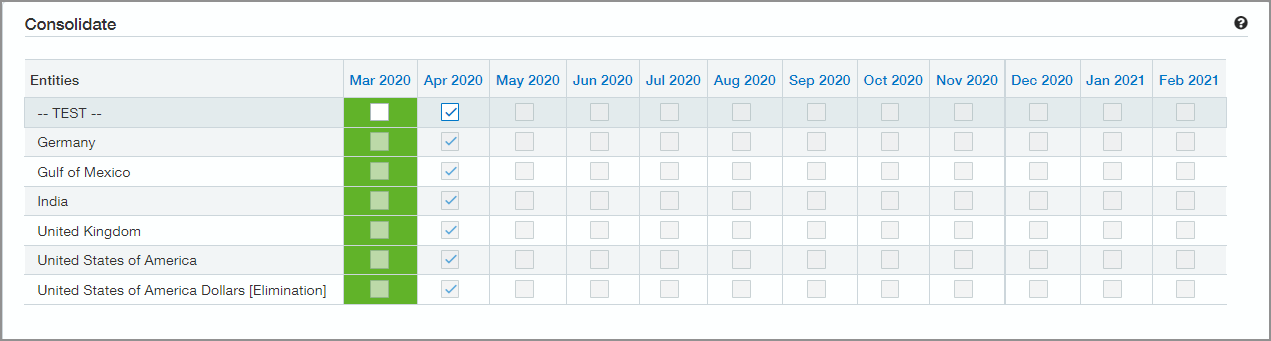
For example, suppose you had previously consolidated March through August, inclusive. You then re-consolidate the first period, being March. The first period is successfully consolidated, and all subsequent consolidated periods are deleted.
You can automatically re-consolidate April through the following August by setting a recurring consolidation from April through August. Intacct runs the consolidation for each period offline, enabling you to continue working without interruption. Meanwhile, Intacct notifies you as the periods are consolidated. Think of this as a catch-up consolidation.
- Select the period after the first period in the consolidation.
In this example, the next period is April.
- Select the downward arrow next to Recurrence, then select Create recurrence to create a new schedule.
- In the Consolidate field, select how often to repeat the consolidation. By default, recurring schedules consolidate Monthly.
If you select Daily as your Consolidate time frame, the options are different. See Set a daily recurrence for details on Daily consolidations.
- Enter the number of days after the end of the period that you want the first consolidation to run in Run consolidation ___ days after period end.
For example, to run the consolidation 7 days after month end, enter 7 in the field. The consolidation will automatically run on the 7th day of the next month.
- In the Recur through field, enter the last period for which you want to run the consolidation schedule.
For example, if you set Recur through to February and number of days to 7, the last recurrence is on March 7.
By default, the recurring schedule will run through the end of the current fiscal year.
- To be notified when a consolidation is completed, enter the Email addresses where you want to send notifications.
- Select OK.
Consolidate a future period
Sometimes you might want to consolidate for a future period. An example of future consolidation might be for budgeting purposes. You can consolidate a future period, but only the period immediately after the last consolidated period. Choose the next future period after one that's been consolidated.
You consolidate a future period the same way that you consolidate other periods, with one exception: exchange rates. Because there is no way to know what the exchange rate will be on a future date (regardless of whether you're using Weighted average or Ending spot rate), you need to define the exchange rate to use.
Intacct enters zero for the rate. Select the field to enter the rate you want to use.
Check the status of a consolidation
When the consolidation process completes successfully, the period that was consolidated will be highlighted in green.
The consolidation status is indicated by color:
- Green = Successful consolidation
- Yellow = Offline consolidation in progress
- White = Not consolidated
- Red = Consolidation failed
To view information about a completed consolidation, select the consolidation period title.
A window opens that shows the consolidation entities, the date of consolidation, the exchange rates, and the person who ran the consolidation. If the consolidation succeeded, a checkmark is shown in the Status column for each entity.
A window similar to the following shows the consolidation status for each entity in the period:
| Entity | Date | Performed by | Ending spot rate | Weighted avg rate | Status | Message |
|---|---|---|---|---|---|---|
| Australia | 05/18/2021 11:43:29 | bsmith | .5586 | .5664 |

|
-- |
| United States | 05/18/2021 11:43:29 | bsmith | .5693 | .5765 |
|
-- |
| United Kingdom | 05/18/2021 11:43:30 | bsmith | 1 | 1 |
|
-- |
Pick the first consolidation period for a book
When you add entities to your consolidation book and consolidate them for the first time, we recommend that you identify the month from which you want to begin reporting on your consolidated financial statement, and begin your consolidation one month earlier. For example, you should start consolidation in December, 2017, to establish beginning roll forward balances if you want to have a consolidated financial statement starting for January, 2018.
If you re-consolidate the first period, Global or Domestic Consolidation processes all transactions from scratch to validate the consolidation setup. For subsequent periods, you have the option to process only new changes by selecting to reconsolidate by choosing to update consolidation with changes only, which typically results in faster consolidation times. You can choose to update changes in your selected period only (and reconsolidate all subsequent periods from scratch), or you can choose to do a mass update that applies to your selected period and subsequent periods.
