Inventory costing basics
Related information
 Related topics
Inventory valuation is the cost associated with the items in your company's inventory and affects the cost of goods sold. An accurate valuation is important because inventory appears as an asset on the balance sheet, and the cost of goods sold impacts the income statement.
Inventory Control subledger
Sage Intacct uses the Inventory Control subledger to track the quantity and total value of each item for transactions that affect your inventory (excludes non-inventory items). Quantity and value are tracked by item by warehouse. The cost method for an item, which affects how the inventory cost layers are used, determines how the total value is tracked and the unit cost is determined. The unit cost is part of the calculation which then determines the cost of goods sold (COGS).
Inventory cost layers
Sage Intacct uses cost layers to help track quantity, total valuation, and unit cost for each item by warehouse. For example, when you create a purchasing transaction, a cost layer is created for the item and warehouse combination. The cost layer maintains the total purchase value, the total purchase quantity, and the quantity on hand for that layer. For example, these two cost layers are created when two separate purchases are made for Item A in Warehouse 10:
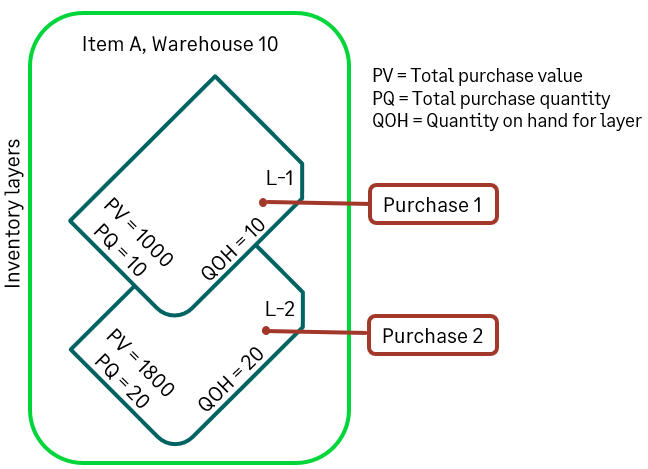
When sales are made for the item, the units are drawn from the purchase layers. The item's cost method determines how the cost layers are used and processed.
Cost methods
When you create an inventory item, you select the cost method for the item. After the item is saved, the cost method cannot be changed. While the cost method of an item is the same across all warehouses, the specific cost of an item can be different in different warehouses because costing is tracked for each item by warehouse.
The following table summarizes the cost methods, shows how the item unit costs are derived, and provides examples of calculating inventory costs with a purchasing and sales scenario:
| Cost method | Description |
|---|---|
| Average |
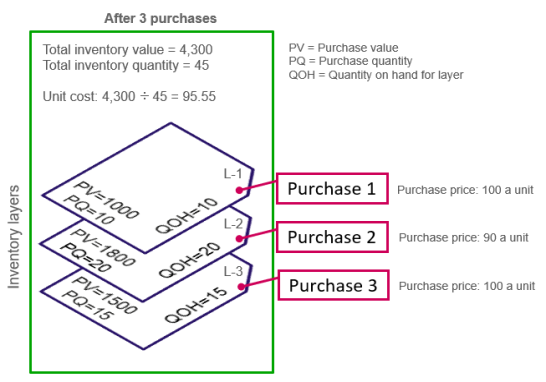
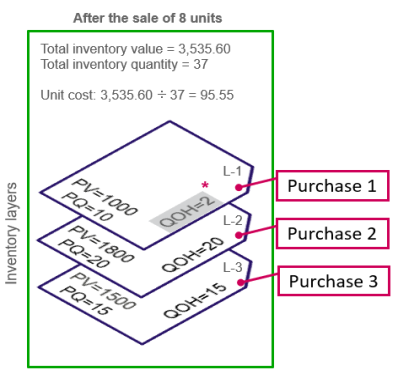
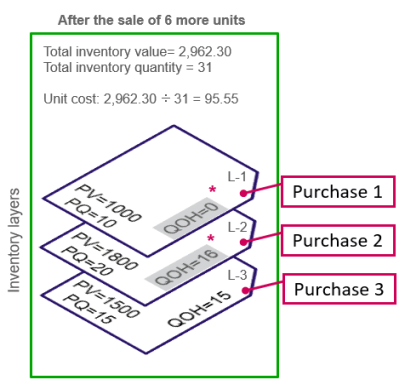
The total value of an item is the weighted average of the acquisition cost of all the units on hand. The item unit cost is calculated based on the total value and the total quantity of the inventory across all purchase cost layers: Unit cost = Total inventory value ÷ Total inventory quantity (across all purchase layers) As units are sold, the quantity on hand is reduced on the cost layers and the COGS are posted using the current calculated average unit cost. See an example of purchasing and sales with average costing
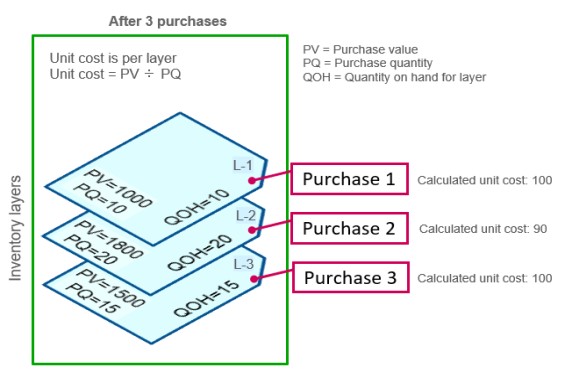
Assume three purchases for 45 units of Item A in Warehouse 10 are made followed by two sales from the same warehouse. Purchase 1 is for a quantity of 10, Purchase 2 is for a quantity of 20, and Purchase 3 is for a quantity of 15.
The sequence of sales and purchases can affect costing. In this example, all the purchases were made before any sales occurred. If the sales and purchases had been intermixed, the calculated average unit cost could have changed, making the COGS for the different sales different. |
| FIFO |
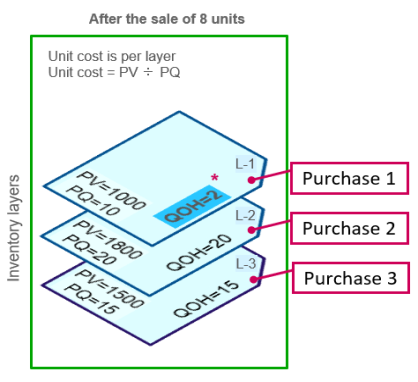
First in, first out. The total value of an item is the sum of the values at each of the FIFO layers. The item unit costs are calculated per layer based on the purchase value and quantity of the inventory at each cost layer: Unit cost = Inventory value ÷ Inventory quantity (at each specific FIFO cost layer) As units are sold, the items and costs are taken layer-by-layer from the oldest to the newest (first in, first out). With FIFO, ending inventory is typically valued at a cost closest to current costs because prices tend to increase over time. See an example of purchases and sales with FIFO costing
Assume that three purchases for 45 units of Item A for Warehouse 20 are made followed by two sales from the same warehouse.
|
| LIFO |
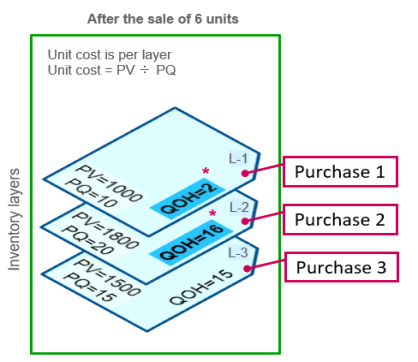
Last in, First out. LIFO is like FIFO, except the total value of an item is the sum of the values at each of the LIFO layers. The item unit costs are calculated per layer based on the purchase value and quantity of the inventory at each cost layer: Unit cost = Inventory value ÷ Inventory quantity (at each specific LIFO cost layer) As units are sold, the items and costs are taken layer-by-layer from the newest to the oldest (last-in, first-out). The LIFO cost method is rarely used. When the cost of inventory is increasing, LIFO results in less taxable income because the most expensive inventory is used first, resulting in a higher cost of goods sold. |
|
Standard |
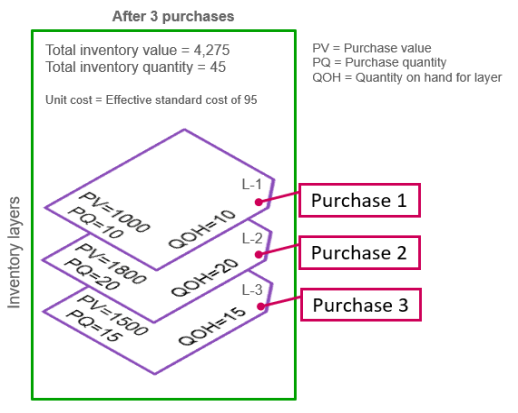
The total value of an item is the total quantity times the effective standard cost. A standard cost is a cost you plan or estimate instead of using an actual cost. For each item for each warehouse where the item is stocked, you input and then maintain a standard cost for the item. The standard cost is the unit cost: Unit cost = Effective standard cost (per item, per warehouse) As units are bought and sold, the quantity and standard cost of an item drives the value of inventory and the cost of goods sold. Standard costs are useful in situations where purchase costs remain relatively stable over time. See an example of purchases and sales with standard costing
Assume three purchases for 45 units of Item A for Warehouse 10 are made followed by two sales from the same warehouse. Purchase 1 is for a quantity of 10, Purchase 2 is for a quantity of 20, and Purchase 3 is for a quantity of 15.
|
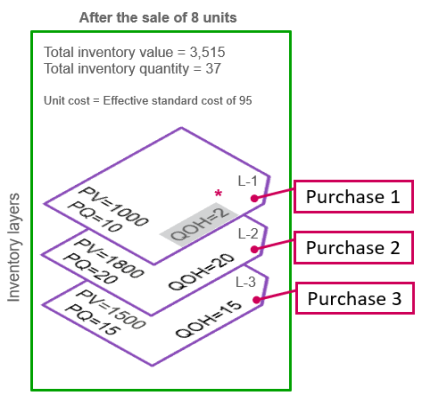
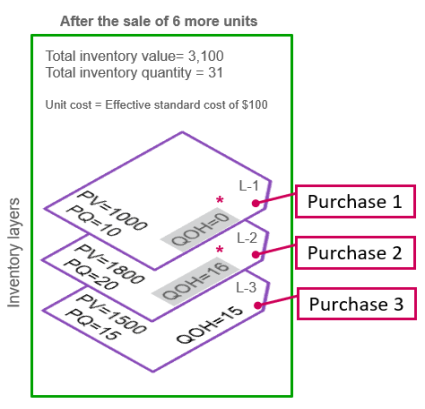
The examples in the above table illustrate the flow of each cost method separately. A quick comparison of the methods using a simple example highlight how they produce different results. Assume two purchases of Item A into Warehouse 10 are followed by a sale of 12 units:
- First purchase: 10 units at $90 per unit
- Second purchase: 20 units at $100 per unit
After the sale, the ending inventory value and the posted COGS are:
| Cost method | Ending inventory value | COGS for sale |
|---|---|---|
| Average cost | 1,740 | 1,160 |
| FIFO | 1,800 | 1,100 |
| LIFO | 1,700 | 1,200 |
| Standard cost* | 1,710 | 1,140 |
| *Note: Assumes a standard cost of $95 for the item for the warehouse | ||
Units of measure
Quantity and costing for an item are tracked in the item’s base unit. When you create an item, you can assign a unit of measure (UOM) group to the item. A UOM group has a name, a base unit, and related units. For example, the Count UOM group which comes with Intacct has Each as the base unit and Pair and Dozen as related units. The base unit represents the logical quantity of 1. The related units are multiples (or fractions) of the base unit.
When users create a transaction and add an item specifying one of the related units of the UOM group in the UOM field for the line item, the transaction quantity is converted into the base unit for costing.
For example, if an organization buys and sells rope, you might set up a UOM group with inches as the base unit and feet as a related unit to assign to rope items. If 15 feet is entered as the quantity in a sales transaction, 15 is multiplied by 12 to convert the feet to 180 inches (the base unit) for tracking quantity and costing. Using the smallest reasonable unit for a UOM group typically leads to less rounding issues.
Learn more about unit of measure groups.
Negative inventory
You control whether Order Entry and Inventory Control transactions can be posted if there is not enough quantity on hand to fulfill an order (negative inventory is allowed by default). If a transaction is posted that causes an item's on-hand quantity to become negative, the last purchase cost recorded for the item is used to calculate the COGS for the negative quantity.
Many organizations allow negative inventory to capitalize on sales opportunities. You can allow negative inventory system-wide for all warehouses or just for specific warehouses.
System-wide negative inventory
By default, negative inventory is allowed for all warehouses. If you select, Do not allow negative inventory globally, on the Configure Inventory Control or Configure Order Entry page, you cannot create transactions without available inventory. Any outstanding inventory purchasing receipts must first be recorded to complete new sales orders.
Warehouse-specific negative inventory
When system-wide negative inventory is prevented (Do not allow negative inventory globally is selected), you can still choose to allow negative inventory at one or more specific warehouses. Allowing negative inventory only for specific warehouses gives you the ability to customize the system to fit your needs better; however, bin-tracking can only be enabled when negative inventory is not permitted.
Example 1 - Drop-ship workflow: If you use a drop-ship workflow and your system is configured to prevent negative inventory, choose a specific warehouse to allow negative inventory for your drop-ship sales orders. This will ensure you can create customer invoices for items without a quantity on hand. You can also convert your drop-ship sales orders to drop-ship sales invoices without worrying about when the automatically generated purchase orders are converted to purchasing receipts.
Example 2 - High turnover: If you have warehouses where physical inventory is shipped out much faster than is recorded, negative inventory in these warehouses is okay because you can physically see that the inventory is received. You can process the outgoing orders for these warehouses before the incoming quantities have been recorded.
Transaction definitions
A transaction definition determines when and how inventory quantity and value are affected in the Inventory subledger, and when the general ledger is posted.
When inventory quantity and value are affected
The transaction definitions for Purchasing, Order Entry, and Inventory Control transactions determine how the on hand inventory quantity and value are affected in the Inventory subledger. You can specify the following effects in the Inventory Control section of a transaction definition:
- Quantity & Value (recommended)
- Quantity-only
- Value-only
For example, a typical Purchasing workflow is: Purchase Order --> Receipt --> PO purchase invoice. If the purchase order contains a Quantity & Value effect and the receipt transaction has a Quantity-only effect (perhaps you have items delivered but have not yet received the invoice), Sage Intacct creates a cost layer with the actual quantity and purchase value of zero. Later, when you receive your invoice and the receipt is converted to a PO purchase invoice that has a Value-only effect, Sage Intacctupdates the cost layer with the purchase value.
When the general ledger is posted
Transactions with an ONHAND inventory effect post to the general ledger if the Transaction posting option in the transaction definition is set to:
- Accounts Receivable (Order Entry) or Accounts Payable (Purchasing)
- General Ledger (Order Entry or Accounts Payable)
With either option, you need to specify the GL accounts to post to in the mapping tables on the Posting configuration tab.
Maintain inventory valuation
Transactions that aren't entered in the same sequence as their transaction dates have a downstream effect on costing for subsequent transactions. Scheduling the maintain inventory valuation report ensures that transactions are re-sequenced in transaction-date order and costing is updated as appropriate.
Ideally, schedule the maintain inventory valuation tool to run on a daily basis to automate the process of keeping your inventory costing updated.
