Use revenue recognition with installment invoicing
Related information
 Related topics
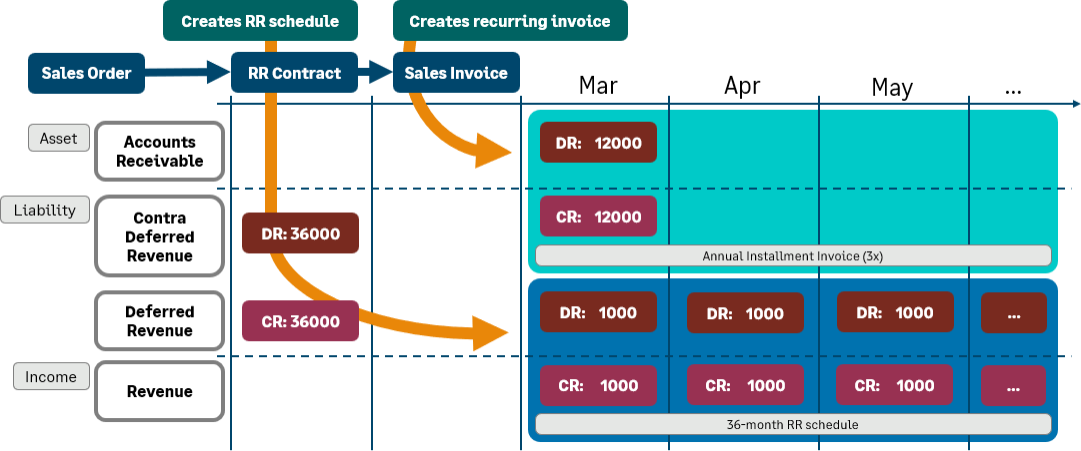
If your company will typically need more than one invoice per contract for items for which you wish to defer revenue, Intacct recommends that you use a workflow that separates the revenue recognition and billing. In this workflow, a single transaction will contain the revenue recognition schedule for the full contract term for each line item for which revenue is being deferred. Individual invoices will subsequently be generated for each billing period, completely independent of the revenue recognition schedule.
The workflow consists of three transactions:
1. Sales order: contains the sales details.
2. Revenue activation transaction: contains the revenue recognition schedule.
3. Sales invoice: a recurring template creates the sales invoice according to a recurring schedule.
Prerequisites
Before you can complete this procedure, several items in Sage Intacct must be set up:
- Transaction definitions: Three transaction definitions required for this workflow must exist.
- Recurring schedules: At least one recurring schedule must exist. The recurring schedule should have Installment pricing selected, however, users can select Installment pricing when converting by line item.
- Revenue recognition templates: At least one revenue recognition template must exist.
| Subscription |
|
|---|---|
| Regional availability |
All regions |
| User type |
|
| Permissions |
|
| Configuration |
|
Use a revenue recognition with installment invoicing workflow
- Add the sales order. Use the sales order transaction configured for this workflow.
Do the following for each line item for which you are deferring revenue:
- Enter the total contract price for the line item. For example, if there will be 12 monthly installment invoices of 100.00, enter 1,200.00 as the line item price.
- Select the applicable revenue recognition template and start and end dates, if applicable, on the sales order.
Although the sales order transaction is optional, the best practice is to always start this workflow with the sales order. The sales order does not post, so changes will not affect the GL. - Go to the applicable sales order transaction list, select the Convert link next to the applicable sales order, select the revenue activation transaction, and follow the procedure to convert the sales order to the revenue activation transaction.
When you post the revenue activation transaction, Intacct debits the line item price to the contra deferred revenue account, credits it to the deferred revenue account, and creates the revenue recognition schedule.
The revenue schedule cannot start before the transaction date of the revenue activation transaction.
- Go to the applicable revenue activation transaction list and select the Convert by line link next to the applicable revenue activation transaction.
- In the transaction's Entries grid, select a line item you want to convert and select Show Details.
- In the Convert by Line section:
- Do one of the following
- If you want the line items to be included in a new recurring template, choose Manually create template and follow the procedure to create a new recurring template by line item conversion.
Note the following:
- Intacct groups line items by the selected Recurring schedule and Start date, if applicable. Line items with the same recurring schedule and Start date will be included in the same recurring template.
- Start dates are only applicable if the recurring schedule has Start date = User-specified, otherwise Intacct uses the Transaction date as the schedule start date.
- If you want to add the line items to an existing recurring template, choose Append to existing template and follow the procedure to append the lines to an existing recurring template.
- If you want the line items to be included in a new recurring template, choose Manually create template and follow the procedure to create a new recurring template by line item conversion.
- Do the following for each line you are converting:
- Select the sales invoice transaction configured for this workflow as the Document type.
- If the selected recurring schedule is not set up with Installment pricing, select Installment pricing here.
Convert all desired transaction line items by line at the same time as line items that are not converted will not be available to convert later. - Do one of the following
- On or after the scheduled invoice date (Next execution date on the recurring template), use the Recurring Transaction Status report to verify that the scheduler created the invoice.
When the invoice posts, Intacct debits the invoice installment amount to Accounts Receivable and credits the amount to the contra deferred revenue account.
- When it's time to post revenue recognition, do one of the following:
- If the associated revenue template has Posting method = Manual, post the revenue recognition associated with the revenue activation transaction per your company's business process.
- If the revenue template has Posting method = Automatic, use the Deferred Revenue Details report on or after the applicable scheduled posting date to verify that the revenue posted for the applicable revenue activation transaction.
When the revenue recognition posts, Intacct debits the scheduled revenue amount to the deferred revenue account and credits the amount to the sales revenue account.
- Repeat steps 6 and 7 as needed for the remainder of the line item contract.
