Select the column type—Financial Report Writer
Related information
 Related topics
Use the Columns tab to specify the number of report columns, the type of value you want to in each column, and the reporting periods for which you want data.
The order in which the tabs appear in the Financial Report Writer can’t be changed.
| Subscription |
Company |
|---|---|
| Regional availability |
All regions |
| User type | Business |
| Permissions | Reports: List, View, Add, Edit, Delete |
Column type determines the type of value that will be included in the column, and can include actual amounts, budget amounts, budget differences and variations, and different types of calculations.
- Find the column you want to change (for example, Column 2), and select anywhere in the column.
Selecting in the column expands the column to show the options for that column.
- From the Column type dropdown menu, select the type of column.
Depending on the column type you select, you might be prompted for more information, such as for the calculation you want to perform or the budget you want to use.
- Optionally, move the columns to a different location by hovering on the column number and selecting Move Column Left or Move Column Right.
The types of columns you can add vary depending on the basic report structure that you chose on the Report Info tab.
Example 1
The following table shows some typical column types for a financial report that features account groups on rows. In this type of report, the first column is preset to the Account name, which includes the "Display on report as" name for account groups and the name of any individual accounts.
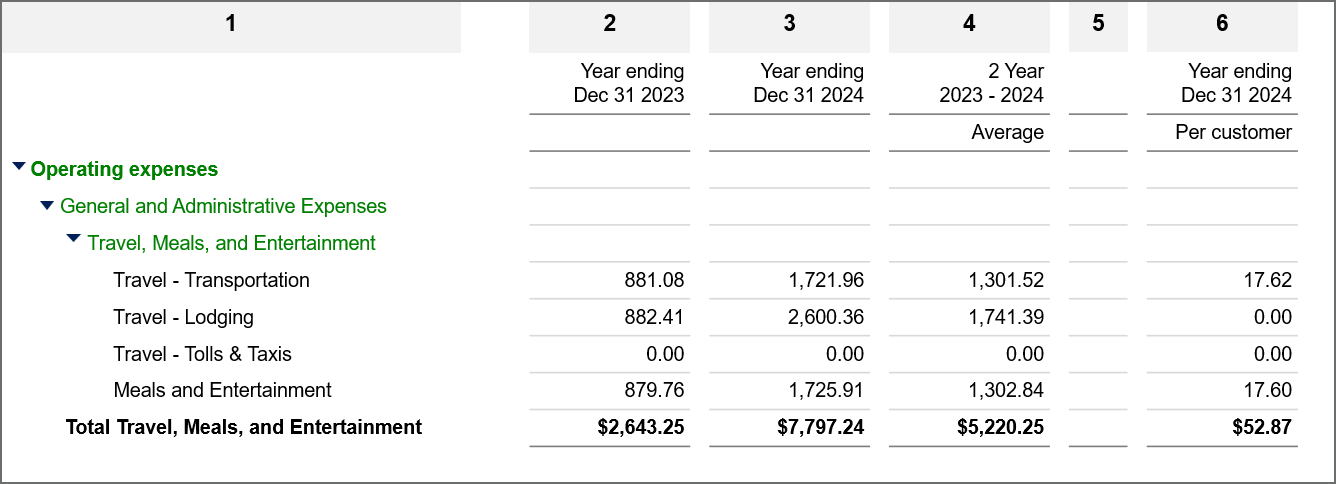
Column 1 is account names (one account per row).
Column 2 is actual year end information for 2023.
Column 3 is actual year end information for 2024.
Column 4 is a calculation of the average expenses over 2 years, using column 2 and 3 as the basis for the calculation. Calculation columns can be named and a description added to make it easier to know what the calculation is for.
Column 5 is a visual divider and inserts space between columns 4 and 6.
Column 6 is a calculation of expenses per customer by dividing actual expenses by a statistical account group that tracks the number of customers.
Example 2
When rows are built from dimension structures, the first column is preset to the Dimension name, which includes the "Display on report as" name for the dimension structures and the names of dimension members. With this type of report, you can also include dimension attributes, as in the following report which includes the billing type and budgeted amount for projects.
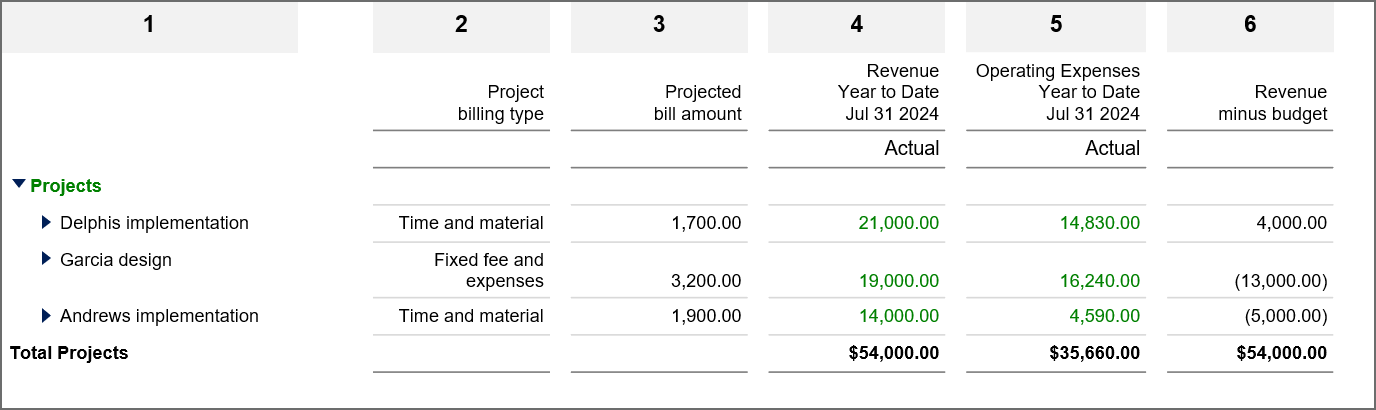
Column 1 is the Projects dimension, showing dimension members (one project per row).
Column 2 is a dimension attribute: Project billing type.
Column 3 is a dimension attribute: Projected bill amount.
Column 4 is actual information from your Reports: revenue for the year to date.
Column 5 is actual information from your Reports: operating expenses for the year to date.
Column 6 is a summary computation of column 4 minus column 3.
Next step: Choose a reporting period
