Add a local timestamp
Related information
 Related topics
The default date and time for a report is Greenwich Mean Time (GMT). To display the local date and time that a report was run, you can create a calculation using the TIMESTAMPADD function.
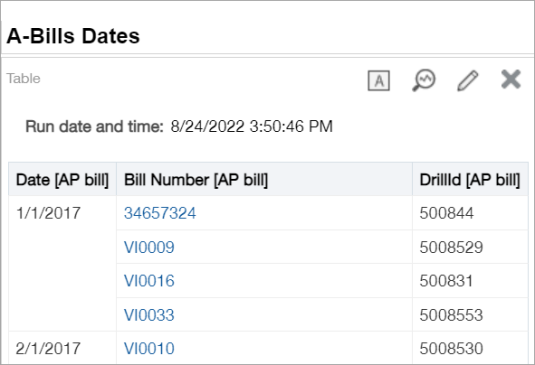
Complete the following steps to display the local date and time in a report.
| Subscription | Interactive Custom Report Writer
Platform Services |
|---|---|
| Regional availability |
All regions |
| User type | Interactive Custom Report Writer: Business, Project Manager |
| Permissions |
Interactive Custom Report Writer: Run, List, View, Add, Edit, Delete Platform Services: Run, List, View, Add, Edit, Delete
|
TIMESTAMPADD function
The TIMESTAMPADD function allows you to create a calculation that adds or subtracts a specified number of intervals to return the desired date and time.
TIMESTAMPADD(interval, integer, timestamp)
- Interval: Uses any of the following: SQL_TSI_SECOND, SQL_TSI_MINUTE, SQL_TSI_HOUR, SQL_TSI_DAY, SQL_TSI_MONTH, SQL_TSI_QUARTER, SQL_TSI_YEAR.
- Integer: Uses either a positive or negative integer value.
- Timestamp: Uses a valid Calendar/Date function. If the interval is SECOND, MINUTE, or HOUR, use a timestamp such as CURRENT_TIMESTAMP. For DAY, MONTH, QUARTER, or YEAR, you can use a timestamp or a plain date can be used.
Step 1. Add a local date-time calculation column
- Open ICRW and select Edit for the report to which you want to add a local timestamp.
- From the Refine tab, select the Calculation column icon.
- Enter a Folder title and Column title in the appropriate fields.
The Folder title can be anything you like. The Column title appears in the report heading, so we entered Run date and time: in our example - Enter the following TIMESTAMPADD calculation in the Calculation field, adjusting the HOUR interval to reflect your local timezone. The default time is GMT.
TIMESTAMPADD(SQL_TSI_HOUR, -8, CURRENT_TIMESTAMP)
To display Pacific Standard Time, 8 hours was subtracted (-8). To display Eastern Standard Time, you would subtract 5 hours (-5), and so on. - Select OK.
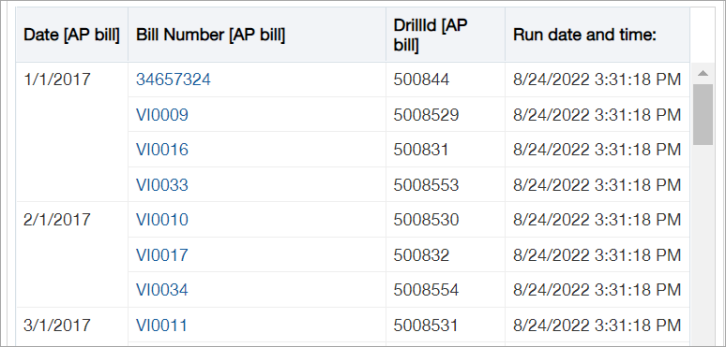
Step 2. Display the local date-time in the report
- Right-click the date and time calculation column and select Move Column > To Sections.
- In the Table heading, select the Edit (pencil) icon.
- Go to Sections and if the Totals icon shows a check mark, select the icon and choose None from the menu.
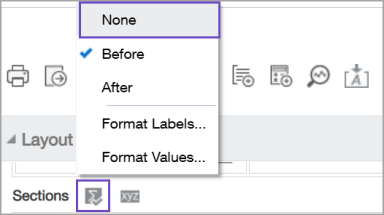
- Select the Section Properties icon.
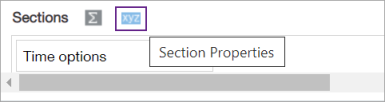
- In the Section Properties dialog, select the Start radio button and select OK.
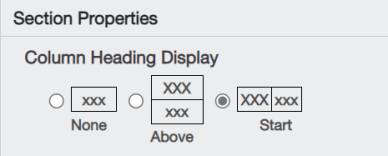
This option displays the column heading before the date and time. - On the Refine tab, select Done.