Format multi-line column headings
Related information
 Related topics
Most report options can be refined to include custom formatting, including multi-line column headings. Formatting allows you to control how the report appears on the page and when exported.
This topic shows you how to create a multi-line column heading. This procedure allows you to control the position of the text for enhanced readability.
| Subscription | Interactive Custom Report Writer
Platform Services |
|---|---|
| Regional availability |
All regions |
| User type | Interactive Custom Report Writer: Business, Project Manager |
| Permissions |
Interactive Custom Report Writer: Run, List, View, Add, Edit, Delete Platform Services: Run, List, View, Add, Edit, Delete
|
Customize a column heading into multiple lines
Breaking up a long column heading title can enhance readability. This task shows how you can use a simple HTML tag to create this affect.
- Open an ICRW report to Edit and go to the Define tab.
- Find the column heading, select the down arrow, and select the Column Properties from the dropdown list.
- In the Column Properties dialog, select the Column Format tab.
- Select the Custom Headings and Contains HTML check boxes.
- Enter the HTML break tag <br> in the desired place in the text for the Column title.
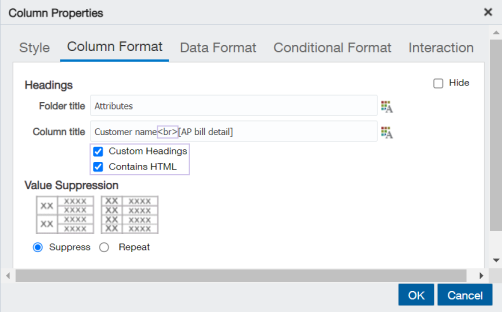
- Select OK and Save the report.
The following example shows the results after forcing the break in the column heading text.
![The results for the multi-line column heading shows the Customer name on one line and [AP bill detail] on the line beneath.](../../../Resources/Images/InteractiveCRW/UI-Format-multi-line-results.png "Multi-line column heading results")
