Add standard and custom reporting periods to existing reports—ICRW
Related information
 Related topics
Filling out the information on the Interactive Report page is the first step in creating a new report. You provide a name for the report and select a reporting area or another report on which to base the report. You can choose to include standard reporting periods, or add them later.
This topic shows you how to add a standard reporting period to an existing report.
| Subscription | Interactive Custom Report Writer
Platform Services |
|---|---|
| Regional availability |
All regions |
| User type | Interactive Custom Report Writer: Business, Project Manager |
| Permissions |
Interactive Custom Report Writer: Run, List, View, Add, Edit, Delete Platform Services: Run, List, View, Add, Edit, Delete
|
Add standard periods to an existing report
Standard periods, or standard accounting periods, are commonly used date ranges for reports. Examples of standard periods include current, prior, and one year ago for month, current month to date, quarter, and year.
- If you did not include a standard period when you create a report, you can easily add one later. The report then includes a required prompt based on standard periods.
- If you enable standard periods for a report, you can delete it later if it becomes unnecessary.
How standard periods work
When you include a standard period in a new ICRW report, both a filter and a prompt are created. The standard period uses the current date and defaults to the current month. It also creates a runtime prompt to select the reporting period. If there is no data for the current month, the preview (on the Refine tab) does not show any data. When you run the report you can select another time period.
To delete standard periods, you need to delete both the filter and the prompt.
Add standard time periods to a report
-
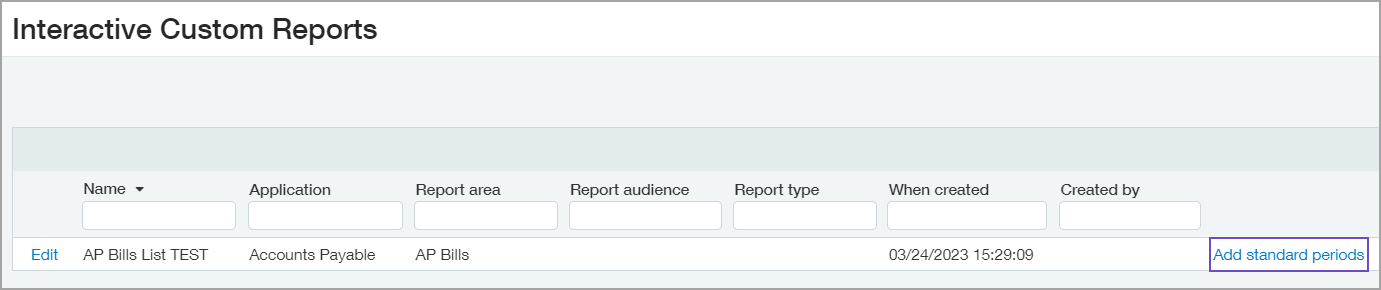
Go to Reports > All > Advanced > Interactive Custom Reports.
- From the list of reports, find the report to which you want to add standard periods.
- Select the Add standard periods link to the right.
- The Interactive Custom Report Writer creates a filter and prompt that enables standard periods.
Add custom periods to a report
If you use custom accounting periods in your company, you can add them to an existing report as a runtime prompt.
- Open the report and select the Prompts tab.
- Select Add (New) and select Column Prompt.
- Select the date column on which you want to add a prompt.
- In the New Prompt window set the following values:
New Prompt options Field Value Notes Title Entry date Operator is between For prompts on a date column, Operator must be set to "is between." User can select from Calendar For prompts on a date column, User can select from must be set to "Calendar." - Select OK. The new prompt appears on the Prompts tab.
