Create selectable views of a report
Related information
 Related topics
You can create multiple views of a report that focus on varying levels of detail in the data, or that includes different combinations of selected columns. Interactive Custom Report Writer (ICRW) View Selector provides quick access to those individual views. This capability allows users to view the data they need, so they can focus on what's most important for their role.
This topic walks you through the process of creating multiple views in a report and then accessing those views with View Selector. Instructions for customizing report views and managing the View Selector are also covered.
| Subscription | Interactive Custom Report Writer
Platform Services |
|---|---|
| Regional availability |
All regions |
| User type | Interactive Custom Report Writer: Business, Project Manager |
| Permissions |
Interactive Custom Report Writer: Run, List, View, Add, Edit, Delete Platform Services: Run, List, View, Add, Edit, Delete
|
Fine-tune report focus with View Selector
Members in an organization typically use data at varying levels depending on their roles and job functions. In the example used in this topic, the View Selector allows for quick access to focused report views for the following employees in an organization:
- Chief Financial Officer (CFO): needs to know how much is owed to the company by each of its customers.
- Accounting team: needs to know how much is owed by each customer, at an invoice by invoice level.
- Purchasing team: needs to analyze the customer invoices by their individual lines.
- Business analyst: needs to analyze the customer invoices and payment details at a granular level.
The information required for each role is available in the Accounts Receivable (AR) report. However, each user needs to focus on a different segment of the data. ICRW allows you to create customized views of a report, tailored for specific users or roles. Each user can then quickly access their customized view with the View Selector.
Create multiple views of a report
The following task shows you how to create 4 different views, with varying levels of detail, within a single Accounts Receivable report.
- Open an ICRW report to Edit, go to the Views panel in the lower left portion of the window, and select the Table view.
- In the Views panel heading, select the right arrow >, then select Show More Buttons > Rename and enter a descriptive View Name. This first view will typically contain the most extensive information.
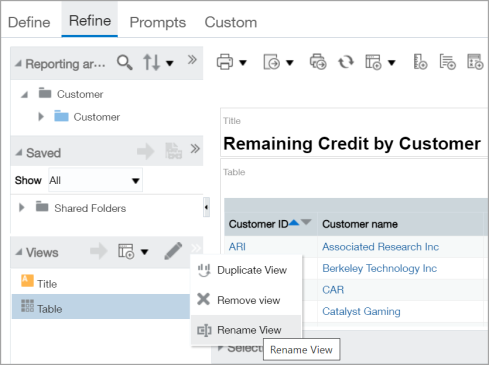
- In the Views panel, highlight the view and select Show More Buttons > Duplicate View.
- Exclude the columns that you do not want to appear in this new view by selecting the column heading > Exclude column. Repeat as necessary, then select Done in the upper right corner of the window.
- With the new view still highlighted in the Views panel, select Show More Buttons > Rename and enter a unique descriptive View Name.
- Repeat steps 3 through 5 to create the remaining views, decreasing the information included in each successive view. For example, the Business Analyst view (1st table) contains the most detailed information. The Purchasing view (2nd table) includes less detail, the Accounting view (3rd table) includes even less information. The CFO view (4th table) is high-level with the least detailed information.
- Save the report and continue on to Access multiple views of a report.
Access multiple views
This task shows you how to configure the View Selector and then add the view to the report.
-
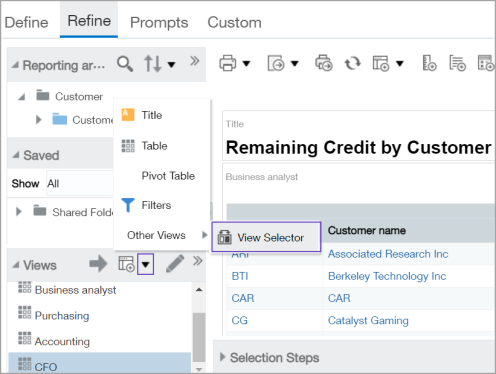
In the report from the previous task, go to the Views panel heading. Then, right-click the down arrow icon, and select Other Views > View Selector.
-
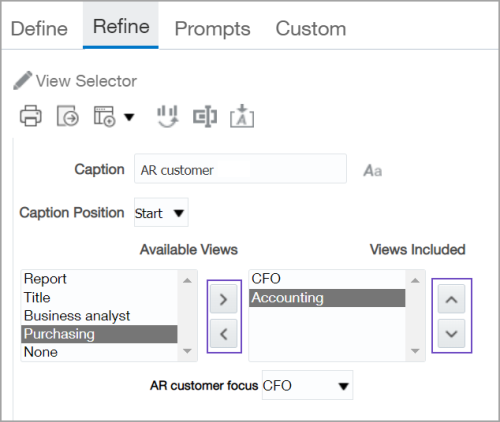
In the View Selector window, go to the Available Views panel. Then, highlight a view name, and select the arrow > to add it to the Views Include list. You can also highlight a view name in the Views Included panel and select the < arrow to remove a view from the list. Repeat until all the desired views are included.
-
Optionally, reorder the views by highlighting a view name in the Views Included panel and selecting the up or down arrow.
-
Enter a descriptive Caption for the View Selector and select Done. The View Selector appears in the Views list.
-
Select the X in the upper right corner of the table to remove it from the main window. The View Selector is typically the only view included on a report (along with the Title view).
-
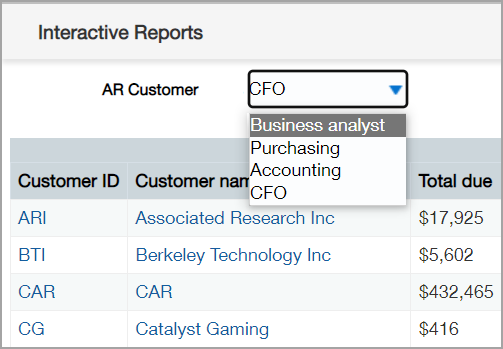
In the Views panel list, highlight the View Selector view, then in the panel heading, select the Add View (large gray arrow) icon. The View Selector dropdown list appears in the main window.
-
Select the individual views from theView Selector dropdown menu.
Customize report views
You can customize the format of views individually to enhance the focus of the content. The following rules apply:
- Formatting done from the Define tab is applied globally to all views in a report.
- Formatting done from the Refine tab for an individual view is applied to that view only, and overrides any previous global formatting for that view only.
In the following example, a yellow background color was applied to alternating rows of the report from the Define tab. The alternating row background color was applied to all views in the report.
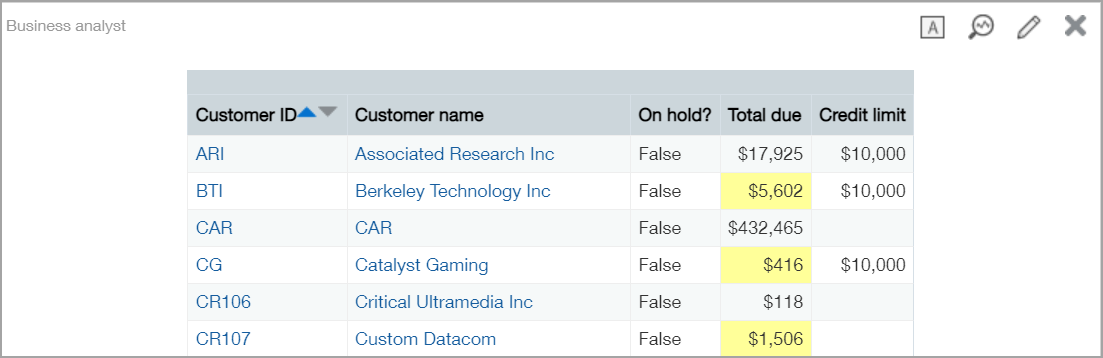
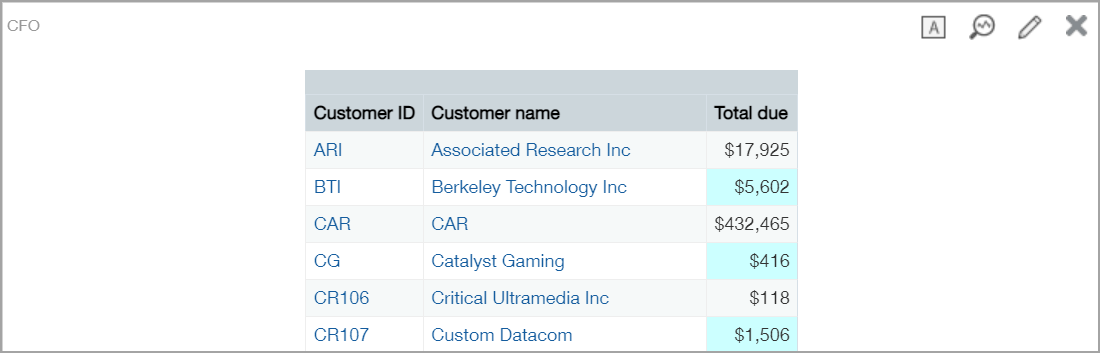
In the following example, you can see the results of changing the background color. Alternate rows in the CFO table have a blue. The tables in the other views have yellow alternating rows.
For more ways to modify a report and its customize views, see Manage custom reports.
Manage the View Selector
You can perform many of the standard ICRW tasks directly from the View Selector window. The icons in the title menu offer the same functionality as other areas of ICRW.
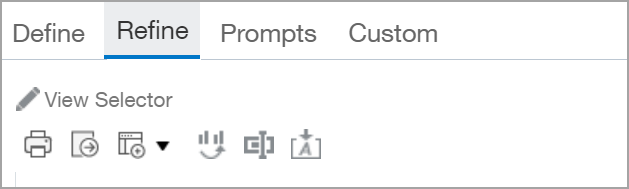
For an explanation of the icons, see Interactive Custom Report Writer icons.
