Enter a Cash Management transaction
Related information
 Related topics
GST is supported in the following transactions:
- Credit card transactions
- Manual payments
- Other receipts
- Bank interest and charges (Transaction type = Service charge)
- Credit card charges and fees (Transaction type = Other fees)
In most of these Cash Management transactions, inclusive tax is the default because you most typically enter line item amounts that already include GST.
| Subscription |
Cash Management Taxes |
|---|---|
| Regional availability |
All regions |
| User type |
Business |
| Permissions |
Cash Management
|
Using a credit card transaction as an example, these are the general steps to calculate and capture GST in a Cash Management transaction.
To enter GST in a transaction:
-
Go to Cash Management > All > Credit card and select Add (circle) next to Credit card transactions.
-
Enter the header information.
For top level transactions for companies with multiple tax solutionsTo add GST to a transaction at the top level, also complete these steps:
- Select the Transaction has tax implications checkbox.
- Select the Tax solution to use for calculating and capturing the tax.
- Add the line items. For each line item, enter the Account, the Transaction total, and select the appropriate Tax detail.
When you select a Tax detail, Intacct displays the rate percent for that tax detail. It also calculates and displays the tax and transaction amount (exclusive of tax) based on the selected tax detail.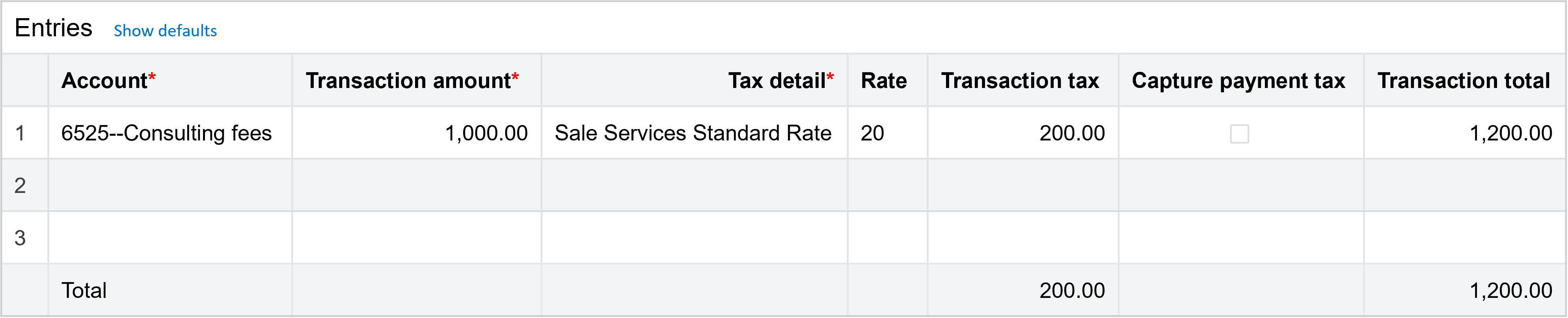
- Optional. To override the amount of tax that's calculated, edit the Transaction tax field. The Tax detail and Rate remain the same, but the Transaction amount reflects the changed tax amount.Tax is more commonly overridden when you're purchasing goods and services rather than selling them.
- When you are through entering the line items, select Show summary in the Tax summary section. The table displays a summary of all the taxes applied to the transaction.
Non-inclusive tax. You might need to enter transactions where the amounts do not already include tax. Follow the above steps with these differences:
- Deselect the Inclusive taxes checkbox in the transaction header.
- For each line item, enter the amount for each line item in Transaction amount. When you select the Tax detail, the Transaction total, which includes tax, is automatically calculated.
