CONSTRUCTION
Supplier compliance
Ensure that your suppliers provide the required compliance documents before you pay them. The Supplier Compliance subscription, which is included with your Construction subscription, helps you track compliance-related documents, such as proof of liability insurance or business licenses.
Details
Turn on the Supplier Compliance subscription so that you can:
-
Set up compliance definitions to establish how documents are validated and what happens when a document is missing or expired. Validation is based on either receipt of a document or an expiration date.
-
Specify whether payments are blocked or a warning appears in Accounts Payable if a supplier has an expired or missing document.
-
Create compliance types for each type of document that you need to track. Associate compliance definitions with one or more compliance types.
-
Create compliance records for your vendors. Create one compliance record for each of the vendor's documents that you need to track.
Compliance definitions
Compliance definitions each have a unique ID and name, and they include a validation rule and a notifications setting.
-
The validation rule specifies how compliance is validated, either through the receipt of a document or based on an expiration date.
-
The notification setting determines what happens when a vendor's document is out of compliance. You can block payments to that vendor in Accounts Payable, or show a warning. You can also select the Ignore option.
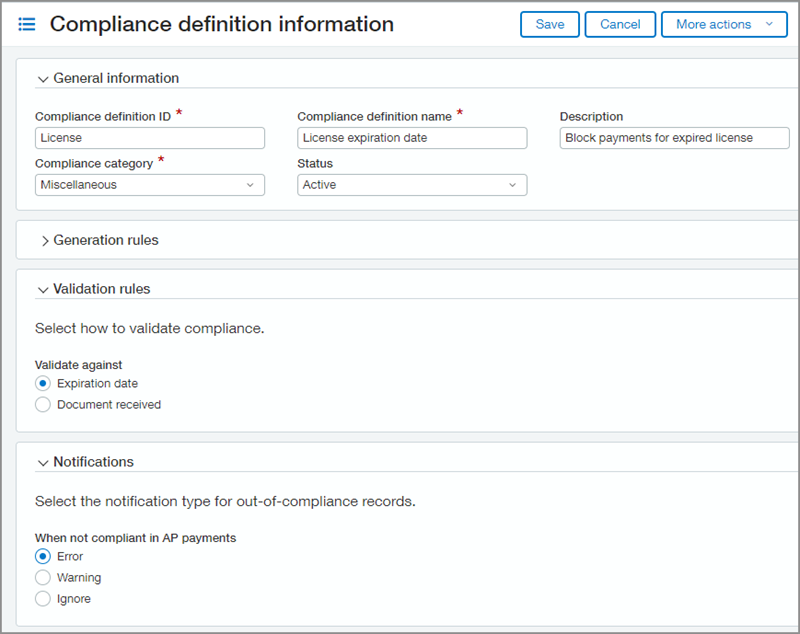
If you have multiple document types that will use the same validation rule and notification, you can use the same compliance definition for all of those document types.
Compliance types
To use a compliance definition, you must first associate it with a compliance type. A compliance type is typically a specific license or other document that you want to track for suppliers. You can associate multiple compliance types with one compliance definition.

For example, your subcontractors are required to have a business license and a specialty contractor license. You want to validate both licenses based on their expiration date. And you want to block payments to the subcontractor if either license is expired.
First, create a compliance definition that validates licenses against an expiration date and blocks payments if a license is expired.
Next, create two compliance types—one for a business license and one for a contractor license. Then associate both of those compliance types with the compliance definition.
Compliance records
After creating your compliance types, you can create compliance records for your vendors. You can add multiple compliance records for each vendor. Add one compliance record for each document that you need to track.
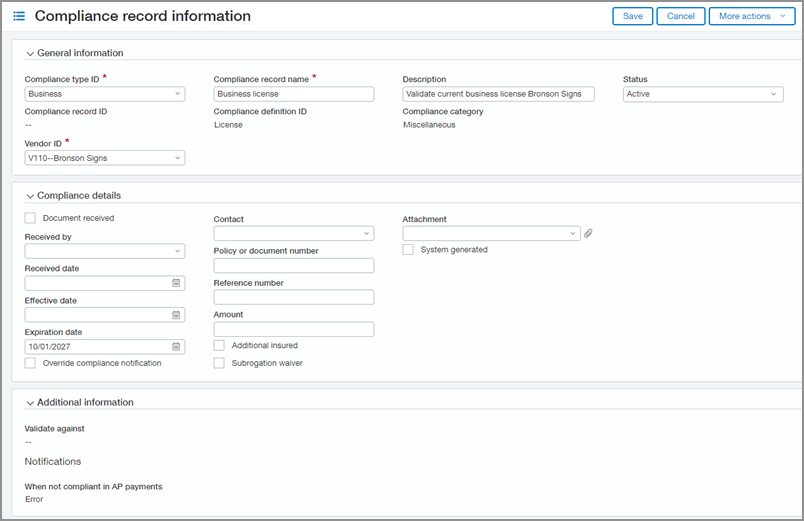
You can also import supplier compliance records. Go to Purchasing > All > Compliance records, and select Import. To learn more, see Import data.
The use of Custom fields, Smart rules, and Smart events is not yet available for Supplier compliance features.
Set up your Supplier Compliance subscription
The Supplier Compliance subscription is included with your Construction subscription, but you must turn it on it separately.
-
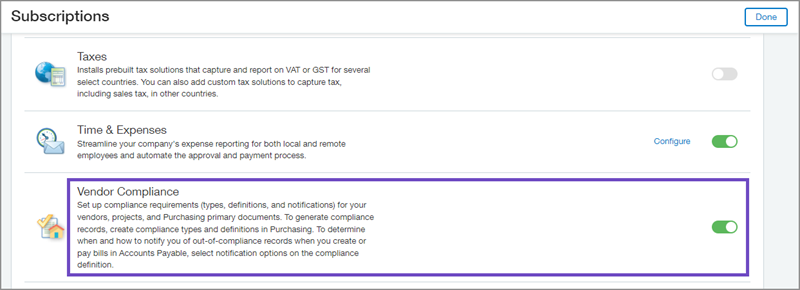
Go to Company > Admin > Subscriptions.
-
Scroll to the Supplier Compliance section and turn on the feature.
-
Select Done.
Grant permissions
Next you must grant permissions to the users who are responsible for creating compliance definitions and maintaining supplier compliance records.
The required permissions are associated with the Purchasing application:
-
Purchasing compliance setup: List, View, Add, Edit, Delete
The compliance setup permissions apply to both compliance definitions and compliance types.
-
Purchasing compliance records: List, View, Add, Edit, Delete
Set up compliance tracking
After your subscription is turned on, you can start creating compliance records if you have the appropriate permissions.
Before you begin
Take some time to plan how you are going to set up your compliance tracking.
-
Make a list of the different kinds of compliance documents that you are going to track. You'll create a compliance type for each type of document.
-
Decide how you will validate each type of document. Is it enough to receive a copy of the document, or do you need to validate against an expiration date? You'll set these rules when you create compliance definitions.
Create compliance definitions
Create at least one compliance definition. Remember that you can use one compliance definition for multiple compliance types if they use the same validation and notification type.
-
Go to Purchasing > Setup > Compliance definitions.
-
Select Add.
-
Enter a unique Compliance definition ID and Compliance definition name to identify this definition.
-
Select a Compliance category, either Insurance or Miscellaneous.
-
Under Validation rules, select an option for validating the documents.
The Document received option is available only if you selected Miscellaneous in the Compliance category field.
Insurance is always validated against an expiration date.
-
Under Notifications:
-
Select Error to block anyone from making a payment to the vendor if their document is out of compliance.
-
Select Warning to display a warning in Accounts Payable Pay bills if the vendor's document is out of compliance.
-
Select Ignore if you do not want to block payments or display a warning.
-
-
Select Save.
Create compliance types
Create a compliance type for each type of document that you need to track.
- Go to Purchasing > Setup > Compliance types.
- Select Add.
- Enter a unique Compliance type ID and Compliance type name.
- Select the compliance definition that reflects how to validate this compliance type.
-
Enter a Compliance record ID numbering sequence.
If you need to add a new numbering sequence, select the Compliance record ID numbering sequence menu and then select Add.
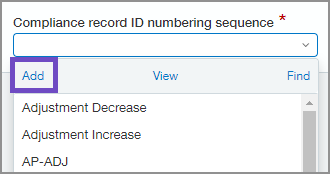
To learn more, see Document numbering sequences in the Help Center.
-
Select Save.
Create compliance records for your suppliers
Create a compliance record for each document that you need to track.
-
Go to Purchasing > All > Compliance records.
You can also enter a compliance record for by going to the Supplier compliance tab on the supplier page in Accounts Payable.
-
Select Add.
-
Select a Compliance type ID.
The compliance definition associated with the compliance type determines how the vendor's document is validated.
-
Select a Supplier ID.
-
Enter a Compliance record name to help identify this record.
-
If you're validating against an expiration date, be sure to enter the document's Expiration date under Compliance details.
-
To attach an electronic copy of the document, select the Attachment menu.
-
Complete the remaining fields.
-
Select Save.
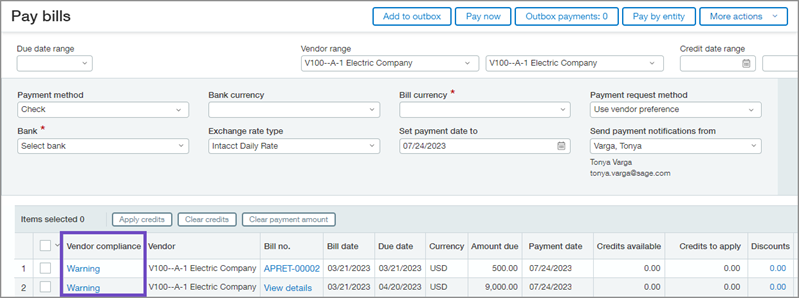
When you view the vendor's bills in Pay bills, "Error" or "Warning" appears in the Supplier compliance column if documents are missing or expired.
If you see "Error" in the Supplier compliance column, you cannot enter a payment for the vendor.
Requirements
| Subscription |
Project Costing and Billing Construction Supplier Compliance |
|---|---|
| Regional availability |
|
| User type |
Business user Project manager |
| Permissions |
Purchasing compliance setup: List, View, Add, Edit, Delete Purchasing compliance records: List, View, Add, Edit, Delete |
