projects
Project budget insight at your fingertips!
This idea came from you!
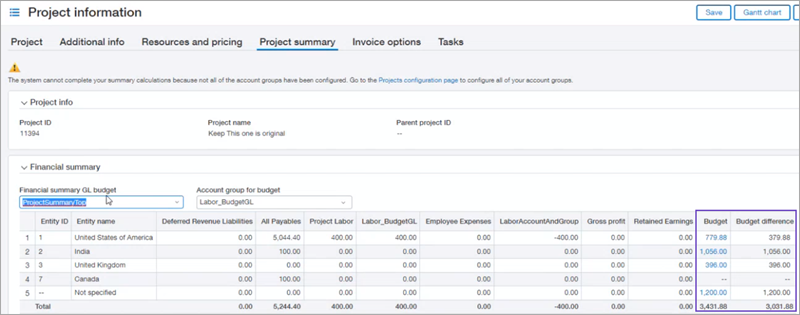
Project budget information now appears on your Project summary tab.
How it works
-
Go to Budgets > All > Budgets repository to create a budget.
-
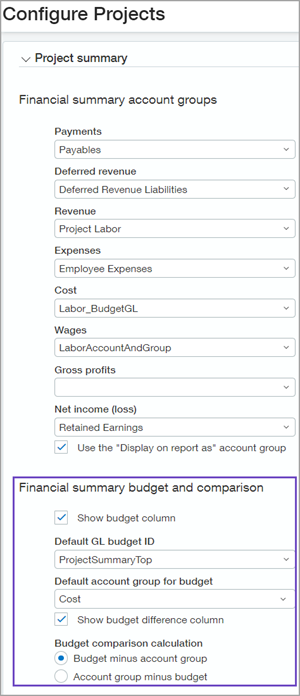
Go to Projects > Setup > Configuration > Configure Projects to configure how the budget information displays on the Project summary tab.
-
In the Project Summary, Financial summary budget and comparison section, select the Show budget column and Show budget difference column so those columns appear on the Project summary tab.
-
Select a default GL budget ID and account group for the budget and accounts to appear on the Project summary tab.
-
To select which budget comparison calculation to use, choose either Budget minus account group or Account group minus budget.
-
The new fields appear on the Project summary tab with the General Ledger (GL) budget. If more than one active GL budget exists, you can change the defaults per project.
Requirements
| Subscription |
Projects: Costing and Billing |
|---|---|
| Regional availability |
All regions |
| User type |
Business user with admin privileges Project manager |
