Time and Expenses
Time and Expenses now supports bank file payments
This idea came from you!
If you use bank files, you can now use them in Time and Expenses to pay employee expense reimbursements.
Details
Time and Expenses streamlines your company's expense reporting, approval, and reimbursement process. Employees can enter expense reports in Sage Intacct, which are then automatically routed to supervisors for approval. Supervisors receive an email notification when their employees submit an expense report.
After an expense report is approved, you can select the employee expenses to reimburse and generate the bank file.
Learn more about the Time and Expenses application.
How it works
-
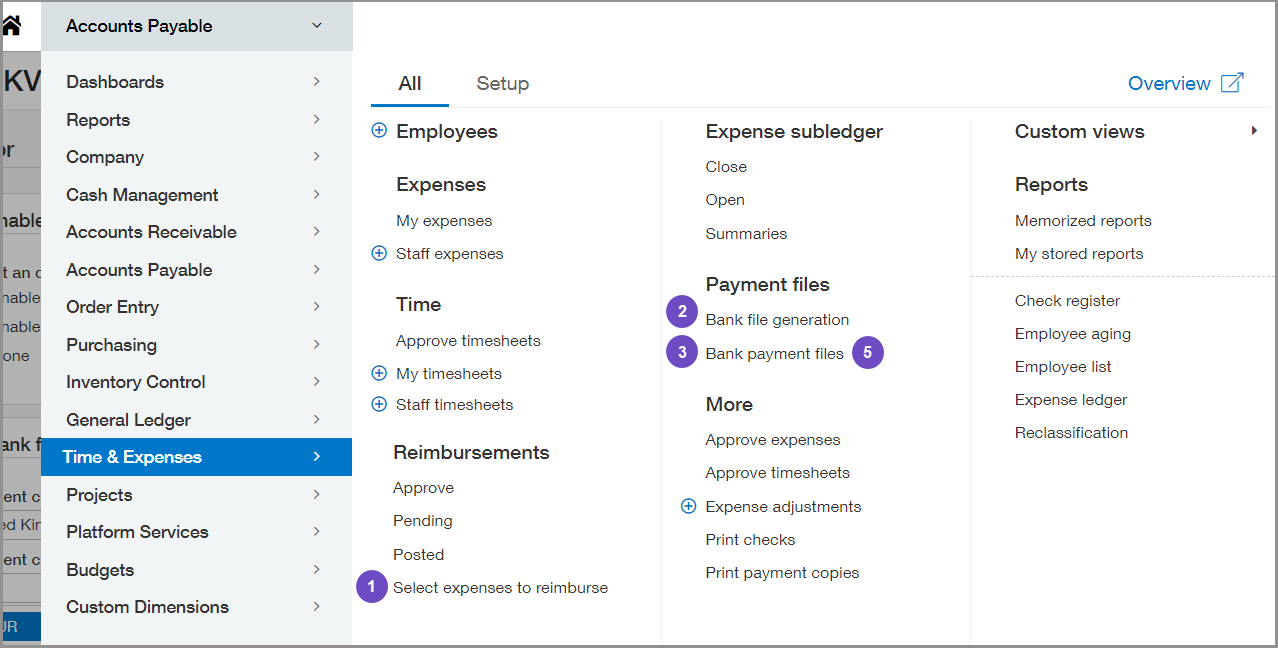
Go to Time & Expenses > All > Reimbursements > Select expenses to reimburse.
-
Choose ACH or bank file as the payment method.
-
Select Pay in full or enter the payment amount for each reimbursement.
-
Select Save.
-
-
Go to Time & Expenses > All > Bank file generation.
-
Select the bank files that include the latest expense reimbursements.
-
Select Generate.
If you don't see any files to generate, check the Bank payment files list.
-
-
Go to Time & Expenses > All > Bank payment files.
-
Select the bank files that include the latest expense reimbursements.
-
Select Download.
-
-
Upload the bank payment file to your bank portal.
-
Return to the Bank Payment Files page and confirm the uploaded bank file in Time and Expenses.
Setup
Contact your account manager or log a support case to have bank files enabled for expenses. Then, configure Time and Expenses to set up employee expense reimbursements.
-
Add employees, expense types, and expense payment types.
-
Link employees to Sage Intacct users.
This gives employees access to areas like timesheets and expense entry.
-
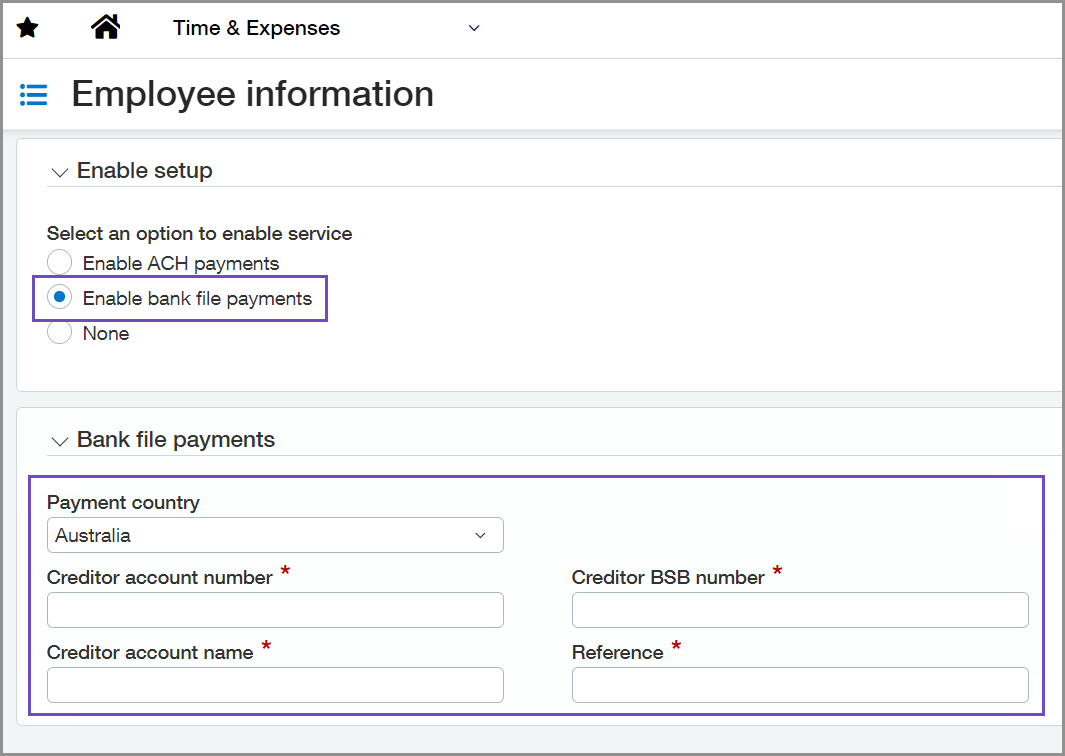
Enable employees for bank file payments and enter reimbursement information.
-
Assign the following permissions for users or roles to process bank file payments:
-
Time and Expenses > Bank file generator: Run
-
Time and Expenses > Bank files: List, View, Manage, Export, Confirm, Delete
-
Time and Expenses > Employees: Bank details
-
Requirements
| Subscription |
Time and Expenses Sage Cloud Services |
|---|---|
| Regional availability |
|
| User type | Business user with admin privileges |
| Permissions |
Bank file generator: Run Bank file payments: List, View, Manage, Export, Confirm, Delete Employees: Bank details |
| Dependencies or other requirements |
Cheque account set up for bank files. Contact your account manager or log a support case to have bank files enabled for expenses. |
