Assign an Order Entry price list to objects
Related information
 Related topics
This topic describes how to assign Order Entry price lists to objects in order to display a suggested price for an item in a sales transaction.
For multi-entity, shared companies: See your Sage Intacct administrator about whether you should create price lists and assign price lists to objects at the top level or at the entity level.
About price list evaluation
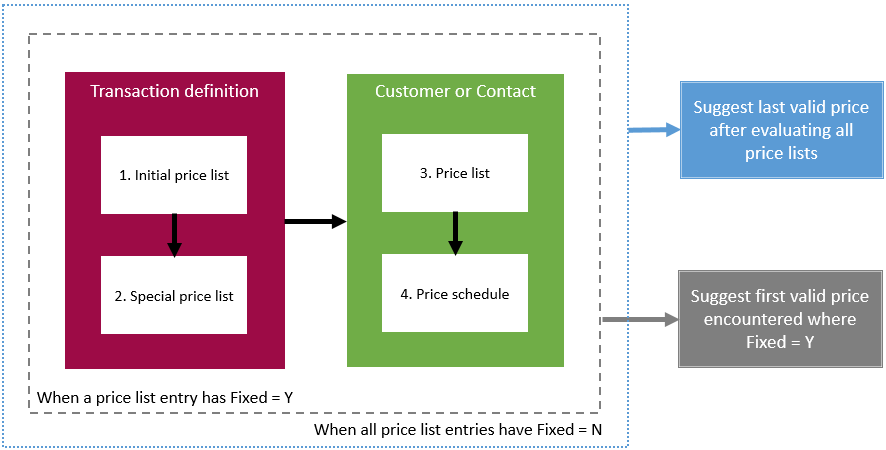
Intacct first evaluates the transaction definition for associated price lists. It looks first at the Initial price list assignment and then the Special price list assignment.
It then moves to the customer record, where it looks at the Price list override setting:
- If it is set to Customer, Intacct evaluates the customer price list and then the customer price schedule.
- If it is set to Shipping contact, Intacct evaluates the ship-to contact price list and then the ship-to contact price schedule.
- If it is set to Billing contact, Intacct evaluates the bill-to contact price list and then the bill-to contact price schedule.
If Price list override is set to a contact, the ship-to or bill-to contact that's evaluated is the ship-to or bill-to contact that's identified on the applicable sales transaction, not necessarily the ship-to or bill-to contact that's associated with the customer record.
There are two possible outcomes for the suggested price result:
-
If any price list entries have Fixed = Y, Intacct immediately stops further price list evaluation. After Intacct finds the first list entry that has Fixed = Y, it presents that price as the suggested price
-
If all price list entries have Fixed = N, Intacct evaluates all price lists in precedence order and suggests the last valid price it finds.
About price lists and Projects
A project may use project billing rates defined on the project and/or billing rates defined in a price list. Billing rates for a particular employee/item combination defined on the project in the Resources and billing tab override any billing rates defined in a price list for the same employee/item combination even when the price list entry has Fixed =Y. If there are no billing rates defined on the project, the Projects Generate Invoices engine performs the same price list evaluation process as shown above with an additional evaluation step. If the engine does not encounter any price lists on the transaction definition or on the applicable customer or contact, the system evaluates the Base price list last. If it finds an applicable billing rate in the Base price list, it will use that rate when generating an invoice for the project.
Alternatively, users can select a price list during the invoice generation process that will override any other price list assigned to a transaction definition or customer or contact. In this scenario, the system does not perform any price list evaluation and simply uses the billing rate from the price list identified in the Generate invoices page.
Assign a price list to a transaction definition
- Initial price list. This is the first price list that Intacct evaluates when determining a suggested transaction price.
- Special price list. This is the second price list that Intacct evaluates and is usually used for seasonal or other temporary price lists. Keep the Special price list field updated with different price list associations according to your business process.
| Subscription |
Order Entry |
|---|---|
| Regional availability |
All regions |
| User type |
|
| Permissions |
|
| Restrictions |
Employee, Project Manager, and Warehouse users can only List and View transaction definitions. |
To assign a price list to a transaction definition:
-
Go to Order Entry > Setup > More > Transaction definitions.
-
Find the transaction definition and select Edit.
- In the Workflow section under Pricing and terms, select a price list from the Initial price list dropdown.
- Optional. Select a different price list from the Special price list dropdown.
-
Select Save.
Assign a price list to a customer
A price list associated with a customer has precedence over a price list associated with a transaction definition, with the exception that if a price list entry in the transaction definition price list has Fixed = Y, Intacct will use the first price list entry it encounters where Fixed = Y.
| Subscription |
Order Entry |
|---|---|
| User type |
|
| Permissions |
|
| Restrictions |
|
| Notes | If you are also subscribed to Contracts or Projects, you can see customers in your menu if you have permissions to Customers in Order Entry. |
To assign a price list to a customer:
-
Go to Order Entry > All > Customers.
- Find the customer.
- Select Edit at the end of the row.
- Select the Additional information tab.
- In the Invoicing details section, select the price list from the Price list dropdown.
-
Select Save.
-
Go to Order Entry > All > Customers.
-
Find the customer and select Edit next to it.
- Select the Additional information tab.
- In the Invoicing details section, select the price list from the Price list dropdown.
-
Select Save.
Assign a price list to a contact
You can associate price lists with contacts if Customer price lists is selected in the Configure Order Entry page. However, the system won't evaluate the contact's price list unless Price list override is set to Shipping contact or Billing contact on the applicable Customer record. Selecting a contact option causes the system to ignore any price list associated with the customer and use the sales transaction's ship-to or bill-to contact's associated price list instead.
A price list associated with a contact has precedence over a price list associated with a transaction definition, with the exception that if a price list entry in the transaction definition price list has Fixed = Y, the system will use the first price list entry it encounters where Fixed = Y.
To assign a price list to a contact:
-
Go to Company > Setup > Configuration > Contacts.
- Find the required contact.
-
Select Edit at the end of the row.
- Select the Additional Information tab.
- Select the desired price list from the Price list dropdown menu.
- Select Save.
-
Go to Company > Setup > Configuration > Contacts.
- Select Edit next to the desired contact.
- Select the Additional Information tab.
- Select the desired price list from the Price list dropdown menu.
- Select Save.
Assign a price list to a price schedule
You can associate a price list with a price schedule if Price schedules is selected in the Configure Order Entry page. Then you associate the price schedule with a customer or contact. This allows you to quickly update a price list in one place for a group of applicable customers or contacts instead of having to update each individual customer or contact record.
The price schedule price list "wins" in price list evaluation precedence over transaction definition and customer or contact price lists, with the exception that if a price list entry in the transaction definition or customer/contact price list has Fixed = Y, the system will use the first price list entry it encounters where Fixed = Y.
See Price schedules for more information.
