Example Positive Pay report—CRW
Related information
 Related topics
Custom Report Writer (CRW) allows you to create a report to send to the bank for processing positive pay.
You can create Positive Pay reports when your company uses a Positive Pay system with the bank. This report is sent on a schedule based on when you process your cheques in Accounts Payable.
About Positive Pay
Positive Pay is a fraud prevention system. You send the bank a list of cheques processed by your company's Accounts Payable department for a specific time frame. The bank then honors only the cheques on the list.
By default, this report creates a flat list to send to the bank. The list includes all the cheques written for the time period, the amount, and the payee. The report can contain more information, however. The bank then compares the cheques presented with the list and accepts only checks that appear there.
Create the report
The following is an example of a completed Positive Pay report:
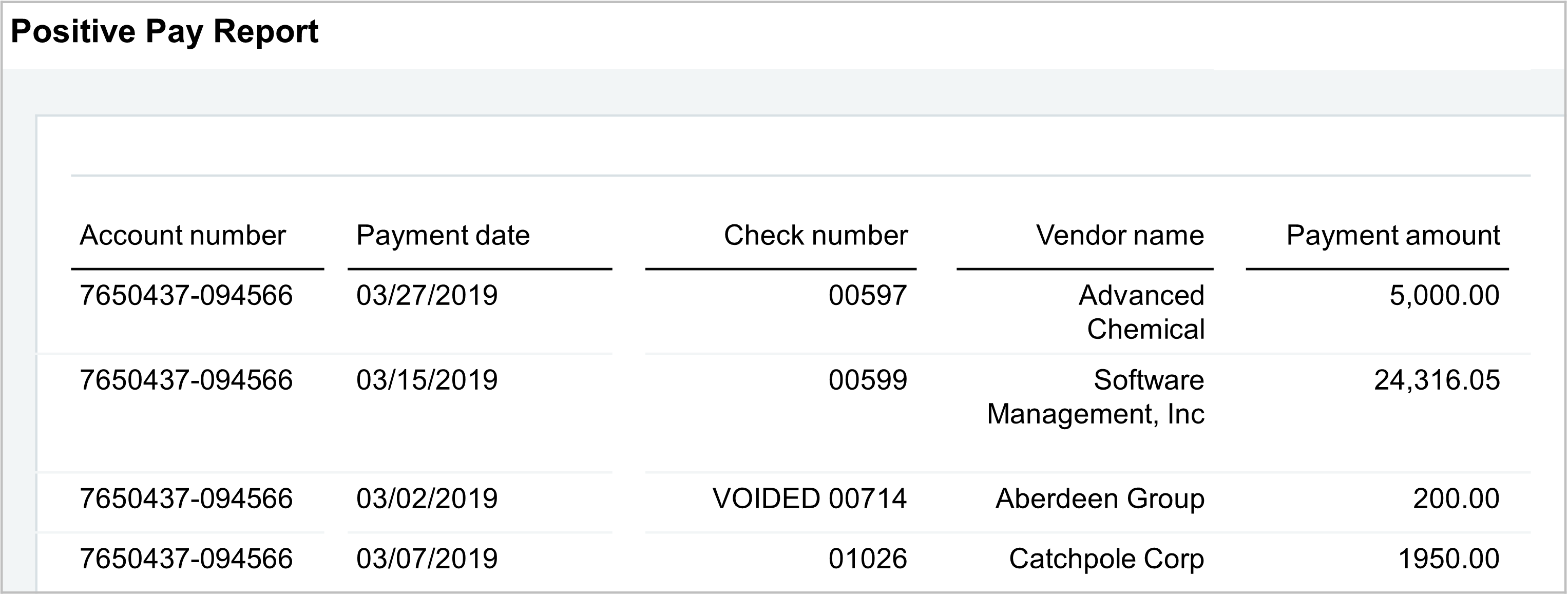
This report was created using CRW. You'll notice that in the report voided cheques are included. These checks can be removed from the report, but are often left in so the bank knows that these cheque numbers are not valid.
Open Custom Report Writer (CRW)
| Subscription | Customization Services or Platform Services |
|---|---|
| Regional availability |
All regions |
| User type | Business Business user with admin privileges |
| Permissions |
Custom reports: List, Run, View, Edit, Add, Delete Access to the data in the report |
-
Open Custom Report Writer in any of the following ways:
-
Go to Customization Services > All > Custom reports.
-
Go to Platform Services > All > Reports.
-
Go to Reports > All > Advanced > Custom reports.
-
-
Select Add to launch the Custom Report Writer Wizard (CRWZ) and begin creating a report.
Create a Positive Pay list report
- Open CRW and select Add (circle) next to Custom reports to create a new report.
- In the Select a primary data source step, choose AP Payment , and select Next. Other selections might be used, depending on how your company is set up.
- In the Add columns to the report step, add the following columns to your report, and select Next:
AP Payment columns Section Columns to add AP payment
- Payment date
- Payment amount
- Supplier name
- Document/ Cheque no
Financial Account > Bank account - Account number or Account name
- Skip the Add calculated columns step by selecting Next.
- In the Select the column sequence step, drag and drop the columns into the desired display order. Then rename the columns as needed, and select Next. Positive pay reports often use the following column order and names.
- Account number
- Payment date
- Document/ Cheque no
- Supplier name
- Payment amount
- Optionally, rename the columns to match what your bank's requirements or other logical names. For example, you might rename Document/ Cheque no to Cheque number and Payment amount to Amount. Select Next.
- Optionally, in the Add more column totals step, include a sum of the payments (Payment Amount). Not all banks require this option. To include this information for your records, select Sum here. Select Next.
- In the Sort columns step, sort the Document/ Cheque no to Ascending to ensure that the cheque numbers are in order on the report, then select Next.
- Exclude cheques without a cheque number in the following way:
- Go to Filter your report.
- Create a filter in AP payment for Columns = Document/Cheque no and the Operator is Field is not empty.
- Select Next.
- Skip Enable grouping, as no grouping is needed. Select Next.
- In the Set default date and add a title/footer step, set the reporting period or start and end date. Specify the period that you use to send the positive pay file to the bank depending on your company requirements. Using a start and end date is a best practice. You can also include a report title in this step.
- Select Next, then skip the step to include additional prompts by selecting Next again.
- In the Save and add to menu step, name your report. Optionally, add it to a menu to make it easy to find:
- Select Add to menu.
- Select Accounts Payable from the Application dropdown menu. The report is added to the Accounts Payable application.
- Select Save to save the new report or select Run Report to run the report now.
Report limitations
This report shows cheques that fall within the start and end dates of the report. The checks are listed regardless of whether the cheque has already been sent to the bank. The report does not filter for only newly created cheques. Some Marketplace partners offer solutions for creating positive pay reports. For more, see Sage Intacct Marketplace partners.
Access the report
When you add a positive pay report to an application menu, you can easily access and run the deployed report.
- Go to Accounts Payable> All > Custom reports.
- Select the name of the report, such as Positive Pay.
Export the report
You can run the report from the list of custom reports, or from the Accounts Payable application. Choose the format that you use to send your file to the bank, such as an Excel or CSV file.
- Find the report in the list of custom reports.
- Select Run and include any information for which you're prompted.
- Select the report type from the dropdown list and select OK.
- After the export is complete, download and save the exported file.
