Add and move columns in a report—ICRW
Related information
 Related topics
Columns in a report arrange the data to make it easy to interpret and analyze. You can select the columns you want to include in a report.
The information you are allowed to select and view in a report is based on your permissions and the reporting area (data source) used by the report.
| Subscription | Interactive Custom Report Writer
Platform Services |
|---|---|
| Regional availability |
All regions |
| User type | Interactive Custom Report Writer: Business, Project Manager |
| Permissions |
Interactive Custom Report Writer: Run, List, View, Add, Edit, Delete Platform Services: Run, List, View, Add, Edit, Delete
|
Adding a column to a report
-
Do one of the following:
- To create a new report: Go to Reports > All > Advanced and select Add (circle) next to Interactive Custom Reports.
- To open an existing report: Go to Reports > All > Advanced > Interactive Custom Reports.
- For a new report, select a Reporting area from the dropdown list. The reporting area is the data source on which the report is based. For existing reports, the Reporting areas panel appears on the left.
- To see the items within the reporting area, select
 (Expand), and review the type of data the column includes.
 - From the reporting area, double-click the item to include, or drag it into Columns. If you do not see the column, use Search to find it quickly.
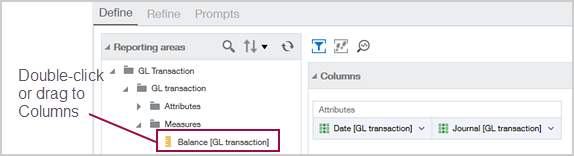
Select a wide range of data for inclusion in your report. It is better to include more information than you need at this point in creating your report. You can refine the data later.
If you add a reporting area but do not add any of the associated columns, the reporting area is removed when you close the report.
Move a column
You can easily move a column in a report, so the columns are in the desired order.
- Open the report and go to the Refine tab.
- Expand the subfolders in the Reporting areaspane and double-click a column to add it to the report.
- Go to the Define tab, expand the subfolders, and double-click a column to add it to the report.
Depending on the report, you might be able select the same column from both the Define tab or the Refine tab. - To move the column, hover the cursor over a column title and drag the tab to a new location.
For example, we moved the Custom type column to the far right.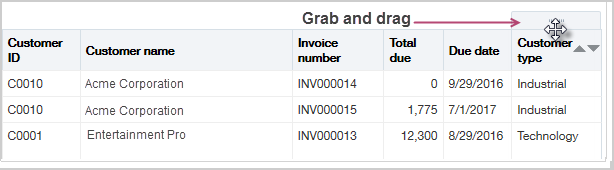
- Save your changes.
