Hide data in a report—ICRW
Related information
 Related topics
There are several ways to prevent selected columns from appearing in an Interactive Custom Report Writer (ICRW) report:
| Subscription | Interactive Custom Report Writer
Platform Services |
|---|---|
| Regional availability |
All regions |
| User type | Interactive Custom Report Writer: Business, Project Manager |
| Permissions |
Interactive Custom Report Writer: Run, List, View, Add, Edit, Delete Platform Services: Run, List, View, Add, Edit, Delete
|
Hide a column
Hiding a column doesn't affect the actual data in the table. Hidden column data is still used in calculations in the report, and can affect the output data shown in other columns.
- Open an ICRW report and go to the Refine tab.
- Select Edit view
 in the upper right of the Table area to view the table layout.
 - Scroll down to Columns and Measures and select the More options icon
 for the column you want to hide.
 - Select Hidden from the dropdown menu. The column tile is grayed out to indicate that it will not appear in the report.
Exclude a column
Excluding a column removes the column from view. However, the column data is still used in calculations, and can affect the output data shown in other columns.
You can exclude a column from a report in the following ways:
- Go to the Refine tab, right- select the column header and select Exclude column from the dropdown menu.
- Go to the Refine tab, select Edit view
 in the Table area. The table layout appears. Drag the column to the Excluded section.
Select Done to save the changes.
Use conditions to change the way data is shown
Using a condition on a column (Column properties) allows you to change the way data is displayed based on that condition.
- Open the report and go to the Define tab.
- Select
 (Options) for the column you want to hide and select Column properties from the dropdown menu.
 - Go to the Conditional Format tab and select Add condition.
- Select the column on which you want to base the condition.
- In the New Condition dialog, select an operator and enter or select the value, depending on the operator.
- For more advanced users: Select More options and include a presentation variable for the condition.
Operator definitions
| Operator | Description |
|---|---|
|
Is equal to/is in |
Displays all records in which the data in the selected column matches the entry in the Value field. |
|
Is not equal to/is not in |
Displays all records in which the data in the selected column is less than the entry in the Value field. |
|
Is less than |
Displays all records in which the data in the selected column is less than the entry in the Value field. |
|
Is greater than |
Displays all records in data in the selected column is greater than the entry in the Value field. |
|
Is less than or equal to |
Displays all records in which the data in the selected column is less than or equal to the entry in the Value field. |
|
Is greater than or equal to |
Displays all records in which the data in the selected column is greater than or equal to the entry in the Value field. |
|
Is between |
Displays all records in which the data in the selected column is between two values in the Value field. |
|
Is null |
Displays all records that have a null, or empty, field. |
|
Is not null |
Displays all records that do not have a null, or empty, field. |
|
Is in top |
Displays all records in which the data in the selected column is within in the top range of the entry in the Value field. For example, if you include 10 in the value field, only the top 10 records are shown. |
|
Is in bottom |
Displays all records in which the data in the selected column falls is in the bottom range of the entry in the Value field. For example, if you include 10 in the value field, only the bottom 10 records are shown. |
Use CSS style to hide rows and columns
You can use the Custom CSS Style Options (HTML Only) option to hide rows and columns. Set the ‘Use Custom CSS style’ to display:noneto hide rows and columns.
Hide rows
The following task demonstrates how to use conditions to hide rows in a report without filtering out the actual data. For example, you might want to hide the rows in a column for a specific year.
- Open the report and go to the Define tab.
- Select
 (Options) for the column and select Column properties from the dropdown menu.
 - Go to the Conditional Format tab and select Add condition.
- From the dropdown list, select the column with the rows you want to hide, and then select Create the condition.
- In the New Condition dialog, specify the details for the rows you want hidden, and select OK.
- If necessary, go to the Style tab, expand the Custom CSS style options (HTML only) section, and enable Use Custom CSS style (HTML only).
- Select display:none. If this doesn't appear as an option, enter it in the text field.
- Repeat for each column that has rows you want to hide.
Hide columns
The following task demonstrates how to use conditions to hide columns in a report without filtering out the actual data.
- Open the report and go to the Define tab.
- Select (Options) for the column you want to hide, then choose Column Properties from the dropdown menu.
- Expand the Custom CSS style options (HTML only) section and enable Use Custom CSS style.
- Select display:none. If this doesn't appear as an option, enter it in the field.
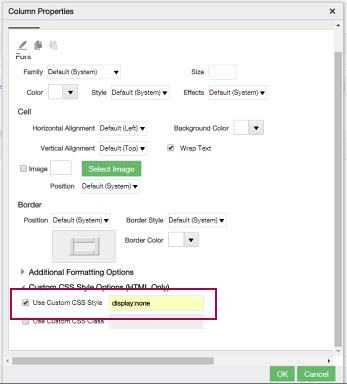
- Select OK.
- Repeat for each column you want to hide.
