Save and export a custom report—ICRW
Related information
 Related topics
When you export a report, you create a version of the report in a format that you can share with others. You might also want to save copies of reports for historical purposes outside of Intacct.
| Subscription | Interactive Custom Report Writer
Platform Services |
|---|---|
| Regional availability |
All regions |
| User type | Interactive Custom Report Writer: Business, Project Manager |
| Permissions |
Interactive Custom Report Writer: Run, List, View, Add, Edit, Delete Platform Services: Run, List, View, Add, Edit, Delete
|
Save your report
Save your Interactive Custom Report Writer (ICRW) report so that you can deploy it to an application menu. Your report was given a name when it was created. However, you can choose to save a report under a different name.
When you subscribe to ICRW, Intacct creates a folder in the Saved area with your company name. This location is where your reports are saved. However, you do not access saved reports from this folder.
- To Save a report, select
 .
. - To save a report with a different name (Save as), select
 .
.
Export a report
After you create the report, you can export the report in a variety of formats.
- Go to Reports > All > Advanced > Interactive Custom Reports.
- Locate the report in the reports list and select Run.
- After the report runs, select Export at the bottom of the window.
- From the dropdown list, select the desired output format:
- Excel
- PowerPoint
- Web Archive
- Data (CSV, Tab delimited, and XML)
- When the report export is complete, select Download the file.
- Save the exported file in the location of your choice.
- Select View to view the report output. The report appears in a window in HTML format.
To export granular data, such as getting a list of only London customers or only AR sales invoices from January through December, you export the data from reports. You can create and run reports, then export the data to a local file.
Some reports let you filter for specific data for finer granularity. When you export a filtered reports, the data shown is limited to the records you specified with the filter.
Export the report from the Edit view
- Go to Reports > All > Advanced > Interactive Custom Reports.
- Open a report for editing.
- On the Refine tab, select
 .
. - From the dropdown list, select the desired output format:
- Excel
- PowerPoint
- Web Archive
- Data (CSV, Tab delimited, and XML)
- After the report is exported:
- Select OK in the confirmation dialog.
- Make an export format selection, if not already set.
- Optionally, to save the report, specify the location.
Choose a report format
You can view and output your report in many ways. Some outputs have prerequisite steps to ensure that the output is possible.
| Format | Description |
|---|---|
|
|
When you choose this option, the report displays in an Adobe® Acrobat Printable Data Format (PDF) file. Choose this option if you want to print the report or share it in a locked format. You are unable to drill down on any fields in a printable report, however. |
|
Excel |
When you choose this option, you export the report to Excel. This format provides you with an organized accessible format for additional data analysis. You can export a maximum number of 65,000 rows to Excel.
|
|
PowerPoint |
When you choose to view your report in PowerPoint, you receive a prompt to download or open a dynamically created Microsoft® PowerPoint document. Choose a PowerPoint when incorporating the data into a text authoring document. |
|
Web Archive |
When you choose this option, you can archive report content locally. A |
|
CSV |
When you choose a Comma Separated Values (CSV) format, the report data is readily accessible for flat file databases. This format is dependent on the order of the fields. You can export a maximum number of 500,000 rows to CSV.
|
|
Tab delimited |
When you choose this format, a tab character separates the data values. |
|
XML |
When you choose Extensible Markup Language (XML) format, the file uses tags to describe the structure and features of the file. |
Output column order
The Define tab and the Refine tab in the ICRW editor both affect column formatting. The format chosen for the exported report defines the column formatting.
Export formats that use the Refine tab
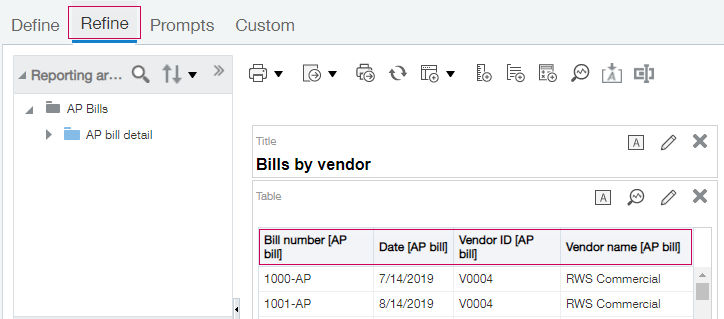
The following export formats use the data elements listed on the Refine tab, in the order in which they appear:
- Excel
- PowerPoint
- Web Archive all use
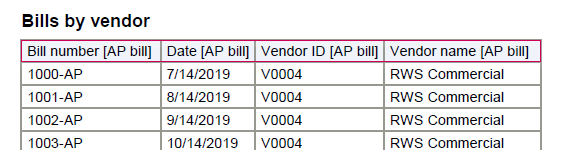
Exported PDF file:
Export formats that use the Define tab
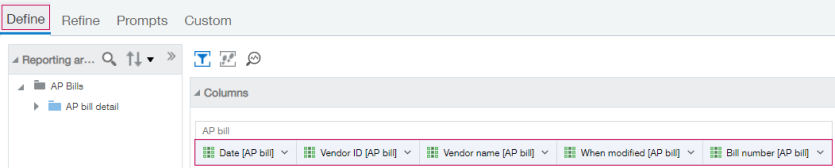
The following export formats use Data selections with data elements on the Define tab in the order in which they appear, including any excluded columns:
- CSV
- Tab-delimited
- XML
Exported CSV file

