Accounts Receivable
Receive single payments for multiple customers
This idea came from you!
Last release, we launched the Early Adopter Program to support single payments for multiple customers. This option is useful when you receive a single payment but need to apply the payment to AR sales invoices from different customers. Now, this functionality is available to everyone!
Details
There are times when you need to receive a payment but apply the payment to AR sales invoices that belong to different customers. For example, a school district submits payment for AR sales invoices that belong to different schools within that district. Or an insurance company submits a single payment for multiple patients at a facility. Set up Accounts Receivable to allow these scenarios when you receive payments.
How it works
After this feature is set up, the option to apply payments to a single customer or multiple customer accounts appears on the Receive Payment page.
Options include receiving a payment for the following:
-
One customer's AR sales invoices.
-
Parent and child customer AR sales invoices.
-
Multiple customers' AR sales invoices.
When receiving a payment for multiple customers, the Payer name field appears.
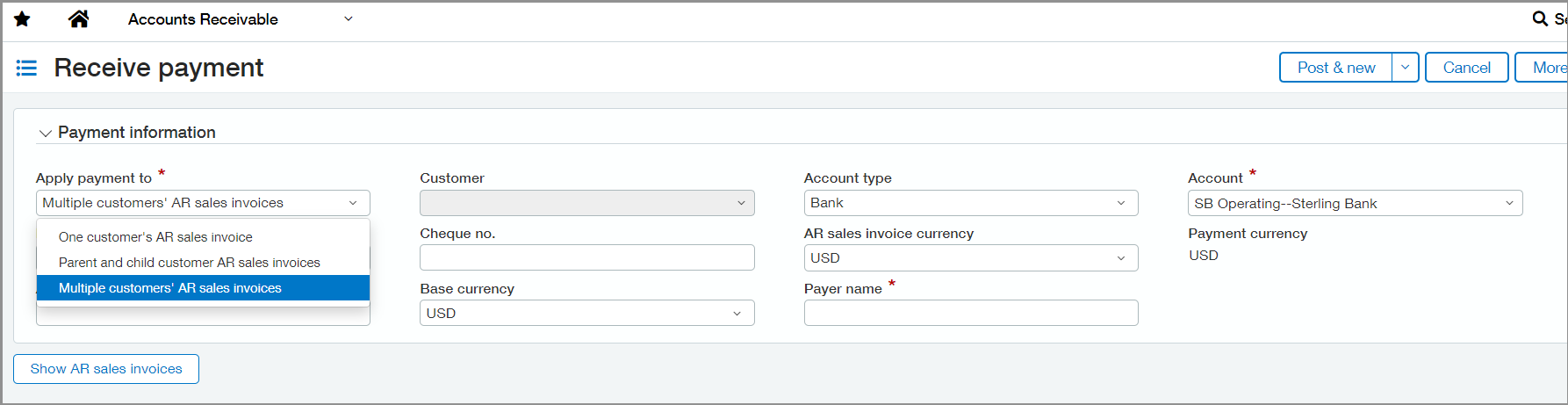
Changes to receiving payments
The Apply payment to option that you choose determines the AR sales invoices that you can select for payment. For example, when you select parent and child customer AR sales invoices, the payment is restricted to the defined customer hierarchy for AR sales invoices.
-
When you select One customer's AR sales invoices, you'll choose the customer as usual.
-
When you select Parent and child customer AR sales invoices, choose a customer. The payer name auto-populates with the parent customer for the customer that you select.
-
When you select Multiple customers' AR sales invoices, enter the payer name for the payment. You can apply the payment to any open AR sales invoices.
Changes to reporting and reconciliation
When you enable payments for multiple customers, changes happen in reporting and reconciliation on AR payments to reflect the change.
-
AR Ledger and Sales Register reports: Select the Show payer name option when you run the AR Ledger and Sales Register reports to include the payer name as a column in the report.
-
Sales Register report: Select Display payment details to include the Payment ID as a column in the report.
-
Reconciliation: When reconciling bank transactions, the payer name appears instead of the customer name when the payment is for multiple customers.
Setup
-
Go to Accounts Receivable > Setup tab > Configuration.
-
Select Enable single payments for multiple customers.
-
Select a document sequence for Payments.
-
Select Save.
Requirements
| Subscription | Accounts Receivable |
|---|---|
| Regional availability |
All regions |
| User type | Business user with admin privileges |
| Permissions | Manage Payments: List, View, Add |
| Dependencies or other requirements |
This feature is only supported on the new Receive Payments page. |
| Restrictions |
Not supported through CSV import. |
