Vendor remittance with Vendor Payments powered by CSI
Related information
 Related topics
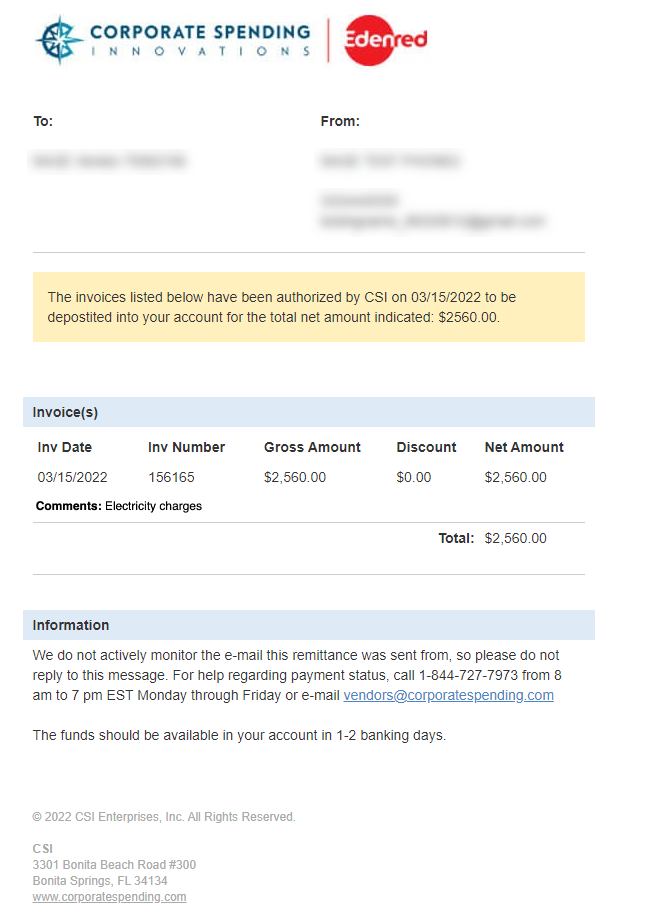
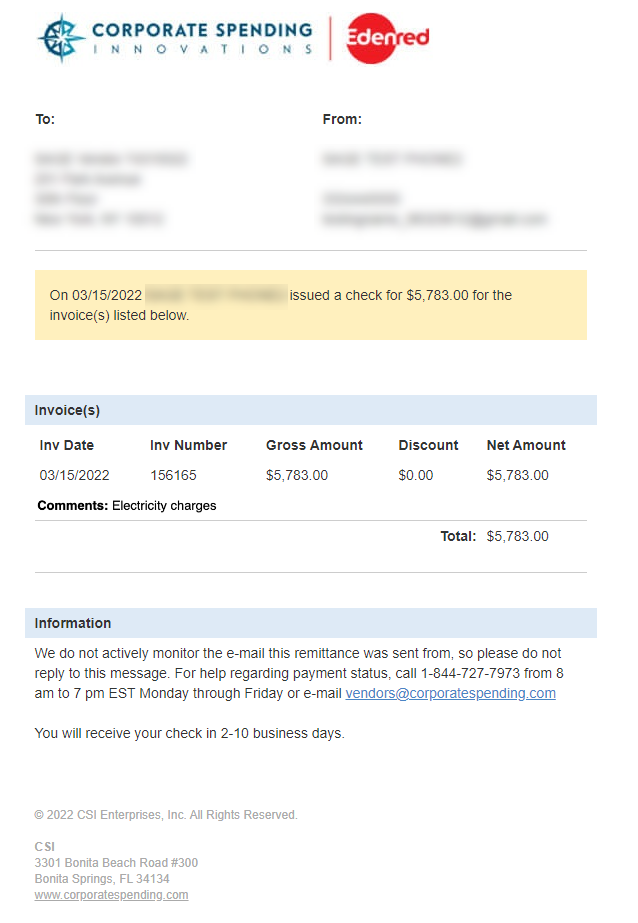
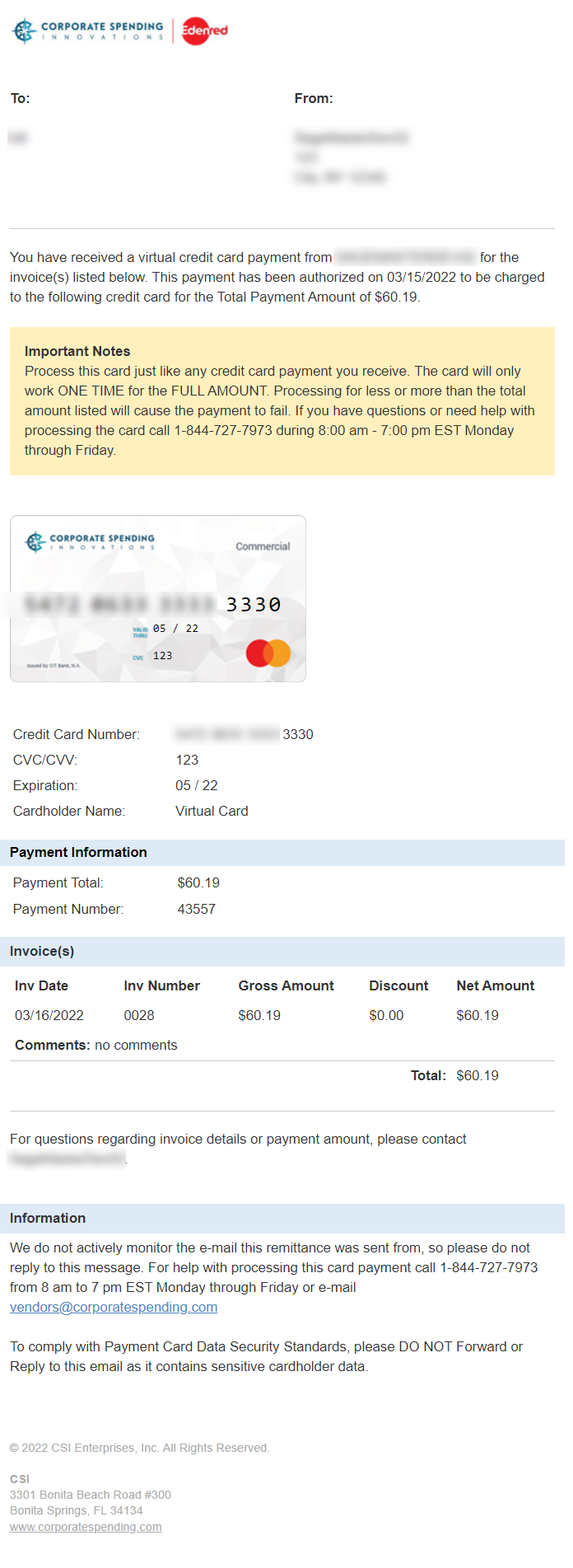
After CSI remits payment, CSI sends your vendors a remittance email that includes the payment information.
Here are examples of what vendor remittance looks like for each payment method.
Update your company email address in CSI remittances
You can change your company's email address used in vendor remittances sent from CSI.
-
Go to Cash Management > All or Setup > Accounts > Checking.
- Find the CSI-enabled account.
-
Select Edit at the end of the row.
- On the Payment providers tab, enter the Email address for remittances.
- Select Save.
-
Go to Cash Management > All or Setup > Accounts > Checking.
- Select Edit next to the CSI-enabled account.
- On the Payment providers tab, enter the Email address for remittances.
- Select Save.
Resend remittance to a single vendor
Before you resend a remittance, verify the vendor's email address to make sure it goes to the right person.
You can resend remittance for a single payment from the posted payment. Resend remittance for multiple payments from the Posted Payments list.
-
Go to Accounts Payable > All > Payments > Posted payments.
From here, you can drill down to a single posted payment or select payments from the list to resend remittance.
-
If you drilled down to a single posted payment, go to the History tab.
-
Select Resend remittance.
Resend remittance to multiple vendors
-
Go to Accounts Payable > All > Payments > Posted payments.
From here, you can drill down to a single posted payment or select payments from the list to resend remittance.
-
If you drilled down to a single posted payment, go to the History tab.
-
Select Resend remittance.
