Use Close Assistant
Related information
 Related topics
Close Assistant helps you manage standard period-close tasks for core applications by providing an overview of activity in one place. You can glance at the Close Assistant panel in Sage Copilot to see which applications are closed and which tasks require attention.
| Subscription |
Sage Intacct Close Automation |
|---|---|
| Regional availability |
All regions |
| User type |
Business |
| Permissions |
Sage Intacct Close Automation
|
| Dependencies |
You must turn on enhanced lists to use some Close Assistant features. |
You interact with Copilot using suggested prompts, which are predefined queries.
-
On any page in Sage Intacct, select the Copilot icon in the top title bar and then select Insight.
The Copilot panel opens on the right side of your browser window on top of the current Intacct page.
-
Select Run Close Assistant.
Copilot Close Assistant asks which period you're closing.
-
Select a Reporting period, and then select OK.
Copilot Close Assistant shows the close status of your applications and provides links to view related tasks.
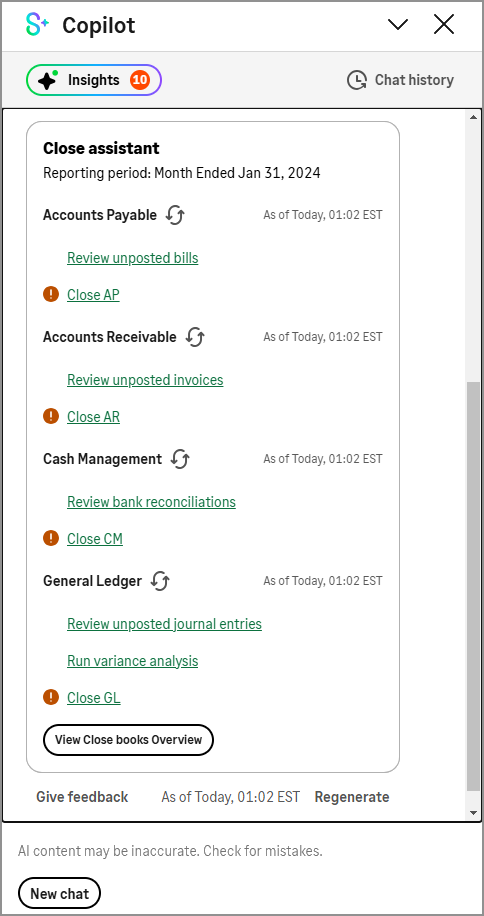
Depending on your organization's subscriptions, the following applications and related items appear on the panel:
-
Accounts Payable
-
Review unposted bills
-
Prepare AP reconciliation
-
Close AP
-
-
Accounts Receivable
-
Review unposted invoices
-
Prepare AR reconciliation
-
Close AR
-
-
Cash Management
-
Review bank reconciliations
-
Close CM
-
-
General Ledger
-
Review unposted journal entries
-
Run variance analysis
-
Close GL
-
From the panel, you can view the status of closing tasks.
-
An alert icon with an exclamation mark appears if a task is incomplete.
For example, if you have unposted invoices in Intacct, the alert icon appears next to the Review unposted invoices link under Accounts Receivable. You can select the link to view the list of invoices.
-
An icon with a checkmark appears if General Ledger or a subledger is closed for the period.
In multi-entity organizations, the Close Assistant shows an overview of all entities. For example, if Accounts Payable is closed in all entities, you'll see a checkmark. If Accounts Payable is closed in 2 of 3 entities, you'll see the alert icon.
When you're ready to close a subledger or General Ledger, select the associated Close link to open the related page. For example, select Close AP to open the Close AP subledger page.
Select the refresh buttons next to the subledger names to update the status. Alternately, you can select Regenerate to refresh all the information in the panel, but this takes longer that refreshing information for individual subledgers.
Select View Close books overview to see information for the top level, each entity, and each subledger at the entity level.
