Verify your account email address
Related information
 Related topics
Your account email address is used for password recovery, account verification, product communications, and security notifications. Verifying your email address confirms that you have access to the email in-box associated with your account.
To access your user preferences:
- Select the User menu User circle at the top of any Sage Intacct page and select My preferences.
Email verification applies to users with UI access only. The following user types are excluded:
-
Web services users
-
CRM-only users
-
Service, system, and non-interactive users
Verify your email address
You receive an alert to verify your email address when:
-
You change your account email address.
-
An administrator changes your account email address.
After your email address is changed, you will see an alert to verify your email address when you log into Intacct.

-
Select Go to email verification from the alert.
-
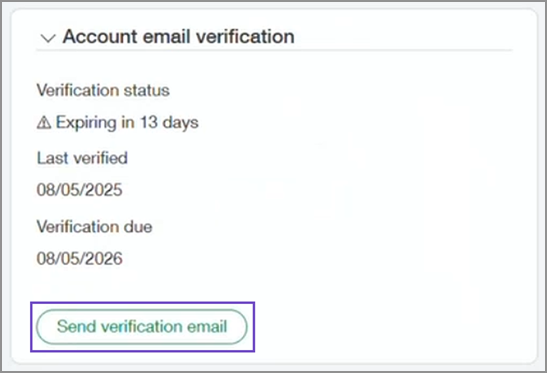
On your preferences page, go to the Account email verification section and select Send verification email.
-
Go to your email application, open the verification email sent to your email address.
-
Select the verification link in the email.
-
On the confirmation page, verify that the email address was successfully verified.
Verification links expire 24 hours after they are sent.
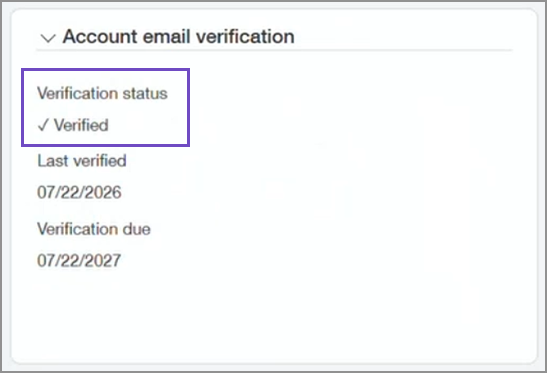
You can review your account email verification status on your preferences page:
If your verification link expires
If you do not verify your email address before the link expires:
-
The email address change is canceled.
-
Your previous email address remains active on your account.
You can request a new verification email from the Account email verification section of My preferences.
Resend a verification email
If you do not receive a verification email or your verification link has expired, you can request a new verification email.
- Select the User menuUser circle at the top of any Intacct page and select My preferences.
-
Locate the Account email verification section.
-
Select Send verification email.
A new verification email is sent to your email address.
Re-verify your email address
To help keep account information accurate and secure, email verification is renewed every 12 months.
You can re-verify your email address at any time from the Account email verification section of My preferences.
Approximately 30 days before your verification expires:
-
Dashboard reminders and in-app notifications begin to appear.
-
Reminders can be dismissed.
-
Reminders do not prevent you from signing in or using Sage Intacct.
If you do not re-verify your email address, reminders continue until verification is completed. Your access to Sage Intacct is not interrupted.
Single sign-on (SSO) users
If your company uses single sign-on (SSO), you continue to sign in using your organization's existing authentication process.
You may still receive email verification reminders and can re-verify your email address from My preferences. The verification process does not affect your SSO sign-in experience.
Multi-factor authentication (MFA)
Email verification and multi-factor authentication (MFA) are separate security features.
Verifying or re-verifying your email address does not affect your MFA configuration or sign-in process.
Account email verification fields
| Field | Description |
|---|---|
| Verification status | Informs you of how many days left you have to verify your account email address, or if your account email address has been verified. |
| Last Verified | Timestamp of the most recent successful email verification. |
| Next Verification Due | The date by which re-verification is required (12 months after Last Verified). |
