Assign a Purchasing price list to objects
Related information
 Related topics
This topic describes how to assign Purchasing price lists to objects to display a suggested price for an item in a purchasing transaction.
For multi-entity, shared companies: See your Sage Intacct administrator about whether you should create price lists and assign price lists to objects at the top level or at the entity level.
About price list evaluation
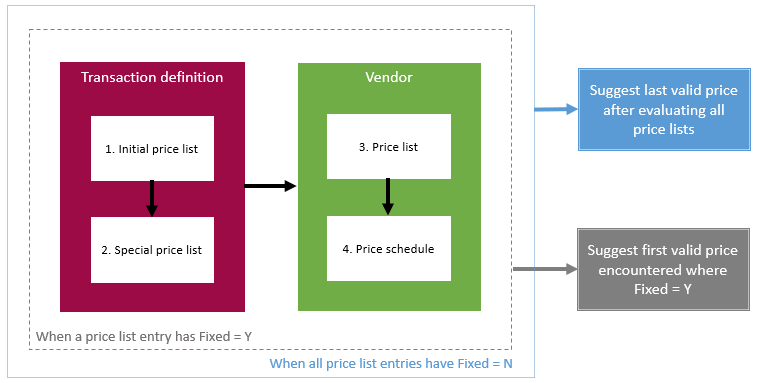
Intacct first evaluates the transaction definition for associated price lists. It looks first at the Initial price list assignment and then the Special price list assignment.
It then moves to the vendor record, where it looks first at the vendor price list assignment and then at the vendor price schedule.
There are two possible outcomes for the suggested price result:
-
If any price list entries have Fixed = Y, Intacct immediately stops further price list evaluation. After Intacct finds the first list entry that has Fixed = Y, it presents that price as the suggested price
-
If all price list entries have Fixed = N, Intacct evaluates all price lists in precedence order and suggests the last valid price it finds.
Assign a price list to a transaction definition
Most companies usually assign a purchasing price list to the applicable vendor record. However, you might want to assign a generic purchasing price list that contains purchase price estimates to a transaction definition, for example to use in purchase requisitions where a vendor has not yet been identified.
- Initial price list. This is the first price list that Intacct evaluates when determining a suggested transaction price.
- Special price list. This is the second price list that Intacct evaluates and is usually used for seasonal or other temporary price lists. Keep the Special price list field updated with different price list associations according to your business process.
| Subscription |
Purchasing |
|---|---|
| Regional availability |
All regions |
| User type |
|
| Permissions |
|
| Restrictions |
Employee, Project Manager, and Warehouse users can only List and View transaction definitions. |
To assign a price list to a transaction definition:
-
Go to Purchasing > Setup > More > Transaction definitions.
-
Find the transaction definition and select Edit.
- In the Workflow section under Pricing and terms, select a price list from the Initial price list dropdown.
- Optional. Select a different price list from the Special price list dropdown.
-
Select Save.
Assign a price list to a vendor
A price list associated with a vendor has precedence over a price list associated with a transaction definition, with the exception that if a price list entry in the transaction definition price list has Fixed = Y, Intacct will use the first price list entry it encounters where Fixed = Y.
| Subscription |
Purchasing |
|---|---|
| User type |
|
| Permissions |
|
| Restrictions |
|
To assign a price list to a vendor:
-
Go to Purchasing > All > Vendors.
- Find the vendor.
-
Select Edit at the end of the row.
- Select the Additional information tab.
- In the Billing details section, select the price list from the Vendor price list dropdown.
-
Select Save.
-
Go to Purchasing > All > Vendors.
-
Find the vendor and select Edit next to it.
- Select the Additional information tab.
- In the Billing details section, select the price list from the Vendor price list dropdown.
-
Select Save.
Assign a price list to a price schedule
You can associate a price list with a price schedule if Price schedules is selected in the Configure Purchasing page. Then you associate the price schedule with a vendor. This allows you to quickly update a price list in one place for a group of applicable vendors instead of having to update each individual vendor record.
The price schedule price list "wins" in price list evaluation precedence over transaction definition and vendor price lists, with the exception that if a price list entry in the transaction definition or vendor price list has Fixed = Y, the system will use the first price list entry it encounters where Fixed = Y.
See Price schedules for more information.
