Landed costs overview
Related information
 Related topics
Landed cost is a standard accounting term that means the total price of a product after it's arrived at your door. It includes the original purchase price of the product plus the extra expenses for acquiring the product, such as freight, insurance, customs, duties, and handling fees.
Capturing landed costs ensures that your inventory valuation and the cost of goods sold (COGS) include these extra costs and that margin calculations are accurate and comprehensive.
To use landed costs, your organization needs to be subscribed to Inventory Control and Purchasing.
About landed costs
Sage Intacct supports two types of landed costs: actual landed costs and estimated landed costs.
Actual landed costs are the known amounts of the extra acquisition expenses for which you've been invoiced after the purchase of inventory items. When you enter actual costs, they’re added to the total cost of the original purchase and the unit cost of the purchased items is updated. For example, assume you purchase 1,000 widgets for $10,000 (unit cost is $10). Three weeks later, a vendor invoices you for $1,000 in freight charges. You want the original purchase cost to include the $1,000 in freight. When you enter an actual landed cost for the freight charges and link it to the original purchase, the inventory valuation of the purchased widgets is increased to $11,000 (unit cost is $11).
Actual landed costs can arrive well after items are purchased, perhaps even months later. Estimated landed costs are the anticipated actual costs for a purchase. By entering estimates ahead of time on the purchase, the inventory valuation for the purchased items is more accurately reflected sooner and flow to the COGS when the items are sold. Later, as you receive the actual landed costs, you can link them back to the estimates. The inventory valuation and unit cost of the purchased items are automatically adjusted for any difference between an actual cost and its estimate.
Landed costs are applicable only to items with an average, FIFO, or LIFO cost method.
When landed costs is enabled, your organization is configured to use either Actual costs only or Estimates and actual costs.
How actual landed costs only works
When you’re invoiced for an actual landed cost, you enter the actual cost in a new transaction that's enabled for entering actual costs. Typically, a vendor invoice is used. In the line item for the actual cost, you select the original purchase to link the actual cost to and specify how the amount of the cost is to be proportionately distributed to the inventory items in the original purchase. You can distribute the cost by count, value, volume, or weight. For example, you might enter an actual cost for $1,000 in freight to be distributed by weight.
When you post the transaction, the original purchase transaction isn’t changed. Instead, Sage Intacct immediately creates an underlying inventory adjustment transaction for each actual cost you enter. The adjustment transaction increases the value of the inventory items in the original purchase by the amount of the actual cost back to the original purchase date.
The GL posting date of the inventory adjustment transaction is the date of the original purchase transaction unless the original purchase transaction is in a closed fiscal period. When the original purchase transaction is in a closed period, the GL posting date of the inventory adjustment transaction is the first day of the current open period.
Example 1. Actual landed cost invoiced in same period as original purchase
On June 1, you purchase 1,000 widgets for $10,000. On June 20, you're invoiced for an actual landed cost for $1,000 in freight.
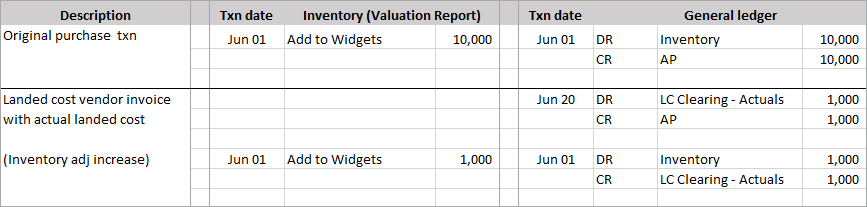
- The inventory subledger is increased based on the original purchase date of Jun-01.
- The date of the system-generated inventory adjustment transaction for the actual landed cost is the date of the original purchase transaction (Jun-01) because the original purchase is still in an open period.
Example 2. Actual landed cost invoiced in a period following the original purchase
On June 1, you purchase 1,000 widgets for $10,000. On August 20, you're invoiced for an actual landed cost for $1,000 in freight. The original purchase is in a closed period.
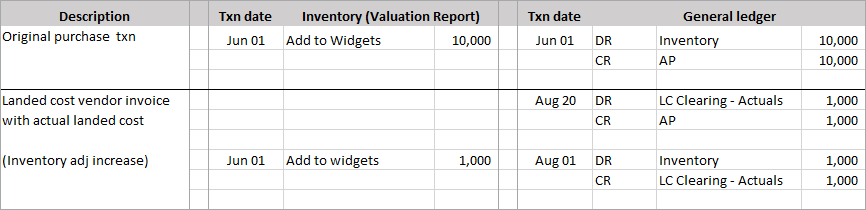
- The inventory subledger is increased based on the original purchase date of Jun-01.
- The date of the system-generated inventory adjustment transaction for the actual landed cost is the date of the first day in the current open period (Aug-01) because the original purchase is in a closed period. (Both June and July are in closed periods.)
Learn about entering actual landed costs.
How estimated and actual landed costs work together
Using estimated and actual landed costs is a two-step process:
- You enter estimates of the anticipated landed costs on the original purchase of the inventory items.
- When you’re invoiced for the actual landed costs, you create a new transaction to enter the actual costs and link them back to the estimates on the original purchase.
When you purchase inventory items using a transaction enabled for estimated landed costs, the purchase transaction includes an Estimated landed costs section. You can enter an estimate for each anticipated landed cost and specify how the estimated cost is to be proportionately distributed to the inventory items in the purchase: by count, value, volume, or weight. For example, you might estimate that your landed costs will be $800 in freight (to be distributed by weight) and $400 in insurance (to be distributed by value).
When you post the purchase transaction, Sage Intacct immediately creates an underlying inventory adjustment transaction for each estimate. The adjustment transaction increases the value of the purchased items by the amount of the estimated cost.
When you’re invoiced for the actual landed costs you estimated, you enter the actual cost in a new transaction that's enabled for entering actual landed costs and match it to the estimate in the original purchase. When you post the transaction, the original purchase transaction isn’t changed. Instead, Sage Intacct immediately creates 2 inventory adjustment transactions for each actual cost:
- An inventory adjustment increase that adds the actual cost to the value of the items in the purchase back to the original purchase date. The actual cost added is based on how the matched estimated cost was proportionately distributed to the items.
- An inventory adjustment decrease that removes the estimated cost from the value of the items in the purchase back to the original purchase date.
The GL posting date of the inventory adjustment transactions is the date of the original purchase transaction unless the original purchase transaction is in a closed fiscal period. When the original purchase transaction is in a closed period, the GL posting date of the inventory adjustment transactions is the first day of the current open period.
Example 1. Actual landed cost invoiced in same period as original purchase with estimate
On June 1, you purchase 1,000 widgets for $10,000 and include an estimated landed cost of $800 in freight. On June 20, you’re invoiced for an actual landed cost of $1,000 in freight.
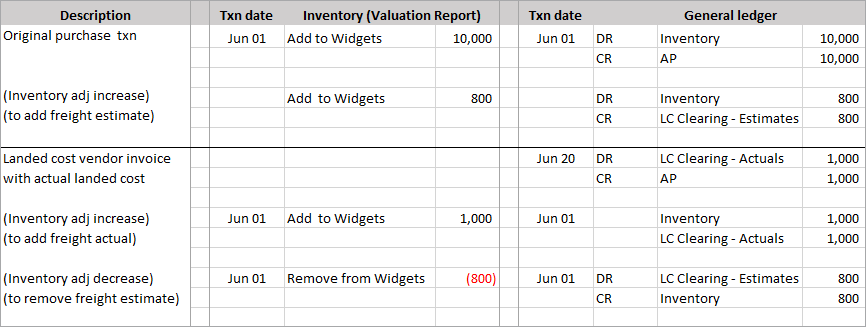
- The inventory subledger is increased based on the original purchase date of Jun-01.
- The date of the system-generated inventory adjustment transactions to add the actual landed cost and remove the estimated cost is the date of the original purchase transaction (Jun-01) because the original purchase is still in an open period.
Example 2. Actual landed cost invoiced in a period following the original purchase with estimate
On June 1, you purchase 1,000 widgets for $10,000 and include an estimated landed cost of $800 in freight. On August 20, you're invoiced for an actual landed cost of $1,000 in freight.
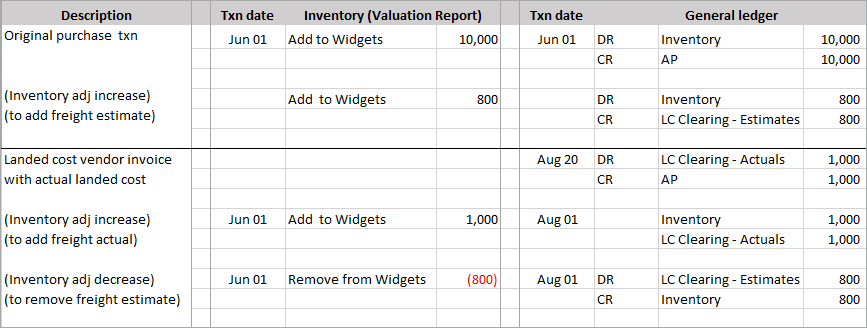
- The inventory subledger is increased based on the original purchase date of Jun-01.
- The date of the system-generated inventory adjustment transactions to add the actual landed cost and remove the estimated cost is the date of the first day in the current open period (Aug-01), because the original purchase is in a closed period. (Both June and July are in closed periods.)
When you enter an actual landed cost and do not match the actual to an estimate, it's the same as if you were using actual landed costs only. You select the original purchase to link the actual cost to and specify how the amount of the cost is to be proportionately distributed to the inventory items in the original purchase.
Learn about entering estimated landed costs and actual landed costs.
Basic requirements for landed costs
To use landed costs, your organization must be subscribed to Inventory Control and Purchasing. In addition, the following table summarizes the other basic requirements for enabling the use of Actual costs only or Estimates and actuals.
| Requirement | Actual costs only | Estimates and actuals |
|---|---|---|
| General ledger accounts |
A clearing account the system uses to balance the journal entries for entering the actuals. The account is specified in the GL posting configuration for the system-generated transaction definition SYS-LC Actuals Adj Incr. |
A clearing account the system uses to balance the journal entries for entering and removing estimates. The account is specified in the GL posting configuration for the system-generated transaction definitions SYS-LC Estimates Adj Incr and SYS-LC Estimates Rev Adj Decr. A clearing account the system uses to balance the journal entries for entering the actuals. The account is specified in the GL posting configuration for the system-generated transaction definition SYS-LC Actuals Adj Incr. |
| Purchasing transaction definitions |
A transaction definition to create the transactions to enter the actuals. The TD must post to Accounts Payable or the General Ledger. The TD is typically for a vendor invoice. The transaction definition needs to be enabled for entering actuals in the Configure Inventory Control page. |
A transaction definition to create the purchasing transactions to enter estimates on the purchase of inventory items. The TD must:
A transaction definition to create the transactions to enter the actuals. The TD must post to Accounts Payable or the General Ledger. The same transaction definition cannot be used to enter estimates on the original purchase of items and to enter actual landed costs in a landed cost vendor invoice. Each transaction definition needs to be enabled for entering estimates or actuals in the Configure Inventory Control page. |
| Inventory Control configuration |
Enabled for Actual costs only with at least one transaction definition selected for entering actual landed costs. |
Enabled for Estimates and actuals with at least one transaction definition selected for entering estimated landed costs and a different transaction definition selected for entering actual landed costs. |
| Inventory items |
Enabled for landed costs. Landed costs are only distributed to average, FIFO, and LIFO items that are enabled for landed costs. |
|
| Landed cost items |
Non-inventory items for entering the actual costs (such as freight, insurance, and so on) that are enabled for landed costs. |
|
| Landed cost categories |
Specify how landed costs are to be proportionately distributed across the applicable inventory items in the source transaction: by count, value, volume, or weight. The category is selected when entering costs. |
|
For more detailed information, see setting up landed costs.
How to maintain comprehensive COGS
The value of the purchased items determines the COGS that are recorded when the items are sold. It's common to enter actual landed costs for purchased items that have already been sold. Follow these practices to maintain comprehensive and accurate COGS when using landed costs:
- Run maintain inventory valuation on a regular basis, which is a recommended best practice for keeping your inventory costing up to date. Sage Intacct updates the subledger with any transactions or adjustments that impact valuation and, if the sale of an item is in an open period, also updates the COGS entry in the GL. If the sale of an item is in a closed period, the GL COGS entry can’t be updated, and a variance is left between the GL and the inventory subledger.
Learn about maintain inventory valuation.
- Adjust the COGS in the GL. Use the COGS adjustments in prior periods feature to resolve the variances that might be left between the GL and inventory subledger when maintain inventory valuation is run. This feature automatically identifies the GL COGS entries that need to be created and posted.
Learn about COGS adjustments for prior periods.
