Select a primary data source—CRW
Related information
 Related topics
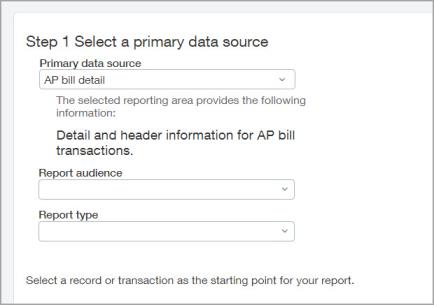
Wizard Step 1. Select a primary data source
The first step in creating a custom report with the Custom Report Writer Wizard is to select a primary data source. A data source comprises records and transactions with properties tailored for a specific type of report.
The Custom Report Writer Wizard (CRWZ) dropdown list includes the available areas for your company. You can customize the details of the report as you complete the Wizard steps.
- For additional information on data, see Object glossary for custom reports.
-
For information on terms that may differ in your location, see Terminology across locales.
Data source basics
A record is a piece of information in your company. The records available for selection are based on your user permissions. You cannot select a record that you do not have permission to access.
When you select a record, other related information is available for inclusion in your report. You might select Customer as your primary data source. Then you can include column information from the Contact, Parent Customer, or Customer Type records.
To include amounts (or other data) from a transaction, select a Transaction detail as your primary data source, such as Invoice Details. Selecting a transaction detail allows you to access transaction amounts. You can use CRW to add calculated columns later in the process.
For example, to list all invoices with line items over $10,000, you would start by choosing the data source Invoice Detail. Your report can include columns of information from Invoice Details, and related data.
In addition to selecting a primary data source, you can assign a Report type, a Report audience, or both. Assigning a report type and report audience helps when filtering lists of reports.
To help you select the right option, each selection includes a brief description of the record or transaction at the right of the selection. For more information, see the Object glossary for custom reports.
| Go to... | ...to change |
|---|---|
|
Select data source |
The primary data source from which the report data is derived. |
|
Add columns |
The columns included in the report. Add or remove columns from the primary and related data objects. Expand the object fields by selecting the show/hide icon ( ) ) |
|
Add calculated columns |
Columns that contain calculations. Remove existing calculation columns or use the Formula editor to add or edit existing ones. |
|
Select column sequence |
The order of the columns as you want them to appear in your report, or change the header name as it appears there. |
|
Add more totals |
Include additional totals included in the report. Numeric fields can include Count, Sum, Average, Std deviation, Variance, Largest, and Smallest, while text fields are limited to Count. |
|
Sort columns |
Set the sort order of the columns, such as ascending or descending order. |
|
Filter report |
Add a filter for some or all of the columns on the report, using operators such as equals, is less than, or contains. Filters are additive. When you create multiple filters, the data that matches all of the filters is included in the report. |
|
Enable grouping |
Enable grouping allows for totals in groups, such as customer and the grand total. |
|
Group data |
If you opt to enable grouping, select up to 3 columns to use to group data. For example, group invoice detail by customer or invoice by due date |
|
Order groups |
If you created grouping, you can set the order in which they appear on the report. Sort by ascending or descending order. |
|
Set report date and add a title |
Set or change the date range or reporting period, location, or department s to include. Optionally, you can add a title and footer for the report. |
|
Define chart output |
Many types of reports allow you to create chart outputs from the report data. Set the configuration for the chart with this option. |
|
Include additional prompts |
Define any desired runtime prompts. Your selection is based on the data in your report. Runtime prompts provide greater flexibility. For example, you can make the State a runtime prompt so that each user running the report can select a different state. |
|
Label and organize prompts |
If the report is memorized you can provide a label and group for the prompts, and enable or disable the prompt. |
|
Save and add to menu |
Save your report. Optionally, you can add it to an application menu |
Choose a primary data source
| Subscription | Customization Services or Platform Services |
|---|---|
| Regional availability |
All regions |
| User type | Business or Admin |
| Permissions | Custom reports: List, View, Edit, Add, Delete |
You select a primary data source as the first step in the Wizard when creating a custom report. To change the data source of an existing CRW report, see Add or edit a custom report.
- Go to Reports > All > Advanced and select Add (circle) next to Custom reports.
You can also access the custom report writer from the Platform Services or Customization Services menu. - Under Step 1: Select a primary data source, choose a primary data source from the dropdown menu.
- Select a Report audience and Report type from the respective dropdown menus.
For more information, see Report properties. - Select Next to Wizard Step 2. Add columns to the report.
Wizard steps reference
The typical steps for creating a report with the Wizard are as follows:
- Select a primary data source.
- Add columns to the report.
- Add calculated columns.
- Specify the column order.
- Add column totals.
- Sort columns.
- Filter the report.
- Enable grouping.
- Group columns.
- Set report period and title.
- Define chart output.
- Include runtime prompts.
- Save and add the report to a menu or dashboard.
