Apply a computation—Financial Report Writer
Related information
 Related topics
The Computations tab appears only for reports that display accounts on rows, rather than dimensions. However, all types of financial reports provide the option to add a summary column that computes a value from other columns, such as computing the average across a set of columns.
The order in which the tabs appear in the Financial Report Writer can’t be changed.
| Subscription |
General Ledger |
|---|---|
| Regional availability |
All regions |
| User type | Business |
| Permissions |
Reports: List, View, Add, Edit |
The Computations tab displays your account groups along the left side. This gives you the option to apply different calculations to the different account groups.
After you complete the calculation, you can apply it to a column in the report.
Open the report for editing or use the Financial Report Writer to create a new one.
-
Use the Column type to select the type of value you want to appear in each column.
-
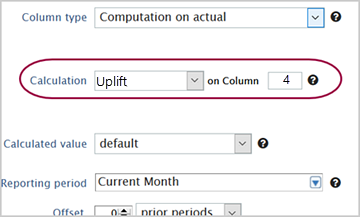
If you select a computation type column, create the computation from the Computations tab in order to select the computation. Select the computation and define which column the computation is applied to.
-
Choose a Reporting period and optional offset for each column.
-
Enter column headings and a title. This is what appears in the report.
- (Optionally) Show dimension structure data in the column.
For example, you might want to split a single column into multiple columns by location, department, or another dimension. For more targeted analysis, columns can be organized and segmented according to how you want to look at your dimensions, such as by customer type, product line, and more.
-
(If required) Select an account group for any actual or budget columns.
Selecting an account group is required only for reports that feature dimension structures on rows, with account groups on columns.
-
Set the reporting book to use.
Suppose that you want to create an Income & Expense report. Using the example expense report, you might decide that Computation 1 should apply a different calculation to income than to expenses.
- For income account groups, you might divide income by headcount.
- For expense account groups, you might divide expenses by total expenses to get the percentage spent on each type of expense.
| For the entire table... | divide each amount... | by the total for the account group named Expenses. |
|---|---|---|
| Account group | Operation | Variable value |
| All groups | Divide | Expenses |
Next step: Define the computation
