Create a Financial ratios report (YTD)
Related information
 Related topics
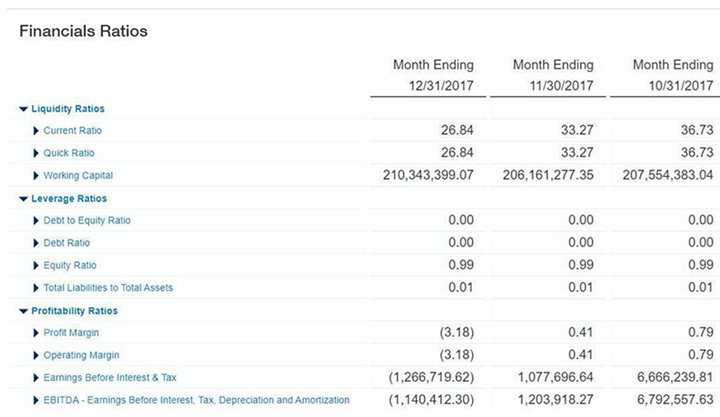
If your company was created using either the General or the Services QuickStart template, one of the reports that you can install from the Financial Reports Library is the Financial ratios report. Install and duplicate this report. If necessary, you can customize it to suit business or reporting needs.
Install the Financial Ratios report from the library
Locate the Financial Ratios report to base your report on and install it. Determine your selection by your desired output.
-
Go to General Ledger > All > Financial reporting > Financial reports.
- From the Create dropdown button, select Create from library.
- Optionally select Layout to see what the report contains.
- Select Install next to a report that you want to install.
- Optionally, change the Report name to the report name you want to appear in your company.
- Select Save.
- When you're finished, select Done to return to the reports library. The installed reports appear in your Financial reports list.
-
Go to General Ledger > All > Financial reporting > Financial reports.
- Select QuickStart library on the upper right of the page.
- Optionally select Layout to see what the report contains.
- Select Install next to a report that you want to install.
- Optionally, change the Report name to the report name you want to appear in your company.
- Select Save.
- When you're finished, select Done to return to the reports library. The installed reports appear in your Financial reports list.
Customize the report
- Go back to the main Financial Reports list and select Edit for your newly installed report.
- If the account group selected during the installation needs to be changed, tab to Rows and select Select account groups. Make any changes or additions needed. There's an existing account group for the Financial ratios report that was created by the template.
- Hover over any unwanted account group and select Remove to remove it from the report.
- Select the Filters and/or Format tabs to make any filtering or formatting adjustments to the report.
- If required, specify the location.
- Select Preview and select Live report (HTML) to review the report output.
- Select Save.
EBIDTA is a metric that’s delivered out-of-the-box for the General and the Services QuickStart templates. There's an account group for it and then it's visible in the Dashboard as a performance card and in the Financial Ratios report. You can drill down to see details.
*Earnings Before Interest, Taxes, Depreciation, and Amortization
