Combine reporting areas—ICRW
Related information
 Related topics
You can report across workflows and business processes by combining columns from one or more Reporting areas.
You can combine columns from one or more reporting areas in a report using operations, such as Union or Intersect. Combining reporting areas this way allows you to create a column that shows the information in a different way.
| Subscription | Interactive Custom Report Writer
Platform Services |
|---|---|
| Regional availability |
All regions |
| User type | Interactive Custom Report Writer: Business, Project Manager |
| Permissions |
Interactive Custom Report Writer: Run, List, View, Add, Edit, Delete Platform Services: Run, List, View, Add, Edit, Delete
|
Prerequisites
Ensure that you meet the following prerequisites for combining columns:
- Combine columns that have the same data type and the same number of columns. The number of rows for each column can differ, however.
- Select columns from the same Reporting area or from a different reporting area with at least one item in common.
- Specify one operation for combined columns. For example, if you create criteria from the Projects Reporting area, you can apply only one operation to those columns. You cannot apply different operations to different columns in the report.
Limitations
Combining columns in Interactive Custom Report Writer has the following limitations:
- You are not allowed to combine hierarchy columns, selection steps, or groups.
- You are allowed to add prompts with standard time dimensions. However, other prompts are not supported when combining columns.
Combine columns from one or more reporting areas
- Open Interactive Custom Report Writer, create a report, and include the appropriate columns.
- Go to the Define tab, then in the Columns pane, select the Combine columns icon (
 ) to open the Select reporting area dialog box.
 - Select the reporting area that contains the columns to combine with the previously included columns.
Boxes bordered with dotted lines appear. These boxes let you know what kind of column you can combine with the columns already included in the report. When you combine measure columns, no arithmetic operations are performed.
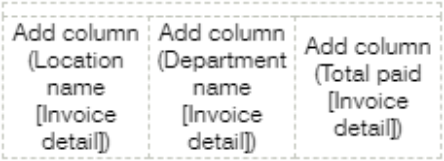
- In the Reporting area pane, select the columns to combine with the originally selected columns.
The boxes that previously had dotted line borders now hold the columns that you selected. You have now specified the columns to combine.
- Select the dropdown menu under Preview columns and select the operation type to use for combining the columns.
For example, select the Union All type. The resulting columns are displayed in views after applying the operation of the derived columns.
The following table describes the operations:
Options for combining columns Operation Description Union Returns only non-duplicate rows from all columns. Union All Returns rows from all columns, including duplicate rows. Intersect Returns only common rows to all columns. Minus Returns only rows from the first column that is not in the second column. - Select Preview columns.
The Selected Columns pane updates, displaying the newly combined columns that you created.
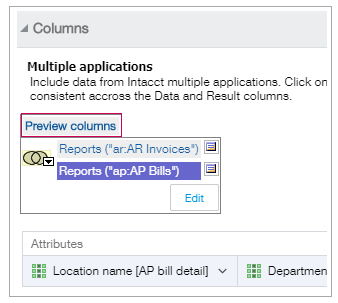
You work with these columns as you do other columns in this pane.
Examples of combining columns from one or more reporting areas
The following scenarios show some examples of combining columns to present specific results.
You can combine two columns from a single reporting area, giving you additional data sets to provide better insight.
For example, an Accounts Receivable Reporting area could contain one set of records for Location and another for Department. You can combine these two columns, creating a third column called Department and Location. By creating a union of the two using the Union All function, the new column shows the values from both columns combined.
You can create a report to view both the expenses and revenue for each department and location. The expense amount is in the Accounts Payable Bills Reporting area, while the revenue amount is in the Accounts Receivable Invoices Reporting area.
The following task demonstrates how to combine both the expenses and revenue in one report.
- Create a new report, using
- Add the following columns from the
- Location name (found in the Attributes folder)
- Department name (found in the Attributes folder)
- Total paid (found in the Measures folder)
- In the Columns pane of the Define tab, select the Combine columns icon (
 ) to open the Select Reporting area dialog box.
 - In the Select reporting area dialog, select
- From the dropdown menu, select Union all.
-
- Location name (found in the Attributes folder)
- Department name (found in the Attributes folder)
- Total paid (found in the Measures folder)
- Select Preview columns.
- On the Refine tab, you can see the results of the combined expense and revenue report. The numbers in the combined columns might not make sense. You can customize the column displays. You can also add subtotals to the combined columns, as in this example:
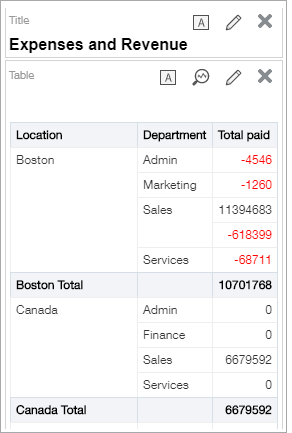
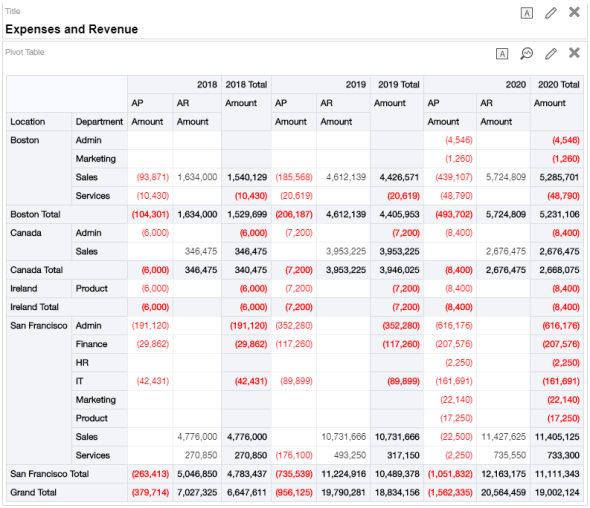
The following example demonstrates how to add additional attributes and use a pivot table view to refine and enhance your "Expenses and Revenue" report.
-
- From the AR Invoices > Invoice detail > Attributes folder, add the AR account attribute.
- On the Define tab, select the
 (Options) to the right of the new AR account column. Then select Edit formula to open the Edit Column Formula dialog box.
 - In the Calculation tab, replace everything in the Calculation box with
'AR'. - Edit the AP account column so that the Calculation is
'AP'.
- Select Preview columns.
- On the Refine tab, the new column shows the amounts that correspond to AP and AR.
- Add a date column to break down your data per year.
- On the Define tab, select the (Options) to the right of the new When Created column and select Edit formula to open the Edit Column Formula dialog box.
- In the Calculation tab, edit the Calculation so that it displays the year the invoice was created:
year("Invoice"."WHENCREATED") - On the Define tab, select the (Options) to the right of the new Date column and select Edit formula to open the Edit Column Formula dialog box.
- In the Calculation tab, edit the Calculation so that it displays the year the bill was created:
year("AP bill"."WHENCREATED")
- Use a pivot table to rearrange the data and show groupings and subtotals.
Difference between combining columns and adding columns from related reporting areas
There are critical differences between combining columns and adding columns. Combining columns provides different results than adding columns from related reporting areas:
- When you combine columns, the report shows a single, newly combined column.
- When you add columns from related reporting areas, the report shows each added column individually. With the appropriate permissions, you can create a report by selecting one column from one reporting area and a second column from a related reporting area.
