Create a new ICRW report
Related information
 Related topics
This topic shows you how to create new Interactive Custom Report Writer (ICRW) reports in the following ways:
For information on terms that may differ in your location, see Terminology across locales.
| Subscription | Interactive Custom Report Writer
Platform Services |
|---|---|
| Regional availability |
All regions |
| User type | Interactive Custom Report Writer: Business, Project Manager |
| Permissions |
Interactive Custom Report Writer: Run, List, View, Add, Edit, Delete Platform Services: Run, List, View, Add, Edit, Delete
|
Before you begin
The Interactive Custom Report Writer (ICRW) is available by subscription. Once your company is subscribed, you can create a variety of interactive custom reports. For information on how to acquire an ICRW subscription, contact your Sage Intacct account representative.
To enable ICRW in a console environment, you must have ICRW actively running with the correct permissions set for the console and each entity.
When you open Interactive Custom Report Writer, a list of existing reports appears. If you do not have a list of existing reports, you can select from a variety of prebuilt Report library reports on which to base your new report. You might also choose to create a fully customized report. Both of these tasks are covered in this topic.
Create a fully customized report
You can create a fully customized ICRW report, including the columns that best leverage your data for presentation and analysis.
- Create a new report.
- Add and move columns.
- Customize the appearance.
- Filter a column.
- Save the report.
- Run the report.
Create a new report
This example uses the AP Bills reporting area. Each reporting area provides specialized data options that you can choose to include in your report. For more information, see About reporting areas.
- Go to Reports > All tab > Advanced and select Add (circle) next to Interactive Custom Reports.
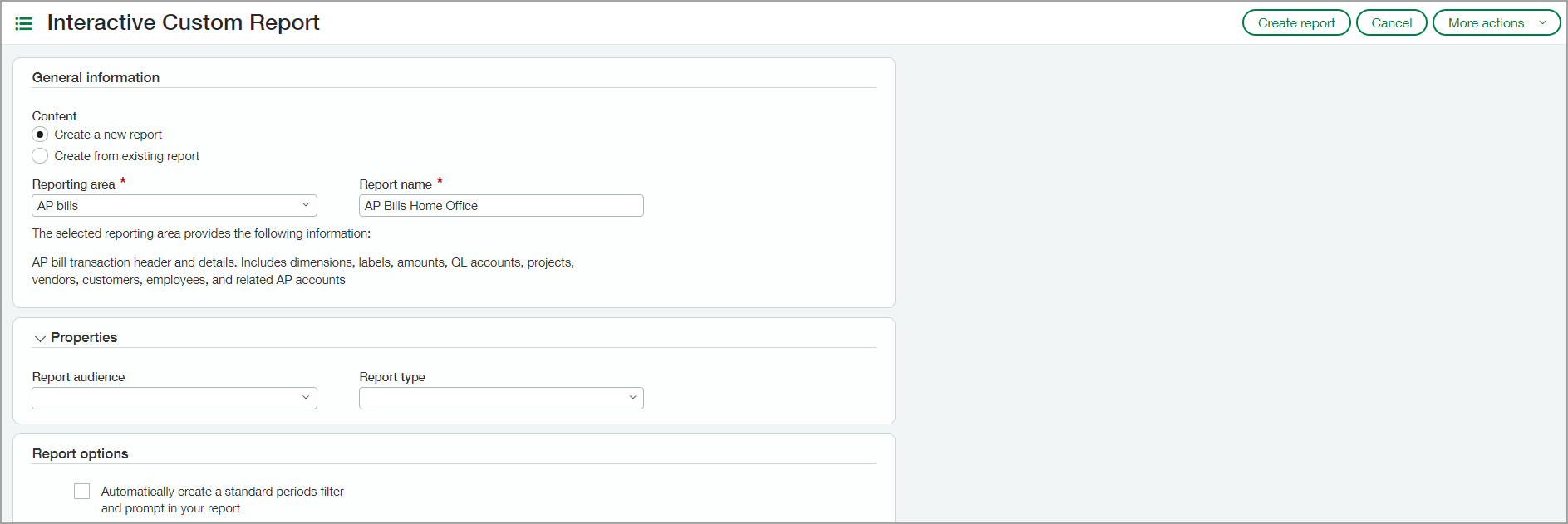
- Under Content, select Create a new report.
- Select a Reporting area from the dropdown list.
- Enter a unique Report name. Report names can contain letters, numbers, spaces, underscores, and hyphens up to 80 characters.
- Optionally, choose a Report audience and Report type from the respective dropdown lists.
- Select Create report, then Save.
- Continue to add and move columns.
Copy and customize a Report library report
It’s a recommended best practice to base a new report on a Report library report. This process reduces development time, as well as the chance of human error.
- Copy a report from the Library.
- Customize the appearance.
- Add and move a column.
- Filter a column.
- Save the report.
- Run the report.
The examples in these tasks are based on the Library AR Bills report. However, you can use a reporting area more relevant to your organization.
Copy a report from the Library
-
Go to Reports > All > Advanced and select Add (circle) next to Interactive Custom Reports.
- Select Create from existing report.
- Enter a unique Report name. Report names can contain letters, numbers, spaces, underscores, and hyphens up to 80 characters.
- Select a report from the dropdown list on which to base the new report. This is sometimes called the seed report.
- Under Properties, select a Report audience and Report type from the respective dropdown lists.
- Leave the Create automatically a standard periods filter and prompt in your report checkbox unselected. You can add a reporting period later, as necessary.
- Select Create report.
When you include a standard period in a new ICRW report, both a filter and a prompt are created. The standard period uses the current date and defaults to the current month. It also creates a runtime prompt to select the reporting period. If there is no data for the current month, the preview (on the Refine tab) does not show any data. When you run the report you can select another time period.
To delete standard periods, you need to delete both the filter and the prompt.
Customize the appearance
The following task demonstrates how to add alternate shading to report columns and delete an unnecessary column.
- Open the report and go to the Refine tab.
- Select Options (
 ) and place a check mark beside Row style ___ Enable alternate style.
The table rows now have alternate shaded columns. - Select the Alternate row icon (
 ) to change the shading.
 - Go to the Define tab, right-click an unnecessary column, and select Delete from the dropdown menu.
- You can modify the report format in other ways. For example, you can add logos, set the sort order, show rows with zero numbers.
- Select OK to save your changes.
Add and move a column
The following task demonstrates the ways in which you can add columns to a report and then move columns to the desired order.
- Open the report and go to the Refine tab.
- Expand the subfolders in the Reporting areas pane and double-click a column to add it to the report.
- Go to the Define tab, expand the subfolders, and double-click a column to add it to the report.
Depending on the report, you might be able select the same column from both the Define tab or the Refine tab. - To move the column, hover the cursor over a column title and drag the tab to a new location.
For example, we moved the Custom type column to the far right.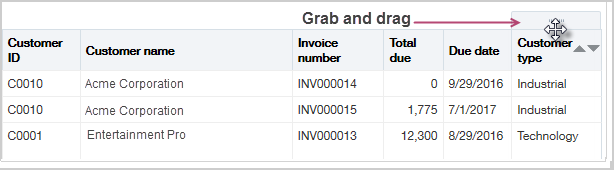
- Save your changes.
Filter a column
The following task demonstrates how to add a filter to a column and then prevent the filter value from being overridden by another prompt.
- Open the report and go to the Define tab.
- Go to Filters in the lower section of the page and select
 to open the Add Filter dialog.
 - Choose the column on which to add the filter. If the column is not in the list, select More columns.
For example, you might choose a numeric account, such as Amount Due. - Choose an operator from the dropdown menu, such as is between.
- Add a value to the value field for the operator. The value can be a number or a string of text depending on the selected operator.
For this example, you could enter 500 into the first Value field and 10000 into the second Value field so that only the records between the two values appear in the report. - Select the Lock filter check box to keep the value from being overridden by another prompt.
- Select OK to save your changes.
- Go to the Refine tab to view the changes in the report.
Save the report
You can save the report under the name you initially gave it, or you can save it under a different name. This task demonstrates both of options.
- To save the report under the existing name, select
 .
. - Optionally, to save the report under a different name, select
 , enter the new report name and a clarifying description.
 - Select OK.
Run the report
You can view the results of a new report in the following way.
- Go to Reports > All > Advanced > Interactive Custom Reports.
- Find the report on the List page and select Run.
