Inter-entity transactions—ICRW
Related information
 Related topics
Interactive Custom Report Writer (ICRW) allows you to create and customize reports with details on system-generated inter-entity transactions (IETs) and source General Ledger (GL) journal data. You can group by available dimensions and add important field values.
Use the Inter-entity transaction report to view inter-entity transactions and the source transactions that generated the IET entries. This report enables tracing both the IET and source transactions. The dimension values from the source journal entry are included with each transaction in the report. Source journal entries that trigger the inter-entity transactions are derived from the General Ledger journal entries and are shown in the report. This improves reconciliation, and identifies data entry errors.
With the Inter-entity transaction report you can:
- Add source journal entry dimensions, such as Department, Class, Vendor, or any user-defined dimension you want to track.
- Add IET entry columns, such as account, amount, base currency, entry date, location, line number, transaction amount, and more.
- Group, sort, and filter by all columns from source and IET entry.
You can filter the data to include in the report by single account, account range, account group, or multiple accounts. You can also constrain the data by location and/or department. You might also want to sort by location, and then sort by department within the location to view corresponding subtotals.
Open the Interactive Custom Report Writer
The Interactive Custom Report Writer (ICRW) is available by subscription. You can access the Interactive Custom Report Writer from the Reports center, or from the Reports menu.
You can create a report based on an existing report (recommended best practice), or create a new ICRW report. For more information, see Create, edit, and delete a report with ICRW.
| Subscription | Interactive Custom Report Writer
Platform Services |
|---|---|
| Regional availability |
All regions |
| User type | Interactive Custom Report Writer: Business, Project Manager |
| Permissions |
Interactive Custom Report Writer: Run, List, View, Add, Edit, Delete Platform Services: Run, List, View, Add, Edit, Delete
|
Examples of IET reports
Use case examples of reports that you can generate in the area of inter-entity transactions:
- Determine the number of IETs by general ledger account and location, with the department dimension clearly listed
- List IETs by account with GL and source journal entries to document the settlement of accounts netting to zero.
By location
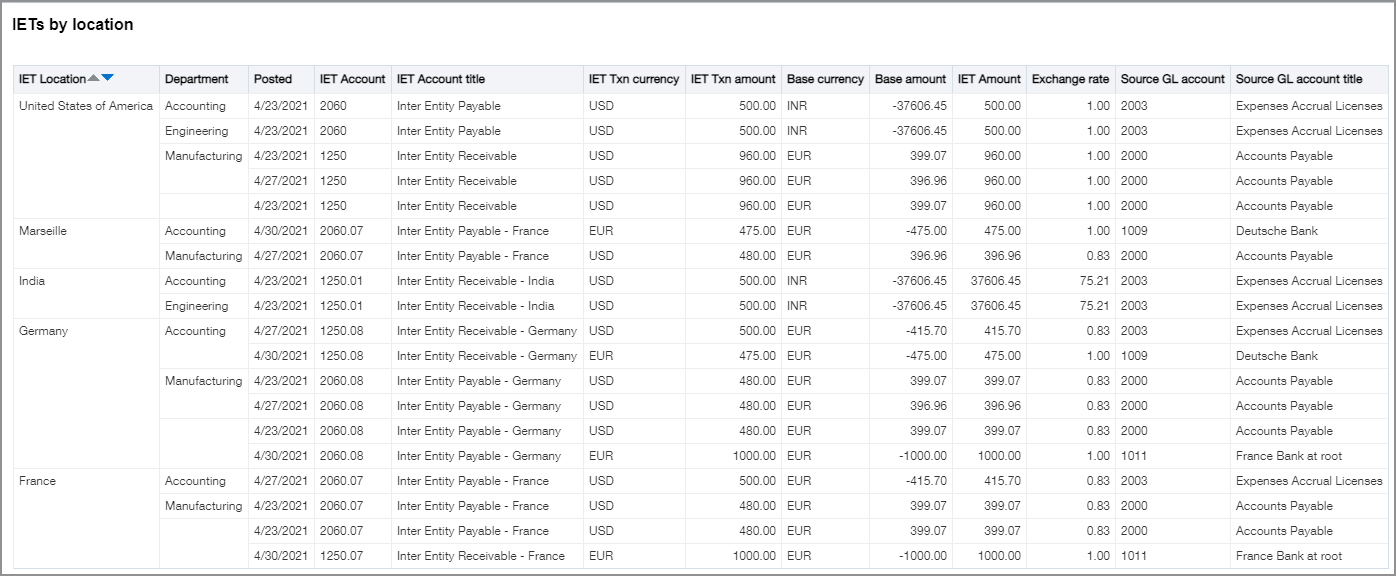
The following ICRW sample report lists IETs by location and GL account, delineating inter-entity transaction and source GL amounts and currencies:
Grouped by IET account and location
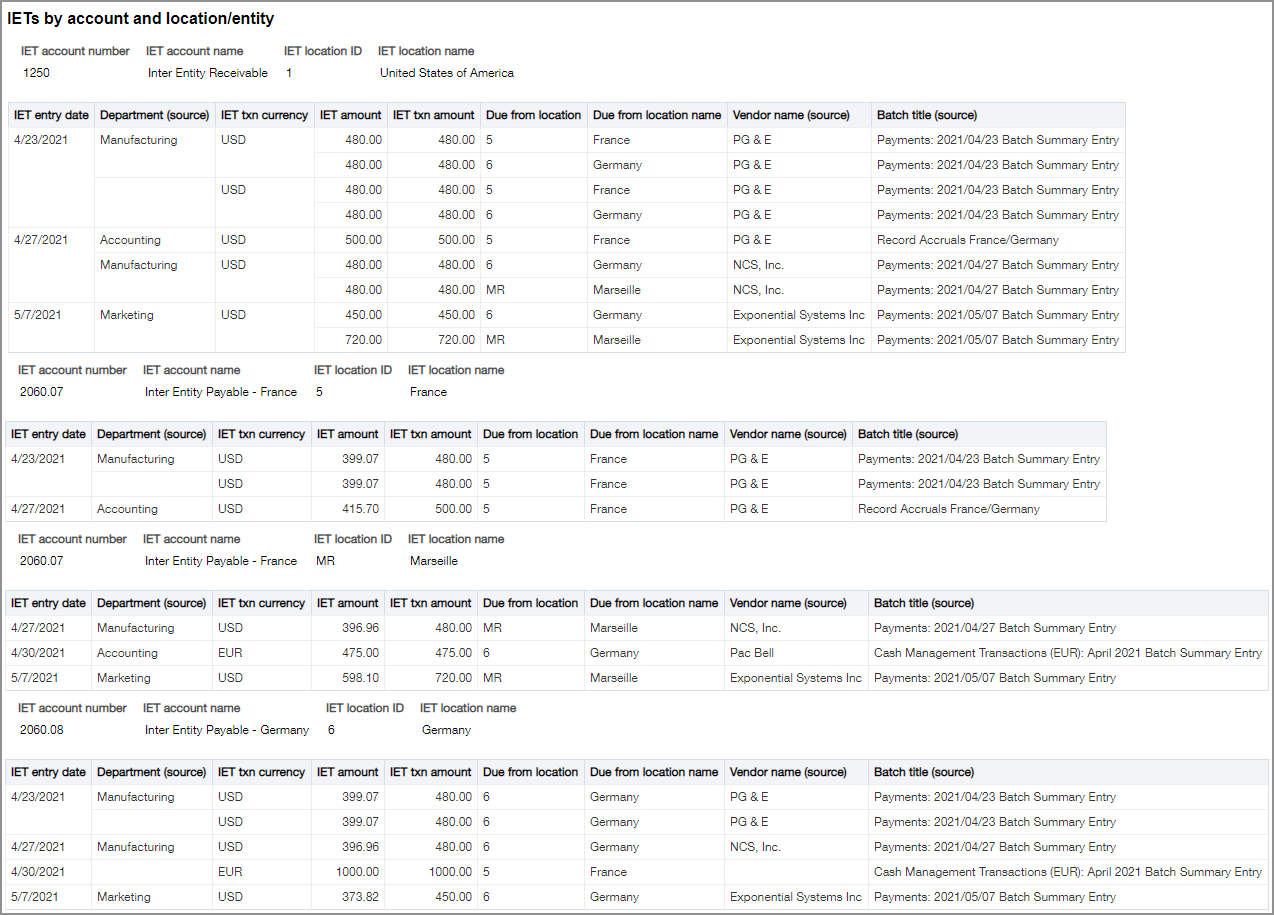
In this sample ICRW report, the report groups IETs by IET account and location or entity. The report organizes by IET entry date the source department, due from location, vendor name, and batch payment summary. You can also see where the inter-entity transactions came from and when the entries were made, as shown here:
Create an ICRW IET report
- Go to Reports > All > Advanced and select Add (circle) (Add) next to Interactive Custom Reports to create a new report.
- In the General information section, select Create a new report.
- For your Reporting area, select Inter-entity transactions. You can use Find to search the available Reporting areas.
- Enter a Report name and leave the Properties and Report options blank.
- Select Create report.
- On the Refine tab, find, and add columns such as the following to your report:
Refine tab column options Section Columns to add Attributes IET Department
IET Location
IET Txn currency
Measures IET Amount
IET Txn amount
Related objects > IET GL batch Automatic reversal date
Balance
Journal
Transaction number
Related objects > Source GL account - Account number
- Customer
- Department
- Location
- Vendor
Related objects > Source GL entry Dimensions:
- Source Contract
- Source Cost type
- Source Customer
- Source Employee
- Source Item
- Source Project
- Source Task
- Source Vendor
- Source Warehouse
Related objects > Source GL entry - Customer
- Department
- Employee
- Exchange rate
- Exchange rate date
- Location
- Projects
- Txn amount
- Txn currency
- Vendor
- Warehouse
Related objects > Source GL entry > Source GL transaction - Balance
- Journal
- Posting date
- Transaction number
A number of other columns are available for you to select as needed.
- Drag and drop the columns into the desired order, and rename columns as needed.

- Select
 to Save your report.
Create sections
- Select
 (Edit view) to see the report layout section.
 - From the columns on the Table section, drag a column to the Sections panel.
- Select Done.
- Select to Save the report.
