Create, edit, and view drill-downs—ICRW
Related information
 Related topics
A drill-down is a feature that enables you to view details beyond what's explicitly shown in a report. A drill-down links data in a report to additional data.
For example, you might create a purchase order report that includes a Document number column. You can link that column to the corresponding purchase order DrillId column. Users run can then select the link in the Document number column to view the purchase order transaction details.
Configuring drill-downs provides access to additional information without leaving the report or having to perform another task. You can add a drill-down to a new report or add it later.
| Subscription | Interactive Custom Report Writer
Platform Services |
|---|---|
| Regional availability |
All regions |
| User type | Interactive Custom Report Writer: Business, Project Manager |
| Permissions |
Interactive Custom Report Writer: Run, List, View, Add, Edit, Delete Platform Services: Run, List, View, Add, Edit, Delete
|
Create a drill-down
You create drill-down capability in a report by adding a DrillID column. Then, you link the DrillD column to a column in the report where the drill down link will appear.
Add the DrillID column to the report
-
Go to Reports > All > Advanced > Interactive Custom Reports.
- Add a new report or edit an existing report.
-
In the Reporting areas pane on the left, search for the term drill.
A list of the DrillId columns in the reporting area appears. For example, if your report was created using the Purchase Order reporting area, the DrillId columns related to the Purchase Order reporting area appear.
-
Double-click the appropriate DrillId column to add it to the report.
Users drill into this data when they select the link in the report. For example, to create a link that drills into a purchase order transaction, double-click the DrillId [Purchase order transaction] column.
-
Optionally, hide the DrillID column in the report from users.
- In the Table pane, select the Edit icon.
- In the Layout pane, scroll to the right to find the DrillId column you added.
- Select the More Options icon and select Hidden. The column is grayed out in the Layout section.
Link a column in a report to the DrillID
- In the Table pane, select the Edit icon. Then in the Layout pane, identify the column you want linked to the DrillId column.
- Select the More Options icon and select Column Properties.
-
In the Column Properties dialog, select the Interaction tab and select the following values:
- Column Heading: Primary Interaction > None. You only want something to happen when the user selects on one of the values, not the column heading.
- Value: Primary Interaction > Action links
- Select the checkbox next to Do not display in a popup if only one action link is available at runtime.
- Select Add above the Action Links table to create a new action link.
- In the New Action Link dialog, type Drill in the Link Text field. This label text is hidden from users.
- For the Action option, select the Running man icon.
- In the Select Action dialog box, select Intacct Library, select the View icon, and then select OK.
- In the Edit Parameter Mapping dialog, select the Value arrow, choose Column Value, and then do the following:
Select OK to close the Edit Parameter Mapping dialog, then select OK to close the New Action Link dialog.
On the Column Properties dialog, in the Action Links section, select the Drill action to highlight it.
At the top of the Action Links section, select the Edit (pencil) icon.
Select the Edit Parameter Mapping icon, then under Value, select the down arrow, and choose Column Value.
- Select the arrow to the right of Column Value and select the DrillId you want to link the column to.
For example, you might link the Document number [Purchase order transaction] column to the DrillId [Purchase order transaction] column. To create this link, you would select "Purchase order transaction"."DrillID". -
Select the Fixed and Hidden checkboxes, and then do the following:
- Select OK three times.
- Select Done to exit Edit mode.
- Save the report.
Drill into report data
You can drill into a report to further analyze the data in the following way.
- Go to the Interactive Custom Reports list page.
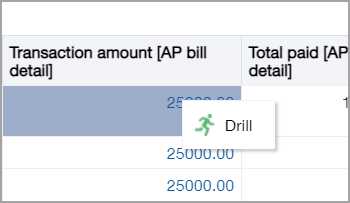
- Run the report, or view it in the Refine tab. The values shown in blue are selectable links.
-
Select a link to investigate the data further.
Delete a drill-down
-
Go to Reports > All > Advanced > Interactive Custom Reports.
- Select Edit for the report.
- For the column you want to link, on the Define tab select the expand arrow
 (Options) and choose Column properties from the dropdown menu.
 - Go to theInteraction tab on the Column properties dialog.
- Select the action link and select Edit (Edit), then select the double right-facing arrows icon
 (More).
 - Select Remove action to remove the link.
- Select OK.
