Accounts Receivable
More filtering options in the Customer Aging report
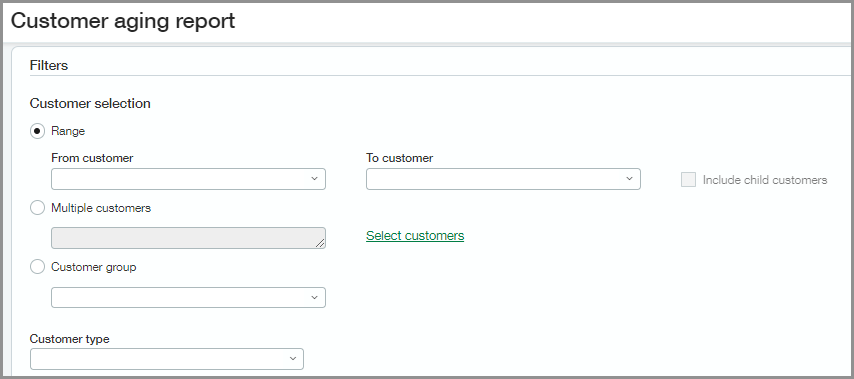
Enjoy more filtering flexibility in the Customer Aging report. This release, we added new filtering options to help refine your report data and target specific customers.
Details
New filter options include the following:
-
Multiple customers
-
Customer group
-
Include child customers
This option is available when you filter by a range of customers.
How it works
Use the customer selection filters to target your report data by range, multiple customers, or customer group.
-
Go to Accounts Receivable > All > Reports > Customer aging > Report.
-
Choose filters for the customer selection.
-
To filter by a range of customers, select Range.
-
Enter the From customer and To customer.
-
Optionally, you can choose to Include child customers.
-
-
To filter by a list of customers, select Multiple customers.
-
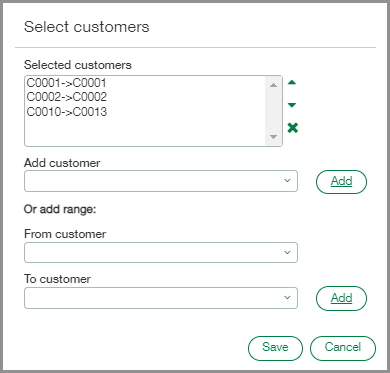
Choose the Select customers link.
-
Use the Add customer option to select customers from a list.
-
Use the From customer and To customer fields to add a range of customers.
-
Select Add to move customers into the list.
-
-
To filter for a particular group, select Customer group.
-
-
Select Save.
-
Select View to see your filter results.
Requirements
| Subscription |
Accounts Receivable |
|---|---|
| Regional availability |
All regions |
| Permissions |
Customer Aging: Run |
