GENERAL LEDGER
Change GL account numbers
You can change your settings for the length of account numbers, and you can change account numbers themselves. This is valuable in different situations, for example:
- If you use all the account numbers of a certain length, you can make more account numbers available by increasing the length setting.
- If your company merges with another that uses a different account number pattern, you can standardize all your account numbers.
Details
Each financial and statistical account has a permanent record number, which is separate from its account number. All the information in your system that relates to an account relies on the record number, which never changes. This means you can safely change the account number.
How it works
Allow changes to account numbers
- Go to General Ledger > Setup tab > Configuration.
- Select Allow changes to account numbers, including length.

- Select Save.
You can now change settings for the length of account numbers, but not account numbers themselves. To change account numbers you need additional permissions, as described in the following steps.
- Go to Company > Admin tab > Roles or Users (depending on how your system is set up).
- Select Subscriptions for the role or user.
- Select Permissions for General Ledger.
- Give permission to edit financial account numbers, statistical account numbers, or both.

- Select Save.
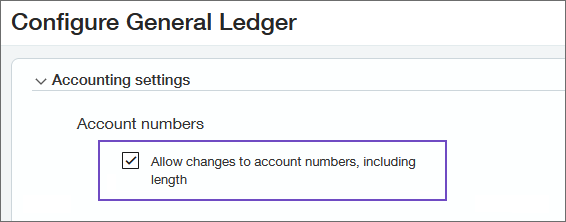
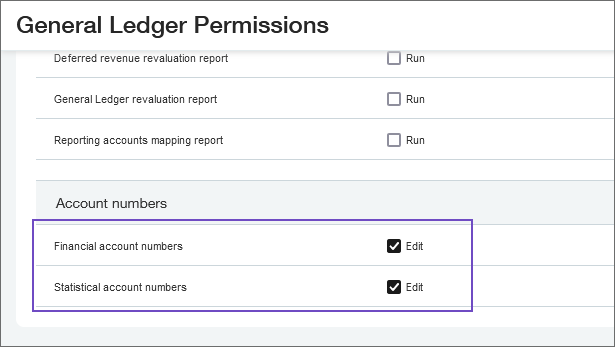
We recommend that you allow changes to account numbers only when you are making changes. At other times, deselect the Allow changes to account numbers, including length option on the Configure General Ledger page. Deselecting this option disallows permissions to change account numbers, but does not delete the information about who had permission. So, if you select the option again, everyone who had permission will have it again. Effectively, you can toggle permissions on and off with this one option.
Change settings for the length of account numbers
- Go to Company > Setup tab > Company.
- Select Edit.
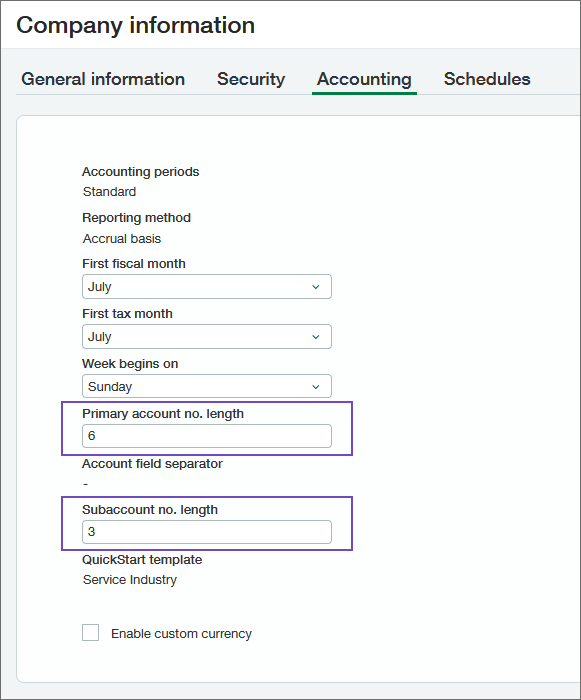
- On the Accounting tab, change the required length for primary and subaccount numbers.
- Select Save.
New accounts are required to have account numbers that meet the new length requirements.
Existing accounts will continue to work (you do not need to update existing account numbers). But to edit one of these accounts, you'll first need to update its account numbers to meet the new length requirements.
Change an account number
- Go to General Ledger > All tab > General Ledger accounts.
- Select Edit for the account.
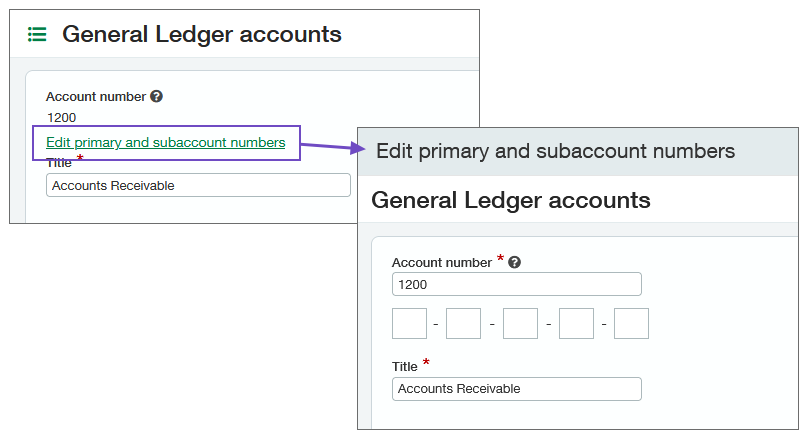
- Select Edit primary and subaccount numbers to open a new page where you can change the account numbers.
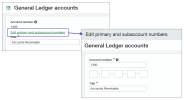
- Change the account numbers.
- Select Save.
- Verify manually entered account numbers.
It is possible that manually entered account numbers are not updated automatically. Check the following to make sure they are still working as intended:
- Reports: For example, suppose you manually specify that a report should include GL accounts from 1000-2000. If you change account 1400 to 14000, that account will no longer show up on the report.
- Smart rules: For example, suppose you have a rule that requires you to use Sales as the department for any journal entry for account 1400. If you change account 1400 to 14000, the smart rule will no longer work.
- Events: For example, suppose you have an event that automatically sets Sales as the department for any journal entry for account 1400. If you change account 1400 to 14000, the event will no longer work.
- If you have custom systems or third-party products integrated with Intacct, ensure that they use record numbers and not account numbers.
Import changes to account numbers
- Export account numbers that you want to change:
- Go to General Ledger > All tab > General Ledger accounts.
- Make sure you're using a view that shows both the Record number and Account number columns on the table. You might need to set up a custom view that includes these columns.
- Filter the table to include the accounts that you want to change.
- Select Export > CSV.
- In the exported file, add a column and enter the new account numbers in it.
Do not change the record numbers.
- Import your changes:
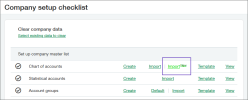
- Go to Company > Setup tab > Import data.
- Beside Chart of accounts, select Import New.
- Drag and drop your CSV file with the updated account numbers.
- Follow the steps for importing:
- Select your header row: Select the row that includes column headers.
- Match file columns to our fields: Match columns in your CSV file to fields in the import tool. The only required columns are:
Columns in your file Our fields Record number key Account number id - Review and make final changes: Review the data you have set up to import. You can discard rows or make further changes.

Requirements
| Subscription |
General Ledger |
|---|---|
| Regional availability |
All regions |
| User type |
Business user with admin privileges |
| Permissions |
Financial account numbers: Edit Statistical account numbers: Edit |
