inventory control
Supplies inventory—Early adopter
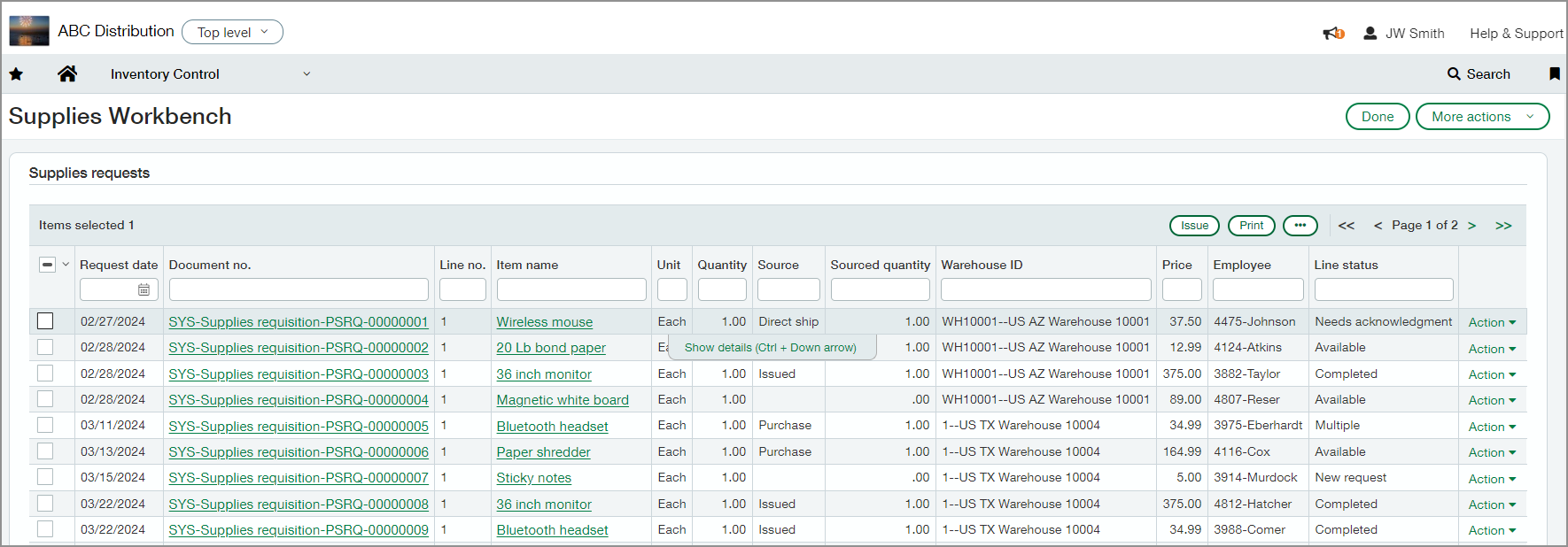
Employees can enter requisitions for items designated as supplies inventory, such as office or program supplies, or computer equipment. The supplies manager can easily process requests and monitor status using the workbench.
This streamlined ordering process provides you with the ability to:
-
Track supplies requisitions
-
Gain insights into usage trends and cost insights across periods
-
Manage inventory levels and reorder when needed to avoid availability delays
Details
When employees create a supplies request, it can be fulfilled immediately or routed through an approval process. The supplies manager can fulfill the order by completing one of the following tasks:
-
Issue items directly from the available inventory
-
Create a purchase order if an item is not available internally
-
Create a direct shipment purchase from the vendor to the employee
How it works
Request supplies
-
Go to Purchasing > All > Supplies inventory and select the + next to Requisitions.
-
Enter the required fields.
-
In the Entries section, enter the Item ID. If you are unsure of which item to select:
-
Select the generic supply item ID: SYS-supplies-item.
-
Select Show details.
-
Enter a detailed Item description.
The person who fulfills your request can then select the correct item ID.
-
- Select Post to submit the requisition or select Draft to save it if you are not ready to submit it.
For more details, see Request supplies in the Help Center.
Fulfill a supplies requisition
This is a brief overview of the process. For more details, see Fulfill supply requisitions in the Help Center.
-
Go to Inventory Control or Purchasing > All > Supplies inventory > Workbench.
The list breaks out the requisitions by individual items. For more information, see About the Supplies workbench.
- Select one of the requisitions to view it.
- Select Edit.
-
In the Entries section, make sure that the correct Item ID is selected.
See the Item description if they generic supply item placeholder is selected.
- Complete the other fields as needed.
-
Select Post.
You're returned to the workbench.
- For the requisition that you reviewed, select Action at the end of the row.
- Depending on the item's availability, select one of the following options:
Select Issue if the item is available in stock.
- Select Create PO to create a purchase order for the item.
- Select Direct ship to create a purchase order and have the item shipped directly to the employee.
Sort by the Item name column to group the items. You can select multiple items to issue them, create a purchase order, or a direct shipment. When you select multiple items, use the buttons above the grid to select an action.
What is the Early Adopter program?
The Early Adopter program provides qualified functionality to a specific set of customers who use the Order Entry and Inventory Control applications. During this release, these early adopters will help us refine our offering to deliver the functionality that is critical for business controls.
The Early Adopter program is closely monitored. We work closely with the early adopters to ensure that we focus our time and attention on what matters most to you.
Requirements
| Subscription |
Inventory Control |
|---|---|
| Regional availability |
|
| User type |
To request supplies:
To manage supplies requisitions:
|
| Permissions |
Inventory Control
|
| Configuration |
