Purchasing
Early Adopter program continues for Automated transaction matching for Purchasing workflows
Let Sage Intacct create draft vendor invoices for you and match them to existing purchasing transactions, with Automated transaction matching for Purchasing workflows.
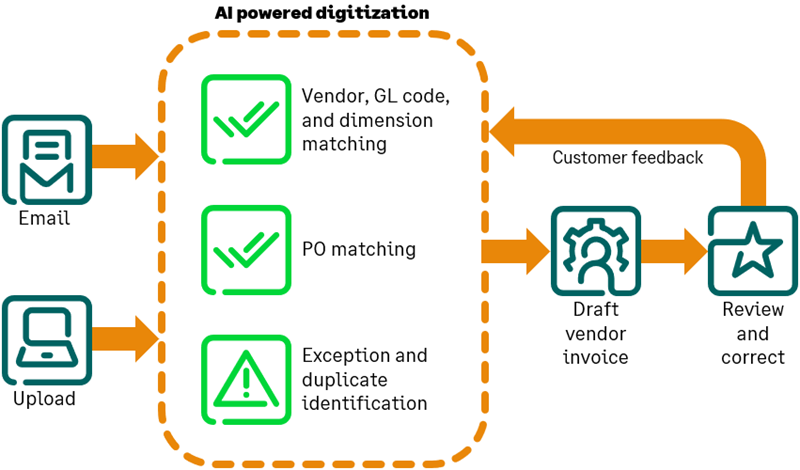
With automated transaction matching, you define how incoming purchasing documents map to existing source transactions in a one-time setup. Then, instead of converting purchasing transactions to vendor invoices, you let Sage Intacct match incoming vendor invoices using the following flow:
-
You email or upload vendor invoice documents for automated processing.
-
Sage Intacct uses artificial intelligence (AI) to detect the vendor and match the vendor invoice to a purchasing transaction.
-
The system creates a draft vendor invoice for you with the source document attached.
-
You validate the draft transaction against the vendor invoice, make corrections as necessary, and then post.
-
Your corrections are fed back to the AI engine where it updates the machine learning model to improve future matches.
Details
- Automated transactions appear in a new Automated transactions list, which is available in the Accounts Payable menu.
- You can change the source transaction match for a draft transaction at any time before you post it.
- For transactions that do not belong in the Purchasing workflow, such as rent or utility bills, you can select Change to AP bill to move the transaction to Accounts Payable.
- If you want Sage Intacct to create all future transactions for a vendor as AP bills, you can set Change to AP bill as a preference.
- Sage Intacct automatically detects files that were previously uploaded and flags them as duplicates, bringing them to your attention.
How it works
Email a vendor invoice
Forward one or many documents to the Sage-provisioned email address for the entity where you want it to be created. Automated transaction matching uses the same mailboxes that were set up for you when you enabled AP Automation, so you do not have to learn new email addresses.
Sage Intacct analyzes the emailed document, creates a draft vendor invoice for the vendor, and adds the new transaction to the new Automated transactions list.
Upload a vendor invoice
Upload new purchasing transactions in the Automated transactions list instead of the Bills list.
- Go to Purchasing > All > Automated transactions.
- Select Upload on the Automated transactions list to upload up to 30 vendor invoices at one time.
Uploaded vendor invoices appear in the list immediately while Sage Intacct analyzes the data.
- Select Refresh to update the list and see when the draft transaction is complete and ready for review.
Review draft transactions
- Go to Purchasing > All > Automated transactions.
- Select Edit next to the draft vendor invoice on the Automated transactions list.
If you have split view enabled in your personal preferences, you can view the original vendor invoice alongside the draft transaction for easy comparison.
- Review the draft details.
- To change the transaction match, select Change, then select a different source transaction from this vendor in the popup.
- Edit header information and adjust line items as needed.
- To move the transaction to the Accounts Payable workflow, select Change to AP bill.
-
Post the transaction.
Requirements
| Subscription |
Purchasing Accounts Payable AP Automation Sage Cloud Service |
|---|---|
| Regional availability |
Early Adopter participants in the United States, only |
| User type |
Upload transactions for automated transaction matching
Email documents for transaction matching
View, edit, and post automated transactions
Move a draft transaction to the Accounts Payable workflow
|
| Permissions |
Purchasing permissions (to view or edit the emailed transactions)
Accounts Payable permissions
|
| Configuration |
|
