Accounts Payable
New rule type for named users in bill approvals
We've updated the way you add approval users to your bill approval policy to remove clutter from the Rule type list and make the approval policy easier to scan.
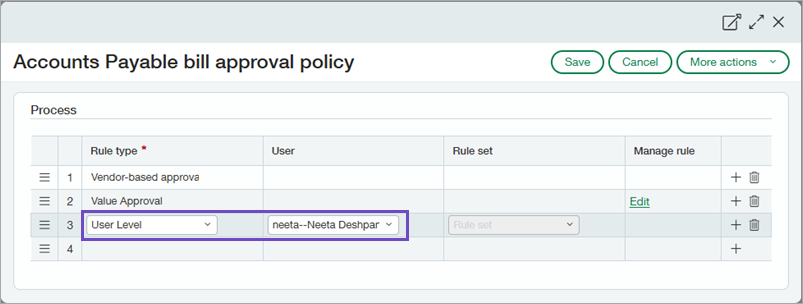
The Rule type column, which previously included rule types and users with bill approval permissions, now contains only rule types. To add a named user, select the new User Level rule type. Then, in the new User level column, select an approver from the list of users with bill approval permissions.
How it works
- Go to Accounts Payable > Setup > Configuration.
- Under Bill approval settings, select Manage for Approval policies.
- On a new line, select User level as the Rule type.
Because you selected User Level, Intacct automatically advances you to the User column.
- Select the user that you want to add as an approver.
Users must have Bill approval permissions to appear in the User column.
- Select Save to return to the Configuration page.
- Select Save.
Permissions and other requirements
| Subscription |
Accounts Payable Company |
|---|---|
| Regional availability |
All regions |
| User type |
Business user with admin privileges |
| Permissions |
Administration
|
