SUPPLIES INVENTORY
Customize supplies pick lists and pick reports
Your business has unique operational needs with specific requirements for warehouse picking activities. You can now customize your Supplies Inventory pick list template and Supplies report template to help your team fulfill requests quickly, and track the data you need for accurate activity analysis.
-
Customizable pick list document template ensures that warehouse users have the information they need to find requested items.
- Procurement users are able to sort and print required requisition lines in the pick report for more accurate evaluation and assessment of picking history.
Details
Users with Platform Services permissions can export the sample printed document templates, customize them, and upload their new templates for use with Supplies Inventory transactions. The pick list template is generated for a specific issue, to help warehouse users find the items requested. The supplies report template is generated from the Supplies Inventory workbench, and is used by supplies management to review the accuracy of picking activities for selected requests.
How it works
Step 1. Customize report templates
-
Go to Platform Services or Customization Services > All > Printed doc templates.
-
Find the Supplies Pick List Template Sample or Supplies Report Template Sample and select Template.
-
Edit the downloaded template with Microsoft® Word to suit your business needs.
-
Upload the customized template to the printed document repository.
Learn more about customizing printed document templates.
Step 2. Configure Inventory Control
-
Go to Inventory Control > Setup > Configuration.
-
In the Supplies Inventory section, select the template you want to use in the Supplies pick list template and Supplies report template fields.
-
Save your changes.
Step 3. Generate a pick list or pick report
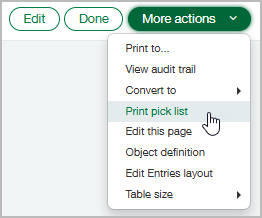
When a warehouse team member wants to fill a supplies order, they'll first go to Inventory Control > All > Supplies Inventory > Issues. To print the pick list, they'll select an issue to view, and then select More actions > Print pick list.
When managers want to generate a report on supplies issues, they'll go to Inventory Control or Purchasing > All > Supplies Inventory > Workbench. Select issued requests, and then select Print.
Permissions and other requirements
| Subscription |
Inventory Control or Supplies Inventory Platform Services or Customization Services |
|---|---|
| Regional availability |
|
| User type |
Business to modify templates and generate pick reports Employee or Warehouse to print pick lists |
| Permissions |
Inventory Control or Supplies Inventory
Platform Services or Customization Services
|
| Configuration |
Microsoft® Word is required to edit templates. |
