Reconcile a contract to the General Ledger
Related information
 Related topics
The process for reconciling a contract against the General Ledger is the same as reconciling the Accounts Receivable or Accounts Payable subledgers to the General Ledger: use reports to compare transactions in the subledger and in the General Ledger. When you need to reconcile a contract, like for example during your close book process, use a contract subledger report to compare a contract's activity to General Ledger balances.
About the contract subledger reports
Sage Intacct offers several packaged custom reports that you can use to provide insight into your contract accounting. You can use the reports as-is or use them as a starting point for your own custom reports tailored to your business. Administrator users can download the custom report packages. Users need permissions to Customization Services or Platform Services in order to duplicate and edit custom reports.
Included in the packaged reports are contract subledger reports, which can show the journal balances for any combination of contract posting types and classifications. Contract revenue amounts post to three types of accounts: Accounts Receivable, Deferred Revenue, and Sales Revenue. Within each account type, there are three accounts separated by the following classifications: Unbilled, Billed, and Paid.
| Unbilled | Billed | Paid |
|---|---|---|
| Accounts Receivable | Accounts Receivable | <Cash>* |
| Deferred Revenue | Deferred Revenue | Deferred Revenue |
| Sales Revenue | Sales Revenue | Sales Revenue |
* Although part of the revenue recognition process, the Cash account is not specific to Contracts.
Additionally, contract expense amounts post to three types of accounts: Expense accrual, Deferred expense, and Recognized expense.
The contract subledger reports are grouped by Posting type and Classification, so you can see balances for each contract line or expense as well as the sum of all contract lines or expenses in the contract for each posting type/classification combination.
In order to be ASC 606 compliant, companies are required to disclose the state of contracts (or category of contract) as having either recognized revenue greater than cash collected (contract asset), or recognized revenue less than cash collected (contract liability). Contracts is designed so your financial statements can potentially separate out each line item of each contract into the various GL accounts when revenue is in a particular state.
Unbilled Deferred Revenue acts as a contra account to Unbilled AR in the asset section of the balance sheet so that the unbilled accounts have no effect on the balance sheet until Unbilled Sales Revenue is recognized. That event reduces Unbilled Deferred Revenue, so Unbilled AR only appears on the balance sheet when Unbilled Sales Revenue is posted. This correctly shows unbilled AR only when unbilled revenue is recognized.
When payment is received prior to revenue recognition, the amounts may need to be recorded as a contract liability. You can analyze the status of Paid Deferred Revenue, Paid Sales Revenue accounts, and Unbilled Sales Revenue and Unbilled will show the net contract asset/liability positions.
The Billed AR, Billed Deferred Revenue, and Billed Sales Revenue accounts are for amounts that are neither unbilled nor paid.
Learn more about the Contracts accounting flow.
See Standard Contracts report packages for information on how to install the Contracts packaged reports.
Filter criteria for reconciliation reports
As you are using two reports to reconcile balances, you need to make sure that each report is filtered using the same shared criteria so that the data you are comparing is the same data set. For example, say you want to reconcile account balances as of March 8 for contract CON-007. When running each report, use March 8 as the applicable end date or As of date and filter for Contract = CON-007.
CN_Contract Subledger report filters
| Filter | Description |
|---|---|
| From transaction date | Leave blank to indicate from inception of the contract. |
| To transaction date | The date as of which you want to compare account balances. For example, March 8. |
| Journal type |
Select Journal 1 or Journal 2 as applicable. Your Contracts configuration may use one or two sets of journals. If your Contracts configuration uses both sets of journals, do not select both journals here. Run the report for one journal and then run it again for the second journal to see balances for each journal.
|
| Classification |
The classifications displayed are applicable as follows: Revenue: Unbilled, Billed, and Paid Expense: Deferred and Recognized |
| Posting type |
The posting types displayed are applicable as follows: Revenue: Deferred revenue, Sales revenue, Accounts receivable Expense: Deferred expense, Expense accrual, Recognized expense |
| Contract ID | Optionally, select the contract that you want to reconcile. |
| Customer |
Available in the Contract Subledger - By Customer report. Select the customer associated with the balances you want to reconcile. |
| Item GL group |
Available in the Contract Subledger - By Item GL Group report. Select the item GL group associated with the balances you want to reconcile. |
| Location |
Available in the Contracts Subledger, Contract Subledger —by contract, and Contract Subledger—raw data reports. Optionally, select the location associated with the balances you want to reconcile. |
General Ledger Trial Balance report filters
| Filter | Description |
|---|---|
| Reporting period |
Inception to date If you don't have an Inception to date reporting period, select a reporting period that would include the start date through the As of date for the contract you are reconciling (for example, Prior year to date). |
| As of date |
Use the same date you used as the Transaction end date in the contract subledger report. For example, March 8. |
| Reporting book | Select your main reporting book (for example, ACCRUAL). |
| Other books |
Select the user-defined book associated with Journal 1 or Journal 2. Your Contracts configuration may use one or two sets of journals. If your Contracts configuration uses both sets of journals, do not select both books. Run the report for one journal and then run it again for the second journal to see balances for each journal.
|
| Combine reporting book with other books | Select this checkbox so that both the Reporting book and Other books selection are used in the report. |
| Contract ID |
Only applicable if you set the Contract ID field in the contract report. Select the contract that you want to reconcile. |
| Customer |
Only applicable if you set the Customer field in the contract report. Select the customer associated with the balances you want to reconcile. |
| Location |
Required for multi-entity, shared companies. Select the location associated with the balances you want to reconcile. |
Reconciliation example
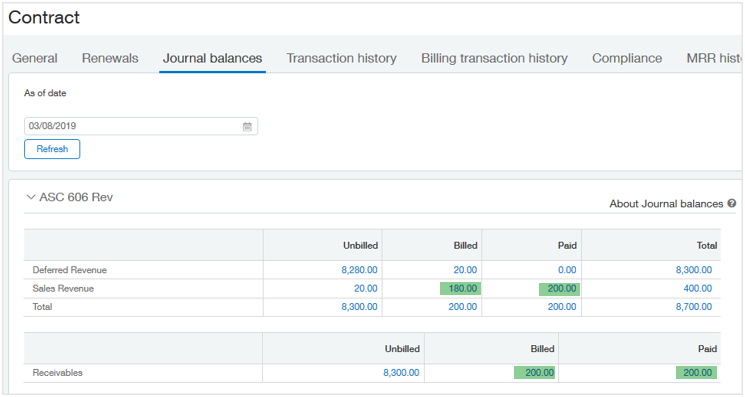
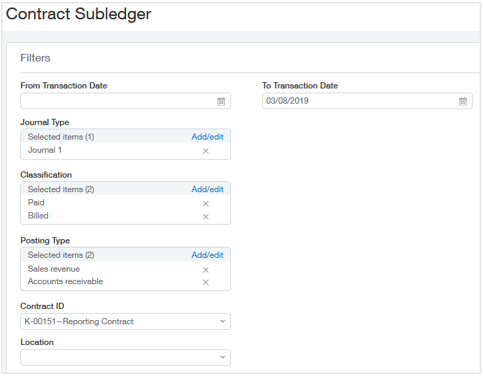
In this example, we will compare the Journal 1 balances (associated with ASC 606 in our company) for the Billed and Paid Sales Revenue and Billed and Paid Accounts Receivable accounts for contract ID K-00151 in the Contracts subledger and in the General Ledger as of March 8.
The Journal Balances tab on the contract shows the following as of March 8 for Billed and Paid Sales Revenue and Billed and Paid Accounts Receivable:
We run the CN_Contract Subledger report with the following filters:
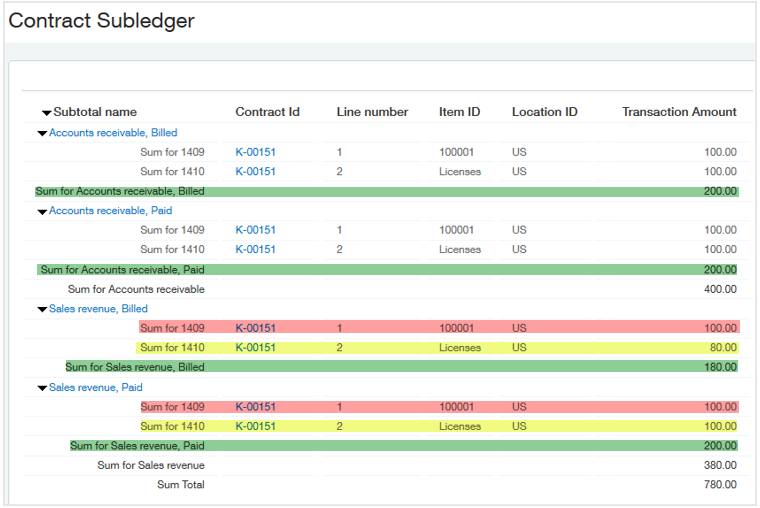
The CN_Contract Subledger report shows the details for the journal balances, such as the Item ID. The details may help you compare the balances to the General Ledger report, depending on how your posting accounts were implemented.
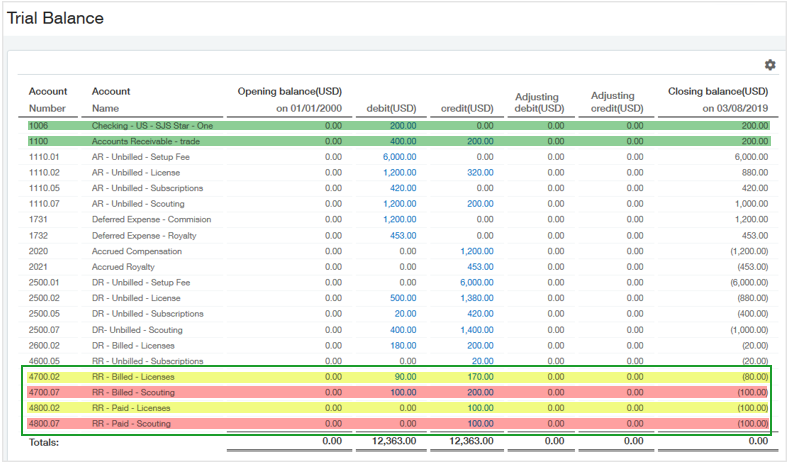
Then we run the General Ledger - Trial Balance report with the following filters:
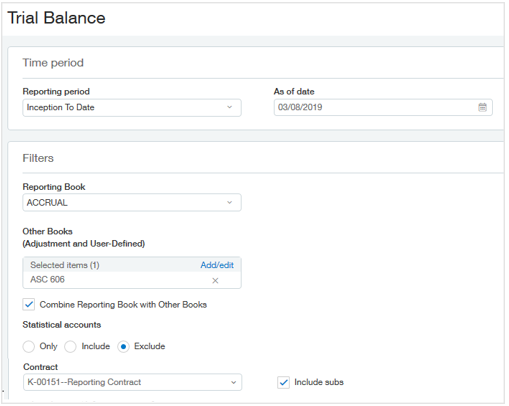
The Trial Balance report shows all of the contract's posting activity. We can immediately disregard balances that posted to Unbilled, Deferred Revenue, or expense accounts, as we didn't use those options in our contract subledger report's filter criteria. Of the remaining account balances, we can tie the Billed and Paid Accounts Receivable amounts and the Billed and Paid Sales Revenue amounts to the contract subledger.
Reconcile a contract
There are many ways you can reconcile a contract to the General Ledger. This procedure compares the contract subledger report to the General Ledger Trial Balance report. Follow your company's established business processes to reconcile contracts.
If you have not already done so, install the Contract Subledger reporting package prior to starting this procedure.
To reconcile a contract:
- Open two additional browser windows or tabs that are running Sage Intacct so that you have three open browser windows or tabs. For example, in your current open Sage Intacct window, select in the URL address box and press Alt + Enter or drag the lock icon from the URL address box to a new tab.
- In the first browser tab, open the contract that you want to reconcile in View mode and select the Journal balances tab.
- Enter the desired As of date and select Refresh.
This displays the journal balances as of the selected date and will act as a baseline for your comparison.
- In the second browser tab, go to Reports > All > Reports center.
- In the Contracts section of the All reports tab, select on the CN_Contract Subledger report.
- Set the desired filters and select View. See Contract subledger report filters for information about the filters.
- In the third browser tab, go to General Ledger > All > Reports > Trial balance.
- Set the desired filters and select View. See General Ledger Trial balance report filters for information about the filters.
- Use your preferred method to compare the data. For example, compare the data online, export the reports to Excel, and so on.
