Reconcile count results and adjust inventory
Related information
 Related topics
After the results of a manual count are entered into Sage Intacct and the count is marked as complete, it's time to reconcile any count variances that might exist and adjust the inventory quantity and valuation, accordingly.
You can review the system-suggested adjustments for count variances, edit the adjustments, and post system-generated Inventory Control adjustment transactions to automatically update the inventory quantities and valuation on the Reconcile cycle count page.
To view a list of your cycle counts, go to Inventory Control > All > Cycle counts .
| Subscription | Inventory Control |
|---|---|
| User type | Business |
| Permissions | Cycle counts: List, View, and Reconcile |
| Prerequisites |
|
| Previous step | Enter count results |
Reconciliation overview
After a cycle count is completed, the Reconcile cycle count page shows the difference between the on-hand quantity that was captured at the start of the count and the actual quantity that was counted, both undamaged and damaged, for each item.
Differences in system-recorded on-hand quantities and the counted quantities and the existence of damaged quantities are flagged as needing adjustment. You can accept the suggested adjustments or edit them. When you post the adjustments, Inventory Control adjustment transactions are automatically generated to update the inventory quantities and valuation.
The adjustment transactions that are generated have these system transaction definitions, which are created when cycle counts is enabled on the Configure Inventory Control page:
- SYS-CC Adjustment Decrease—ONHAND quantity and value decrease
- SYS-CC Adjustment Increase—ONHAND quantity and value increase
- SYS-CC Adjustment Damaged—DAMAGED quantity increase
Understanding damaged quantity adjustments
When there’s damaged quantity, quantity is moved from ONHAND to DAMAGED. The damaged quantity is a minus included in the suggested Quantity on hand (QOH) adjustment and a plus in the suggested damage quantity adjustment. Two transactions are generated to move the damaged quantity. The damaged quantity is either reflected in an SYS-CC Adjustment Decrease transaction or in an SYS-CC Adjustment Increase (where it's subtracted from the total to increase the ONHAND quantity and value).
At the beginning of a widget count, 20 were captured in Sage Intacct as being on hand: 16 undamaged and 2 damaged widgets were counted in the warehouse for a total count of 18. The reconciliation suggests both a QOH adjustment of -4 and a Damaged adjustment of 2.
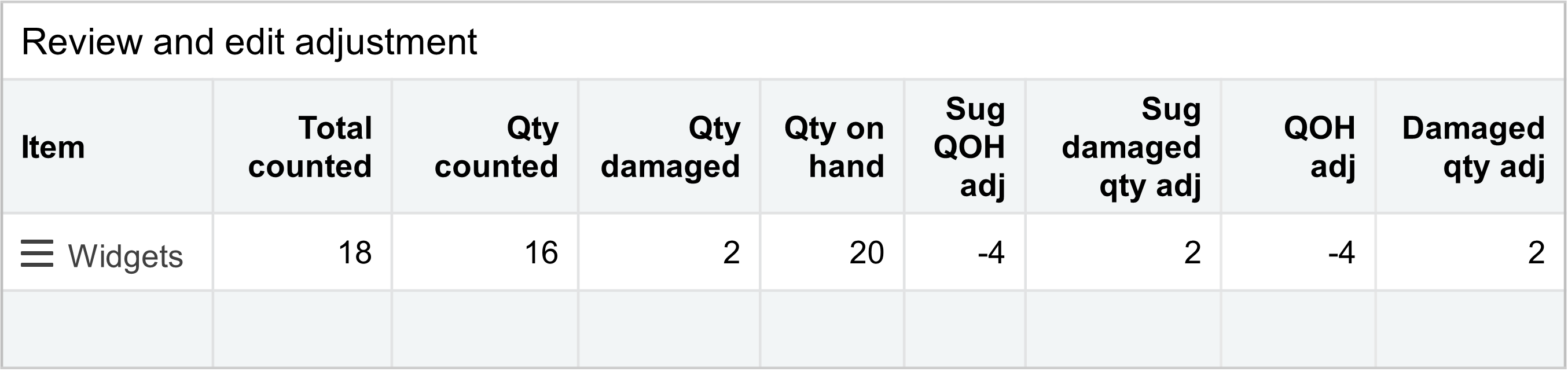
The suggested QOH adjustment of -4 includes 2 for the damaged quantity and 2 for the missing quantity. In this case, posting the recommended adjustment values would generate these two transactions:
- SYS-CC Adjustment Decrease transaction for an ONHAND quantity and value decrease of 4
- SYS-CC Adjustment Damaged transaction for a DAMAGED quantity increase of 2
If 22 undamaged and 2 damaged widgets were counted for a total of 24, the suggested QOH adjustment would be an increase of 2 and the suggested Damaged quantity would be an increase of 2. In this case, posting the recommended adjustment values would generate these transactions:
- SYS-CC Adjustment Increase transaction for an ONHAND quantity and value increase of 2
- SYS-CC Adjustment Damaged transaction for a DAMAGED quantity increase of 2
Reconcile a count
The Reconcile details section provides a summary of the number of suggested adjustments. While you want to analyze the lines marked with adjustments in the Review and edit adjustments section, you also want to review the lines that are in balance.
- Go to Inventory Control >All > Cycle counts .
The Cycle counts list appears.
- Find the cycle count you want to reconcile.
- Select More actions > Reconcile at the end of the row.
The Reconcile cycle count page appears. - Check for non-zero values in the Suggested QOH adj and Sug damage quantity adj fields.
- Suggested QOH adj: A negative value indicates the quantity on hand needs to be decreased and a positive value indicates the quantity on handy needs to be increased.
- Sug damage quantity adj: The value is always positive to indicate the damaged quantity needs to be increased. The value is included in as a negative number in the value for the suggested QOH adjustment.
- Assess whether the quantity on hand that was captured in Sage Intacct when the count was started (Qty on hand) has been affected by any subsequent activity that might change the suggested adjustment quantities.You can open the details for the line item and check the following fields:
- End Qty on hand
- Interim QOH activity
- Depending on your analysis, edit the values in QOH Adjustment and Damage qty adj, if necessary. These fields default to the values in Suggested QOH adj and Sug damage quantity adj.
- In Review comments, enter the reason that you accepted or changed the suggested adjustment quantity. If you or others go back and view the reconciliation, this explains the change.
- Enter or edit the values in Unit cost, as appropriate.
- When you finish analyzing each line and are ready to adjust the inventory quantities and valuation, select Post adjustment.
System-generated Inventory Control adjustment transactions are automatically created and posted. The adjustments that are created reference the count ID.
While you cannot edit or change the adjustment transactions, you can view them to see the details. Check these transaction types:- SYS-CC Adjustment Decrease
- SYS-CC Adjustment Increase
- SYS-CC Adjustment Damaged
- Go to Inventory Control >All > Cycle counts .
The Cycle counts list appears.
- Next to the cycle count you want to reconcile, select Reconcile.
The Reconcile cycle count page appears.
- Check for non-zero values in the Suggested QOH adj and Sug damage quantity adj fields.
- Suggested QOH adj: A negative value indicates the quantity on hand needs to be decreased and a positive value indicates the quantity on handy needs to be increased.
- Sug damage quantity adj: The value is always positive to indicate the damaged quantity needs to be increased. The value is included in as a negative number in the value for the suggested QOH adjustment.
- Assess whether the quantity on hand that was captured in Sage Intacct when the count was started (Qty on hand) has been affected by any subsequent activity that might change the suggested adjustment quantities.You can open the details for the line item and check the following fields:
- End Qty on hand
- Interim QOH activity
- Depending on your analysis, edit the values in QOH Adjustment and Damage qty adj, if necessary. These fields default to the values in Suggested QOH adj and Sug damage quantity adj.
- In Review comments, enter the reason that you accepted or changed the suggested adjustment quantity. If you or others go back and view the reconciliation, this explains the change.
- Enter or edit the values in Unit cost, as appropriate.
- When you are finish analyzing each line and are ready to adjust the inventory quantities and valuation, select Post adjustment.
System-generated Inventory Control adjustment transactions are automatically created and posted. The adjustments that are created reference the count ID.
While you cannot edit or change the adjustment transactions, you can view them to see the details. Check these transaction types:- SYS-CC Adjustment Decrease
- SYS-CC Adjustment Increase
- SYS-CC Adjustment Damaged
Void a count
When you start to analyze a count, you might decide that the count results should not be used. You can mark the count as void to prevent it from being reconciled in the future and having any adjustments ever posted.
Select Void count to nullify a count.
Buttons
The following table describes the buttons that appear on the Reconcile cycle count page.
| Field | Description |
|---|---|
|
Post adjustment |
Automatically generates the Inventory Control adjustment transactions that update the inventory valuation and move any damaged quantity from ONHAND to DAMAGED. |
|
Void count |
Nullifies the count and marks it as voided. Void a count when you decide the count results are not to be used. |
|
Done |
Returns you to the list of Cycle counts. Changes made in the Review and edit adjustment section are always auto-saved.
|
Field descriptions
The following table describes each field on the Reconcile cycle count page.
Summary section
| Field | Description |
|---|---|
|
Count ID |
The record number for the cycle count. This field uses the numbering sequence defined in the Configure Inventory Control page. |
|
Count description |
Information about the cycle count that might be helpful in the future. The description is displayed in the Cycle counts list. |
|
Count date |
The date the count was marked as complete. |
|
Warehouse |
The warehouse in which items the items were manually counted. |
|
Assigned to |
The employee who was assigned to manually count the items. |
|
Count status |
A read-only field that displays the status of the count:
|
Reconcile details section
| Field | Description |
|---|---|
|
Adjustments |
The number of adjustments needed to update the inventory valuation for differences in quantity on hand. |
|
Damage adjustments |
The number of adjustments needed to move damaged quantity from ONHAND to DAMAGED. |
|
Adjustment date |
The date the automatically-generated Inventory Control adjustments transactions were posted. |
|
Lines in count |
The number of items that were in the count. |
|
Lines skipped |
The number of items in the count that were not counted. |
|
Adjustment posting date |
The GL posting date to use in the automatically-generated Inventory Control adjustment transactions. |
Cycle count dimensions section
| Field | Description |
|---|---|
|
Dimension values |
The dimensions set up for your organization. |
Review and edit adjustment section
| Field | Description |
|---|---|
|
Item ID |
The item ID for the item. |
|
Item name |
The name of the item. |
|
Count status |
A read-only field that displays the status of whether the item has been counted:
|
|
Qty counted |
The quantity that was counted and found to be undamaged. |
|
Qty damaged |
The quantity that was counted and found to be damaged. |
|
QOH as of count start |
The quantity that was on hand when the count was started. |
|
Total counted |
The total quantity that was counted, both undamaged and damaged. |
|
Suggested QOH adj |
The suggested quantity to adjust the ONHAND quantity by. A positive number indicates the ONHAND quantity needs to be increased. A negative number indicates the ONHAND quantity needs to be decreased. If there's damaged quantity (a value in Sug damage qty adj), that quantity is included in this value as a negative number. |
|
Sug damage qty adj |
The suggested quantity to move from being ONHAND to DAMAGED. |
|
QOH adjustment |
The actual quantity to adjust the ONHAND quantity by. |
|
Damage qty adj |
The actual quantity to move from being ONHAND to DAMAGED. |
|
Unit cost |
The estimated unit cost of the item based on current information. For QOH decreases, the value cannot be edited. For QOH increases, the value can be edited for average, FIFO, and LIFO cost items. If the adjustment changes the unit cost, this value is not updated. You can view the generated inventory transaction adjustment to see the actual value. |
|
QOH adj value |
The total value for the ONHAND adjustment. It's the QOH adjustment multiplied by the Unit cost. |
|
Review comments |
Explanation of why you accepted or changed the suggested adjustment quantities. It gives a reason for the action that you took for tracking purposes. |
|
Units |
The unit of measure for the item. |
|
Cycle |
The inventory cycle for the item. |
|
Product line |
The product line for the item. |
|
Bin |
The bin that contains the item. This read-only field appears if bin tracking is enabled on the Configure Inventory Control page. |
|
Row |
The row in which the bin is located. This read-only field appears only if bin tracking is enabled on the Configure Inventory Control page. |
|
Aisle |
The aisle in which the bin is located. This read-only field appears only if bin tracking is enabled on the Configure Inventory Control page. |
|
Zone |
The zone in which the bin is located. This read-only field appears only if bin tracking is enabled on the Configure Inventory Control page. |
|
Serial no. |
The serial number for the item. This read-only field appears only if serial number tracking is enabled on the Configure Inventory Control page. |
|
Lot no. |
The lot number for the item. This read-only field appears only if lot number tracking is enabled on the Configure Inventory Control page. |
|
Adjustment reason |
The description of why the quantity on hand might need to be adjusted when the counted quantity was entered. |
|
Counted by |
The employee who manually counted the item. |
|
End qty on hand |
The quantity on hand when the count was marked as complete. |
|
Interim QOH activity |
The quantity-on-hand activity between the start and the end of the count. |
