Add column totals—CRW
Related information
 Related topics
Wizard Step 5. Add more column totals
At this point in the process, you can select the column totals you want to include in the report.
About summary information
Only mathematical summaries can be performed on numeric data fields: Count, Sum, Average, Std Deviation, Variance, Largest, and Smallest.
Text fields are limited to Count summaries. For example, if you're creating a report about employees, you might include a Count for employees that shows the total number of employees.
Groupings affect the location in a report where calculations appear:
- Without grouping: calculations display at the bottom of the report for the entire table.
- With grouping: calculations display for each subgroup and for the entire table.
| Subscription | Customization Services or Platform Services |
|---|---|
| Regional availability |
All regions |
| User type | Business or Admin |
| Permissions | Custom reports: List, View, Edit, Add, Delete |
Add more totals
- Select Add more column totals in the Wizard.
This option is commonly Step 5.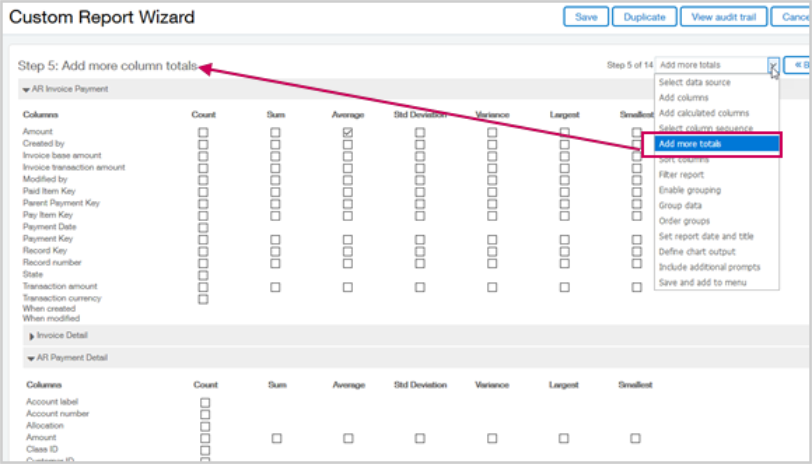
- Select the checkbox for the total or totals on the line for the column, such as sum and average.
- Save your selection.
- Select Next to continue to Wizard Step 6. Sort columns.
Wizard steps reference
The typical steps for creating a report with the Wizard are as follows:
- Select a primary data source.
- Add columns to the report.
- Add calculated columns.
- Specify the column order.
- Add column totals.
- Sort columns.
- Filter the report.
- Enable grouping.
- Group columns.
- Set report period and title.
- Define chart output.
- Include runtime prompts.
- Save and add the report to a menu or dashboard.
