5. Add a PYtD vs CYtD percentage calculation
Related information
 Related topics
This topic shows you how to create a calculation to determine the difference between the Current Year-to-Date Sales Order Amounts and the Previous Year-to-Date Sales Order Amounts. The calculation then divides the difference by the previous year amount to get a percent for the Sales Order amount.
| Subscription | Interactive Visual Explorer |
|---|---|
| Regional availability |
All regions |
| User type |
Business, Project Manager, and Warehouse |
| Permissions |
|
Before you begin
Step 1: Create a the percentage calculation
This calculation is based on the previous calculations you created:
- Current Year-to-Date Sales Order amount (CYtD SO Amount)
- Previous Year-to-Date Sales Order amount (PYtD SO Amount)
The simplest way to create this calculation is to leverage the calculations you created previously. You do this by copying and combing them, then adding the appropriate operators to create the percentage calculation.
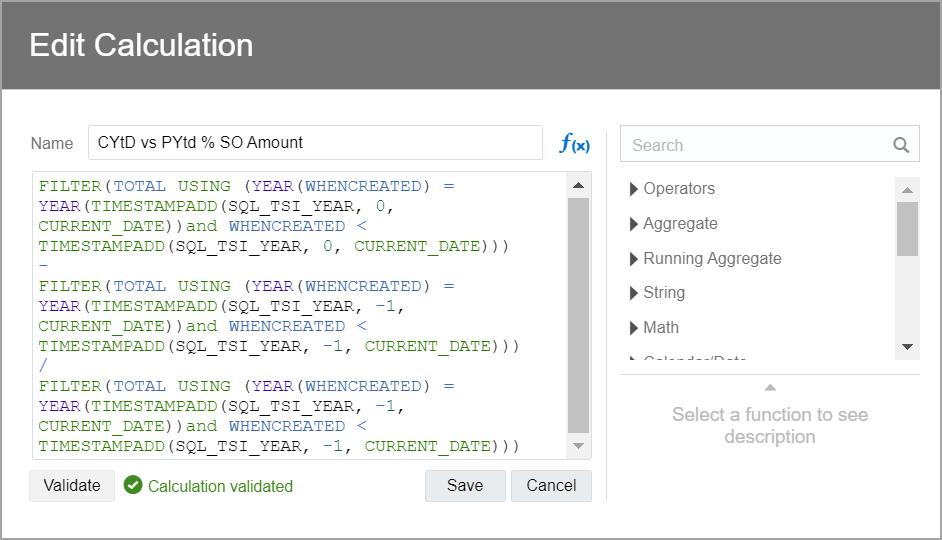
The completed calculation looks like the following example. The newly added operators, minus (-) and divide by (\) are shown on separate lines between the combined calculation segments.
((FILTER(TOTAL USING(YEAR(WHENCREATED) = YEAR(TIMESTAMPADD(SQL_TSI_YEAR, 0,
CURRENT_DATE))and WHENCREATED < TIMESTAMPADD(SQL_TSI_YEAR, 0, CURRENT_DATE))))
-
(FILTER(TOTAL USING(YEAR(WHENCREATED) = YEAR(TIMESTAMPADD(SQL_TSI_YEAR, -1,
CURRENT_DATE))and WHENCREATED < TIMESTAMPADD(SQL_TSI_YEAR, -1, CURRENT_DATE)))))
/
(FILTER(TOTAL USING(YEAR(WHENCREATED) = YEAR(TIMESTAMPADD(SQL_TSI_YEAR, -1,
CURRENT_DATE))and WHENCREATED < TIMESTAMPADD(SQL_TSI_YEAR, -1, CURRENT_DATE))))
Step 2: Combine CYtD and PYtD calculations to create a percentage
- Open the Sales Order Overview visual board.
- Go to My Calculation > CYtD SO Amount > Edit Calculation, copy the calculation to the clipboard, then select Cancel to close the dialog.
- Select My Calculations > Add Calculation, enter CYtD vs PYtD % SO Amount for the Name, then paste the CYtD SO Amount calculation into the text field and Save the calculation.
- Go to My Calculations > PYtD SO Amount > Edit Calculation, copy the calculation to the clipboard, and select Cancel to close the dialog.
- Go to My Calculations > CYtD vs PYtD % SO Amount > Edit Calculation and enter a new line after the CYtD SO Amount calculation.
- Enter a minus sign (
-) on the new line, paste the PYtD SO Amount calculation on a new line, then enter another new line followed by a divide by sign (/) and another new line. - Paste another PYtD SO Amount calculation beneath the divide by sign (
/). - Validate and Save the calculation, then Save the visual board.
- Continue with Explore with a Price by Year and Quarter waterfall chart.
