Intacct Lightning App in Sage People—Sage People Integration
The Sage People Integration package includes a Sage Intacct application. Use the Sage Intacct application to manage different aspects of your integration.
To open the Sage Intacct Lightning App:
- Sign in to Sage People as an administrator.
- Go to the App Launcher and select Sage Intacct.
The Sage Intacct app opens. - Select Intacct Configuration to view information about your integration.
You can access the pages of the Sage Intacct Lightning App from the Salesforce Classic UI as well.
Main Settings
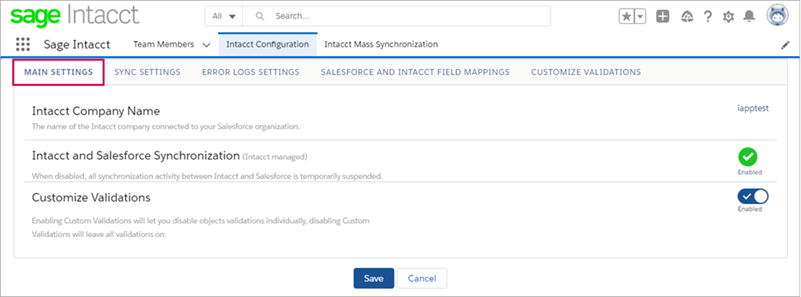
On the Intacct Configuration page, the Main Settings tab provides an overview of your integration.
Customize Validations
In the Customize Validations section of the Main Settings tab, you can enable customized validations. When enabled, the Customize Validations tab appears on the Salesforce Intacct Configuration page. This tab allows you to turn on or off Intacct dimension validations and select which employee validations you want to use in your organization.
If you deactivate Customize Validations on the Main Settings tab, all validations are returned to the enabled stage, including any you deactivated.
For more information, see Sage People customize validations.
Sync settings
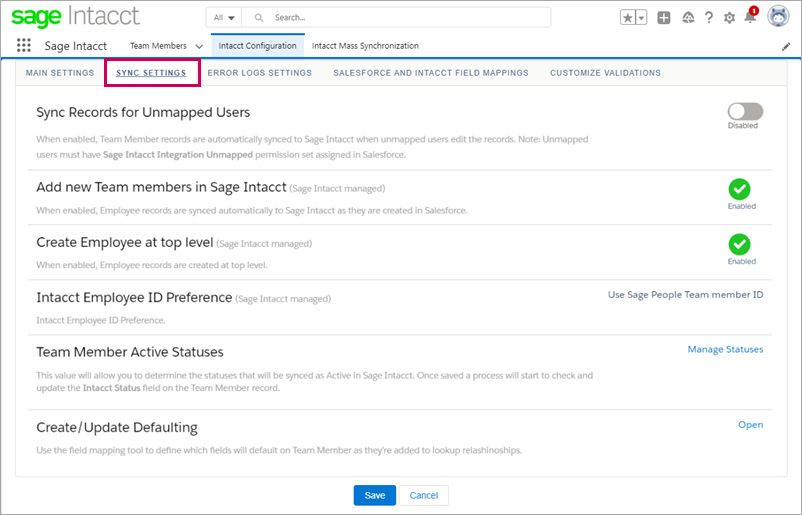
An overview of integration and synchronization settings can be seen on the Sync Settings tab on the Intacct Configuration page in Sage People.
Sync records for unmapped users
When enabled, Account and Contact records are automatically synced to Intacct when unmapped users edit their records.
Team Member active statuses
Use this control to select Sage People statuses that will be considered Active in Sage Intacct.
For example, if you select the Sage People statuses Active Employee, Temporary Staff, and On Leave Paid, the Team Members with these statuses have an Active status in Intacct. If a Team Member has one of the statuses you didn’t select as their status, they’re marked as Inactive in Intacct.

Create/update defaulting
Use this tool to define default values for fields on the Team Member record.
For example, the Team Member record has both Intacct Location and Department fields, and also has HR Department and Location fields. On the HR records you can use this tool to map which HR Location corresponds to which Intacct Location.
When you create a new Team Member, this tool looks at the mappings and supplies the default Intacct value. This also applies when a Team Member record is updated.

Error Log Settings
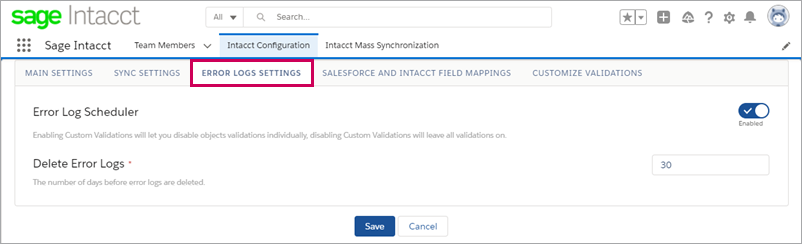
Use the Error Log Settings tab to determine how long error logs are kept before they’re deleted. If you do not enable this, error logs are not deleted.
Salesforce and Intacct Field Mappings
Review the field mappings set up between Sage People and Sage Intacct, including any custom field mapping you've included. If you want to change the field mappings, sign in to Intacct and go to the Sage People Integration configuration page.

