The Sage Intacct Community
Related information
 Related topics
The Sage Intacct Community is a collaborative space where you can connect with other Sage Intacct users, get troubleshooting help, share knowledge, and discuss the latest trends. Check out the following video to see a tour of the Community, including instructions on how to register and find answers.
You can access the Community directly at https://community.intacct.com.
The Sage Intacct Community requires a separate login. If you're new to the Community, you'll need to register first.
Register for the Sage Intacct Community
Before you begin
Make sure you have the following information:
-
Your company email address
-
Company ID: The company name that you use to log in to Sage Intacct.
-
Customer ID: This begins with C followed by 4 or 5 numerical digits.
If you have admin rights and the required permissions, you can view your customer ID on the Company information page. To access this page, go to Company > Setup > Configuration > Company.
If you cannot access that page, ask one of the following people:
- Your Sage Intacct administrator, designated support user, CEO, CFO, or Controller.
- Your implementer or Sage Intacct account manager.
To register for the Sage Intacct Community:
-
In a web browser, go to https://community.intacct.com.
-
Under New to Sage Intacct Community?, select Get Started.
-
Enter your company Email address, Customer ID, and Company ID in the applicable fields. The Customer ID and Company ID fields are case-sensitive.
-
Select Register.
After your registration is processed, you'll receive an email from Sage Intacct with the subject "Welcome to the Intacct Community!". This email includes your Sage Intacct Community username, which is usually firstname.lastname@intacctcommunity.com
-
Open the email from Sage Intacct and select Get Started Here to activate your account and create a new password.
Visit the Sage Intacct Community
- Do one of the following:
- Access the Sage Intacct Community directly at https://community.intacct.com.
- From any page in Intacct, go to Help & Support > Help Center and then select Community.
- Enter your Community username and password and select Sign In.
Your Sage Intacct Community username is different from your Sage Intacct username. Sage Intacct Community usernames are usually formatted as: firstname.lastname@intacctcommunity.com
If you've already registered and you're unable to log in to the Sage Intacct Community, see Troubleshoot Sage Intacct Community login.
Personalize your Sage Intacct Community profile
Make your Sage Intacct Community profile your own! Upload a friendly photo to put a face to your name.
- In the upper-left blue profile section on the Home tab of the Sage Intacct Community, select the profile picture.
Your Sage Intacct Community profile page appears.
- To upload a new image, hover over the profile picture image, select Add photo, browse for the image file, and select Save.
Find knowledge base articles
The Sage Intacct Community gives you access to over 10,000 knowledge base (KB) articles. These articles answer product questions, have configuration information, and help troubleshoot specific error messages.
You can search for knowledge base articles using the main search bar, which includes results for other types of Community documents, or you can search the knowledge base only.
Search for knowledge base articles using the main search bar
- In the Sage Intacct Community, enter the desired search string in the main search field at the top of the page.

A search results page appears and lists results for Articles (KB articles), Ideas, Replies (to Questions), and Topics.
The search displays up to 5 article results by default.
- To see more articles, select go to Articles in the yellow information box that displays under the Articles heading.
A longer list of Articles appears.
- To view an article, select the article name.
- Scroll through the list or enter a different search string to see alternative results.
Search only the knowledge base
- In the Sage Intacct Community, select the Support tab.
- Under Search Our Support Resources enter a search string in the search field.
The Support Articles tab displays only KB articles.
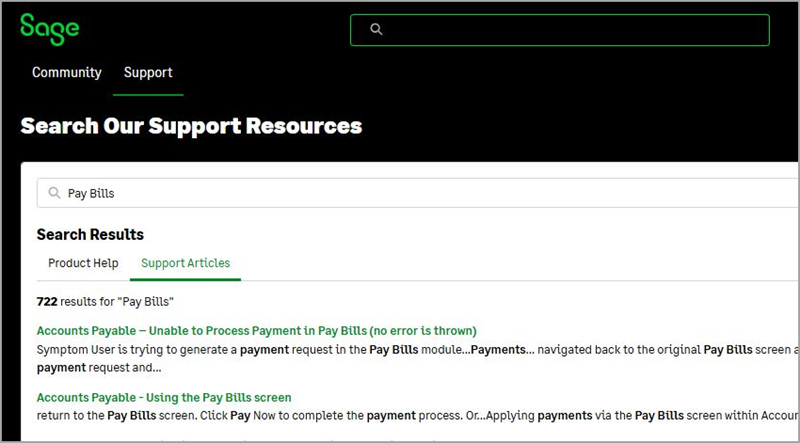
- To view an article, select the article name.
- Select the Product Help tab to view results from our Help Center.
Ask a question or post information
There are 2 methods for publishing something in the Community:
- Question—used specifically for asking questions. The question field also has a feature that looks up previously asked questions based on what you enter. The question text appears bold in the Community feed, allowing easier scanning.
- Post—used for sharing information or contributing tips. It's also okay to use Post to ask a question.
You can publish to the main Community group or you can publish to a special interest group that you've joined. If someone responds to your question or post, you'll receive an email notification (unless you've edited your notification preferences).
Ask a question
If you do not find exactly what you need by searching, ask the Sage Intacct Community. Asking a question is a great way to get answers and ideas from other Community members.
- In the Sage Intacct Community Home tab, do one of the following:
- To ask a question to the main Community group, select Connect Now.
- To ask a question to a special interest group, select Groups in the upper-left blue profile section, select My Groups, and then select the desired group name.
- At the top of the feed above the Share box, select Question.
A text entry box appears.
- Enter the question in the first field. As you type, Community shows previously asked questions based on what you entered. You can select a question to see the response or continue entering your question.
- Enter more specific details about the question in the second field.
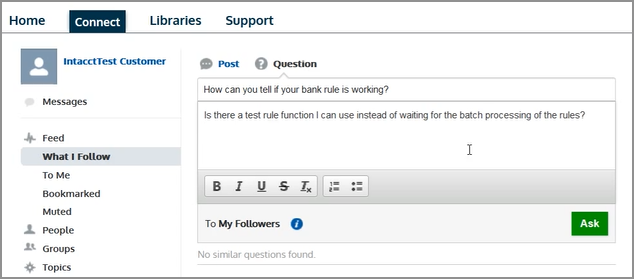
- Review the question and then select Ask.
The question is now live on the Community.
- Optionally, select Click to add topics, select or enter any keywords, and then select Done.
Adding topic keywords helps other Community members find your question.
You cannot edit or delete questions after you select Ask. If you want to clarify something after you post, use the Answer field beneath your question to add a comment.
Post information
- In the Sage Intacct Community Home tab, do one of the following:
- To post information to the main Community group, select Connect Now.
- To post information to a special interest group, select Groups in the upper-left blue profile section, select My Groups, and then select the desired group name.
- At the top of the feed above the Share box, select Post.
A text entry box appears.
- Enter the information that you want to publish in the text entry field.
- Review the content and then select Share.
The information is now live on the Community.
- Optionally, select Click to add topics, select or enter any keywords, and then select Done.
Adding topic keywords helps other Community members find your post.
You cannot edit or delete posts after you select Share. If you want to clarify something after you post, select Comment beneath your post to add a comment.
Contribute ideas
Have a great idea for Sage Intacct? Share and vote on improvements with other users in our Ideas section. Your suggestions could become part of a future release! The more details you share, the better we can understand your needs.
Add an idea
- In the Sage Intacct Community Home tab, select View All Ideas underneath the Ideas heading.
- Browse the list of ideas. Use the Category dropdown list to filter by subject or select the Recent ideas and Top All-Time ideas tabs to view idea activity.
- If you do not see a similar idea, select Post Idea.
A Describe your Idea form appears.
- Enter a brief name for your idea in the Title field.
A list of potentially similar ideas appears.
- Do one of the following:
- If you see a similar idea, select Cancel to close this form and then vote for the idea.
- If you still do not see a similar idea, enter a detailed description of the idea. Include business use cases and other details to help our product management see your vision.
- Select the applicable categories for your idea.
- Select Post.
You cannot vote on your idea again. You can ask your colleagues and other Community members to vote for it.
Vote for an idea
You can only vote for an idea one time. If you want more votes for an idea, ask other Community members to vote for the idea.
- In the Sage Intacct Community Home tab, select View All Ideas underneath the Ideas heading.
- Browse the list of ideas. Use the Category dropdown list to filter by subject or select the Recent ideas and Top All-Time ideas tabs to view idea activity.
- When you see an idea that you like, select the upward-pointing arrow to the left of the idea.

- Optionally, add a comment to the idea with detailed business use case information.
What happens after I add an idea?
-
The Sage Intacct product management team reviews ideas every quarter.
-
Ideas are prioritized based on the number of votes and how they align with features and enhancements that are in development.
-
Sage Intacct does not provide a roadmap for specific ideas, but be assured that we do take your ideas seriously as we develop and enhance related features.
Receiving too many emails?
If you're receiving too many email notifications from the Community, you can change your email notification preferences. Community-related emails are sent to the email address associated with your Community username.
- From the dropdown menu in the upper-right corner of the Community next to your name, choose My Settings.
- Select Email > My Email Settings.
- Change your subscriptions as desired, and select Save.
- Select Chatter > Email Notifications.
- Select or deselect the checkboxes beside the email options listed in the page, and select Save.
