Get started with Sage Collaborate
Related information
 Related topics
As a new user of Sage Collaborate, here are our suggestions for how to get started.
| Subscription | Sage Collaborate |
|---|---|
| User type |
Sage Collaborate is available to all user types after you subscribe. |
Open Sage Collaborate
Select Collaborate at the top of any Intacct page to open Sage Collaborate.

Set up your profile
Your Sage Collaborate profile is where you can personalize your picture and set email preferences.
To add or change your profile picture:
- Select Collaborate at the top of any Intacct page.
- Select More > Profile to view your profile.
From here you can update your profile picture and select your email notification preferences.
Join groups
Groups let you collaborate with specific people in your company. You may have a small group for your team, and larger group for your department.
To join a group:
-
Select Collaborate at the top of any Intacct page.
-
Go to More > Groups.
A list of groups opens.
-
Select Join or Ask to join next to the group to join.
If a group is private, you’ll be admitted or denied by the group owner.
Start following records
When you follow records, you see comments made on the records in your feeds. Typically, you see updates for:
- Comments and posts
- Shared links or files
Several feeds are available for use:
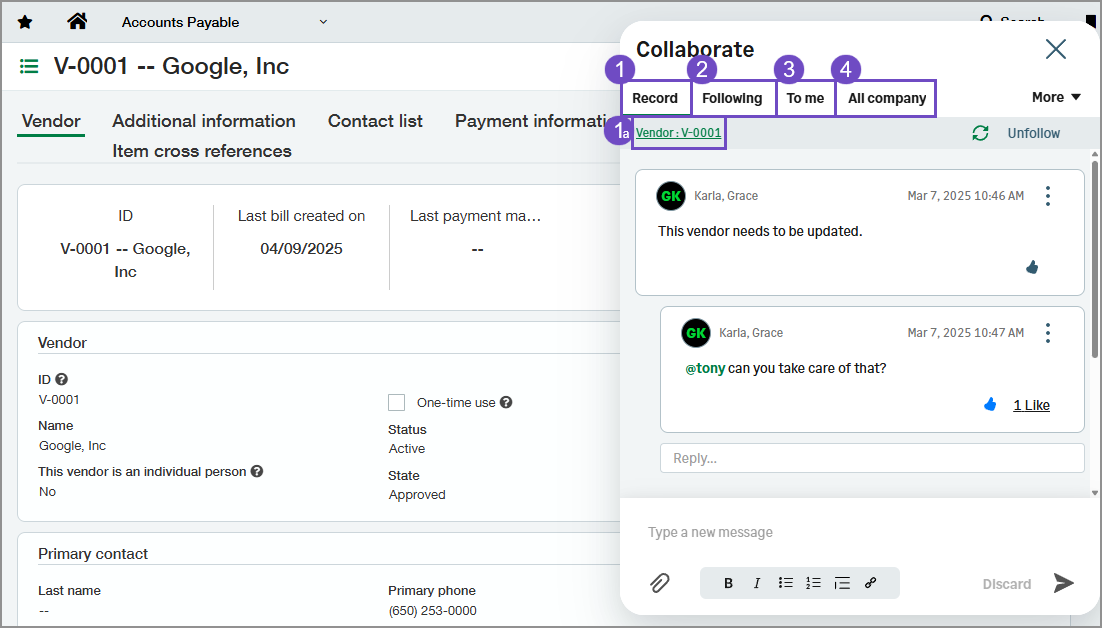
-
-
The record name. Select the record name to open it in a new browser window or tab.
-
- Approvals
- Lists
- Reports
- Intacct configurati on pages
