ICRW advanced prompts: Run Interactive
Related information
 Related topics
You can add prompts at runtime that exclusively show data that matches a specified set of criteria. Unlike filters, prompts are set up as fields in which you input criteria when you run the report.
Run Interactive provides advanced prompts for enhanced runtime functionality with Interactive Custom Report Writer (ICRW) reports. This topic covers the following:
| Subscription | Interactive Custom Report Writer
Platform Services |
|---|---|
| Regional availability |
All regions |
| User type | Interactive Custom Report Writer: Business, Project Manager |
| Permissions |
Interactive Custom Report Writer: Run, List, View, Add, Edit, Delete Platform Services: Run, List, View, Add, Edit, Delete
|
How to use Run Interactive with a report
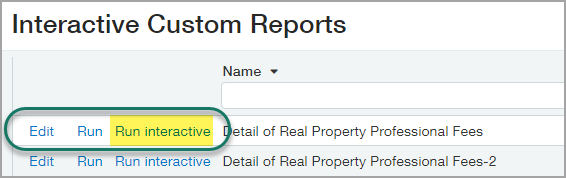
Run Interactive is an option you can choose when you run an ICRW report from the lister page. This option enables advanced prompts that were applied to the report.
-
Go to Reports > All > Advanced > Interactive Custom Reports.
- Find a report that uses advanced runtime prompts.
-
Select Run Interactive next to the report name and provide any prompt request information.
Add advanced prompts to an ICRW report
-
Go to Reports > All > Advanced > Interactive Custom Reports.
- Select a report to Edit.
- Go to the Prompts tab and select Add and choose the type of new prompt from the dropdown menu.
- In the New prompt dialog, specify the advanced prompt parameters as described in the following sections. For more information on ICRW report prompts, see Include runtime prompts for a report.
- Save the report.
Set SQL Results
The SQL Results option allows you to add prompts to reports that rely on custom SQL. These reports require a special type of runtime prompt to return accurate results.
A typical report prompt might create a simple list of customer names for you to view and select when the report is run. This type of column prompt works well with reports that are based on a single reporting area.
In most cases, a list of customers is the same across in all the reporting areas. This consistency allows ICRW to take the list of customers from a reporting area used by the report.
To create a selection list of customers, the Run Interactive feature takes advantage of the SQL Results option imbedded in the Choice List Values. Using the SQL Results option, you can write a simple query, such as the one in the following example.
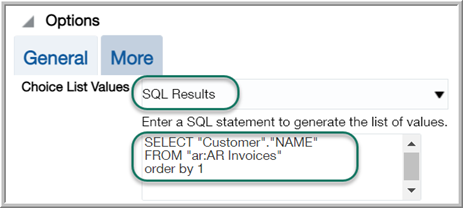
This query returns the values of a column in a single reporting area. The order by 1 clause sorts the values in the first column (in this case, the only column) in alphabetical order.
You can use more complex SQL for this column, if necessary. For example, you could prompt for a list of customers that received invoices totaling at least $1,000,000:
SELECT "Customer"."NAME"
From "ar:AR Invoices"
Where  sum("Invoice detail Measures"."AMOUNT" by "Customer"."Name") >= 1000000
ORDER BY 1 Set Limit values by
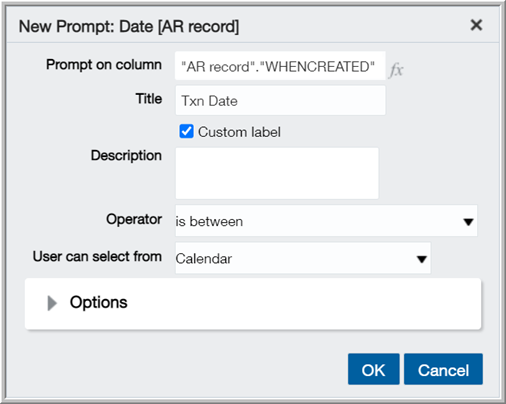
The Limit values by option is useful when prompting for a range of values. For example, this option might be used to select from a list of customers that made purchases during a specified time frame. For this runtime prompt, a user selects a range of dates. The resulting list of customers is based on the date range that they enter. This prompt is known as a Cascading Prompt.
The prompt for a Transaction Date might resemble the following:
The prompt for the customer list might include the following options:
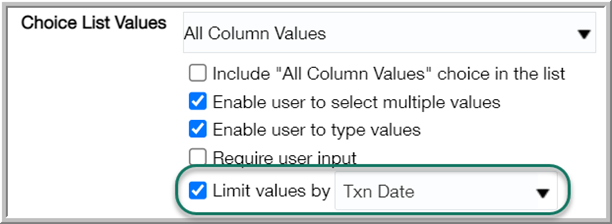
The user selects Run Interactive and enters a range of dates when prompted. A list of customers who made transactions within the specified date range returns as the results.
Specify longer lists of selection values
The Run Interactive option lifts the restriction on the number of values allowed in a prompt. With Run Interactive, you can include as many values in a prompt list as you want.
Scrolling through a long list of selectable values is not desirable. However, if a long list of selectable values is unavoidable, users can take advantage of Search.
Search for prompt values
Run Interactive incorporates Search for ease of use. This feature is useful when a prompt has a long list of selectable values.
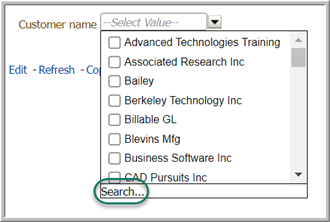
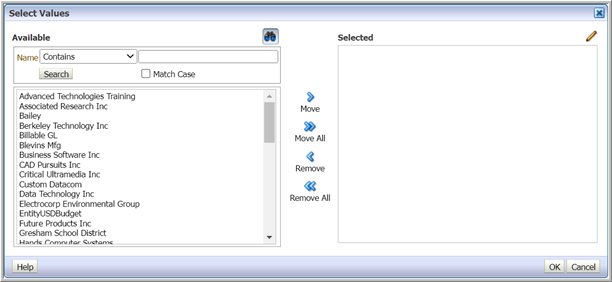
- Select Search to bring up the Select Values dialog.
- Enter the text to find the desired values.
- Move the desired values to the Selected panel.
- When all the necessary values are selected, choose OK.
Customize prompts with Run Interactive
You can customize your prompt selections when you use Run Interactive.
- Select Run Interactive for the ICRW report.
- Make your prompt selections and select View.
- Select F5 on your keyboard to refresh the browser page and make other prompt selections.
