AR Snapshot and Aging example—ICRW
Related information
 Related topics
The Interactive Custom Report Writer (ICRW) AR Snapshot and Aging reports provide comprehensive views of accounts receivable (AR) information at a specific point in time. The integrated table views allow you to access varying levels of detail quickly for comparison and analysis.
The following reports combine 5 different reporting areas and the View Selector allows you to effortlessly page between the table views.
- AR Snapshot and Aging: A comprehensive view of outstanding accounts receivable invoices for a company as of a specific date.
- AR Snapshot and Aging CRE: A comprehensive view of outstanding accounts receivable invoices as of a specific date for construction projects. This report includes retainage and adjustments to payment details. Retainage transactions and the adjusting entries for the aging of invoices are applied to construction projects.
This topic explains the benefits of these reports, and demonstrates how to access the different views with the View Selector.
| Subscription | Interactive Custom Report Writer
Platform Services |
|---|---|
| Regional availability |
All regions |
| User type | Interactive Custom Report Writer: Business, Project Manager |
| Permissions |
Interactive Custom Report Writer: Run, List, View, Add, Edit, Delete Platform Services: Run, List, View, Add, Edit, Delete
|
Benefits of AR aging snapshots
Aging reports provide information on customers who owe you money and their payment history. The AR Snapshot and Aging report shows information on customer payments at a certain point in time. You can easily determine the number of days it took for a customer to pay an invoice, or how many days the payment is past due.
For construction projects, the AR Snapshot and Aging CRE report allows you to track and manage the payment or receipt of contractual retainage amounts. You can analyze incrementally invoiced customers based on contract terms. Or focus on specific invoice details, such as amounts, total paid, percentage of work completed, amount due, and total outstanding amount for a project.
Both AR Snapshot and Aging reports provide the following:
- Invoice identifier and the invoice date and due date
- Individual line items on the invoice
- Customer, and optionally the parent customer, billed on the invoice
- Job or project related to the invoice
- Individual transactions for each line item
- Data segmented by department, vendor, and location
Analyze AR aging snapshot views
The AR Snapshot and Aging reports provide comprehensive views of outstanding accounts receivable invoices as of a specific date. Integral table views allow for easy access to varying levels of detail in the data.
For example, a CFO might want to know the total outstanding amount due from all customers. Likewise, an auditor might want the details for each line item, and the amount due for each customer. You can quickly access both levels of information from the different table views.
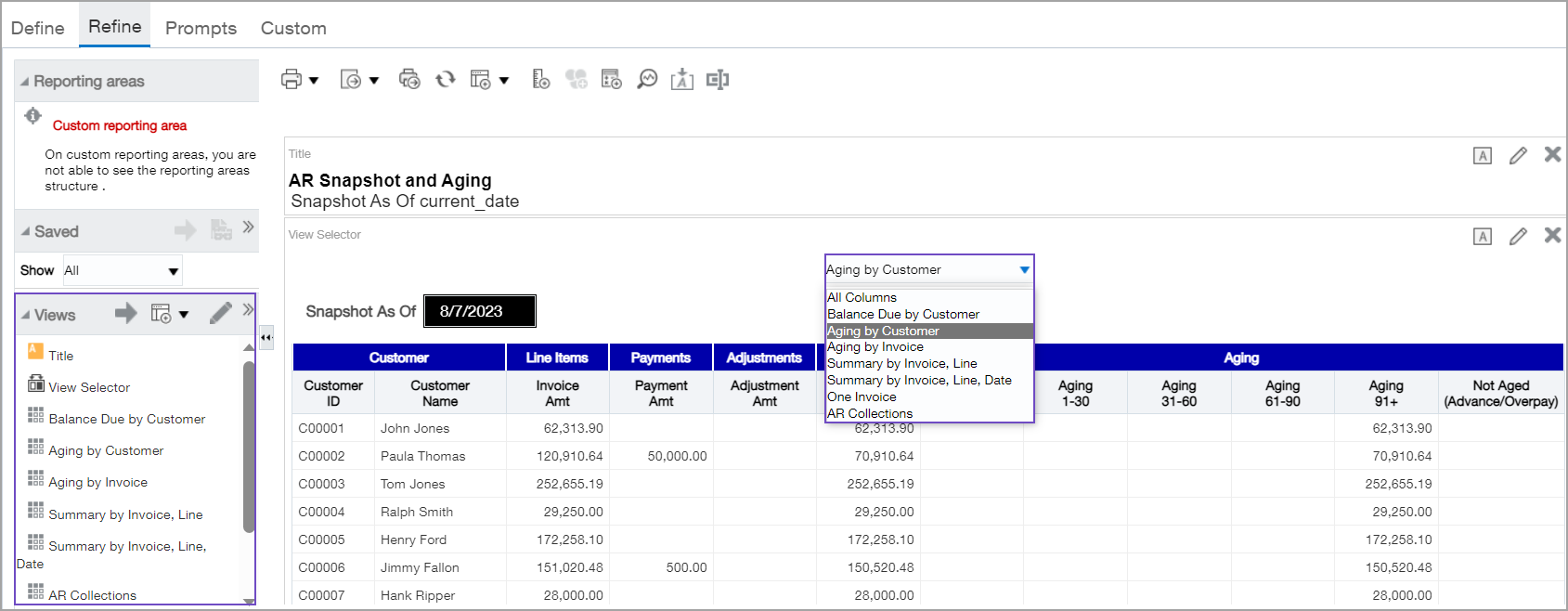
You can switch between the following views with the View Selector to analyze various aspects of the report data.
| Table views | |
| Balance due by customer | Aging by customer |
| Aging by invoice | Summary by invoice, line |
| Summary by invoice, line data | AR collections |
| All columns | One invoice |
Run an AR Snapshot and Aging report
-
Go to the ICRW Report library list.
-
Go to the AR Snapshot and Aging report and select Run interactive.
This option takes advantage of specialized features that are only available in Run interactive mode. -
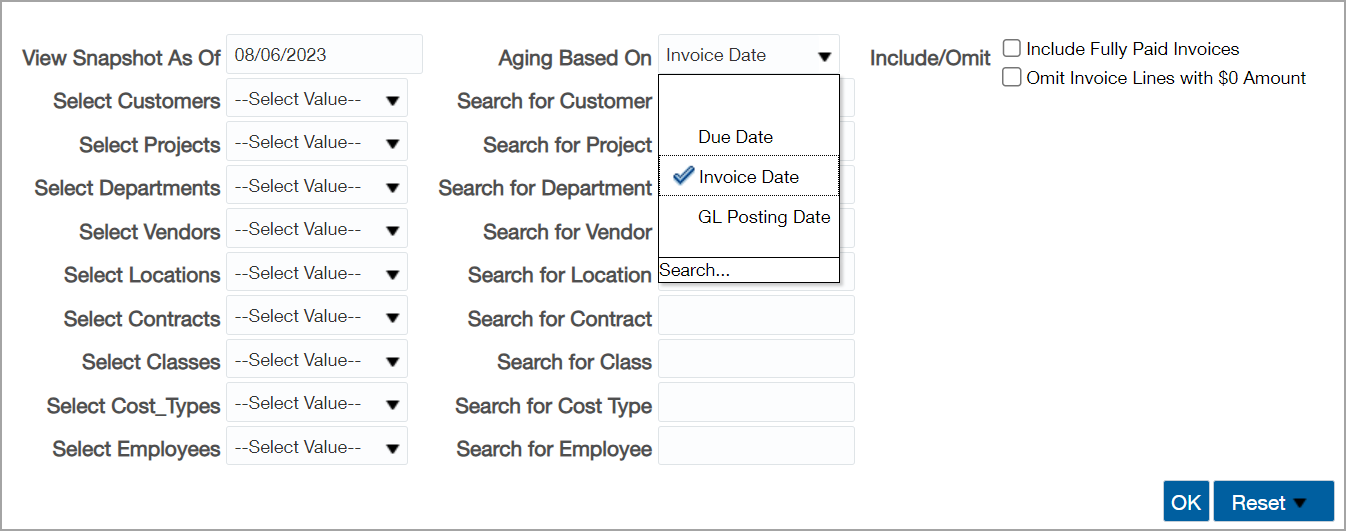
On the Prompts page, choose an option from the Aging Based On dropdown menu.
-
Select other prompt options, specifying search parameters as necessary, then select OK.
Switch between table view displays
-
Go to the ICRW Report library list.
-
Go to the AR Snapshot and Aging report and select Edit.
The report opens to the Refine tab and shows the available Views in the lower left pane. -
Select the View Selector below the Title bar and choose a view from the dropdown menu.
-
Optionally, print or export the displayed view.
Customize the View Selector list
You can configure the list of table views available in the View Selector and rearrange the order.
-
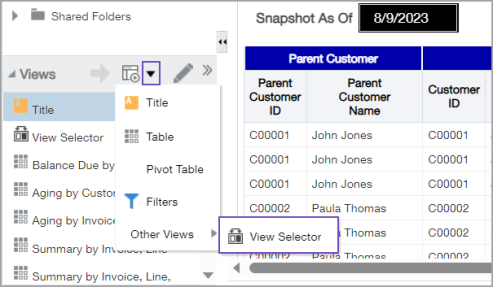
Go to the Views panel heading. Then, right-click the down arrow, and select Other Views > View Selector.
-
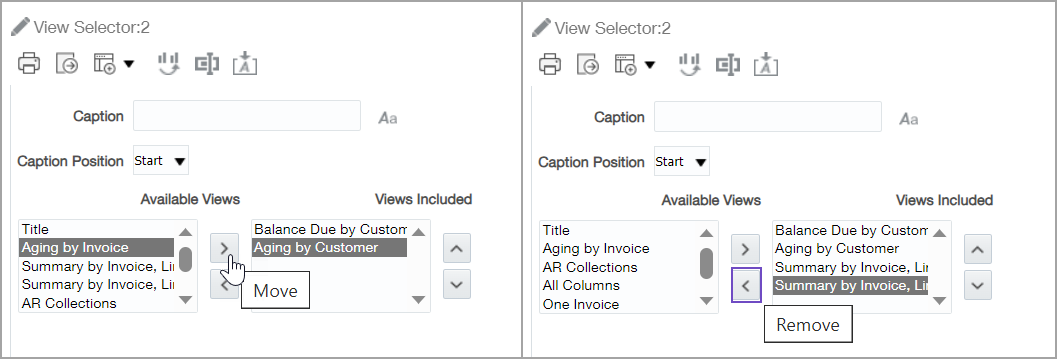
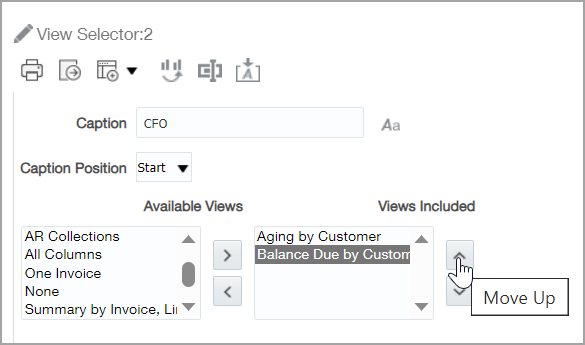
In the Available Views panel, highlight a view name, and select the arrow > to add it to the Views Include list. You can also highlight a view name in the Views Included panel and select the < arrow to remove a view from the list. Repeat until all the desired views are included.
-
Optionally, reorder the views by highlighting a view name in the Views Included panel and selecting the up or down arrow.
-
Enter a descriptive Caption for the View Selector and select Done. The View Selector appears in the Views list.
-
In the Views panel list, highlight the View Selector, then in the panel heading, select the Add View (large gray arrow) icon.
-
Scroll to see the customized views and make selections from the customized View Selector dropdown menu.
For information on adding a View Selector to other reports and customizing the views, see Create selectable views in a report.
