Account allocations example—maintain source account balances
This example walks you through creating an account allocation definition that maintains the original balance in the accounts that make up the source pool. Use this type of allocation definition when you want to leave your account balances unchanged while redistributing portions of the balance to different dimensions.
If you're goal is to allocate source account balances to a different account, see Account allocation example - allocate source account balances to a different account.
Example details
In this example, we're going to distribute benefit expenses across departments based on how salaries were distributed.
Our company has a Benefit Expense account group that contains the following accounts:
-
6110—Benefits - Life Insurance
-
6120—Benefits - Health Insurance
-
6130—Benefits - Retirement
These benefit expenses are all posted to a shared department. The goal of the allocation definition is to reallocate those expenses to specific departments using percentages that reflect how salaries were distributed across the same departments.
We do not want to change the amount of the account balances. Instead we're going to allocation portions of those balances to the following departments:
-
110—Campaigns
-
120—Graphics
-
130—Development
So the resulting journal entries will reallocate the expenses out of the 999—Shared department into the departments listed.
The amounts allocated to each department will be calculated based on how salaries were distributed across those departments. Intacct will analyze the journal entries posted to the Salaries and wages account group to determine the percentage for each department.
When you run the allocation, the benefit expenses are allocated using those same percentages.
| Subscription |
Dynamic Allocations General Ledger |
|---|---|
| Regional availability |
All regions |
| User type | Business |
| Permissions |
|
Create the allocation definition
To create an allocation definition, go to General Ledger > Setup > Allocations and select Add (circle) next to Account allocation definitions.
Rationale
In the Rationale section, we want to identify the allocation definition and explain how we set it up.
| Field | Value |
|---|---|
| Allocation ID | Benefits |
| Description | Allocate benefits across departments |
| Status | Active |
| Methodology | Base allocation on salary distribution |
Dimension treatment
In the Dimension treatment section, we're going to specify whether this allocation is confined to one entity and how dimensions affect the allocation.
We're allocating the benefits expenses across departments, so Departments will be a focus of the allocation. We'll preserve the values of the location. Dimensions set to Preserve values keep their original values assigned during the initial entry.
Dimensions other than Department and Location, will be set to Not considered.
| Field | Value |
|---|---|
| Allow allocations | Within one entity |
| Location | Preserve values |
| Department | Allocation focus |
| All other dimensions | Not considered |
Source pool
The Source pool section is where we specify what amounts are going to be allocated. In this case, the salary and benefits expenses are posted to the Accrual book.
| Field | Value |
|---|---|
| Account group | Benefit Expense |
| Percentage to allocate | 100 |
| Reporting book | Accrual |
| Use amounts from | Main reporting book and alternate books |
| Source pool time period | Current month |
| True-up | None |
| Entity or locations | E100 |
| Departments | 999—Shared |
Other than Entity or locations and Departments, leave the dimension filter fields blank.
Basis
In the Basis section, we specify how Intacct determines what portion of each benefits account balance will be allocated to each department.
| Field | Value |
|---|---|
| Allocation method | Dynamic - relative account financial |
| Account group | Salary and Wages Expense |
| Accumulation | Activity |
| Reporting book | Accrual |
| Use amounts from | Main reporting book and alternate books |
| Basis time period | Current month |
| Entity or locations | E100 |
Other than Entity or locations, leave the dimension filter fields blank.
Target entry
In the target entry section, we tell Intacct where to post the journal entries that are created when you run the allocation.
The company posts all allocations to a user-defined Allocations journal.
| Field | Value |
|---|---|
| Reporting book | Accrual |
| Alternate book | Allocations |
| Journal | AJ--Allocations journal |
| (Allocation destination) Use source account |
Select this checkbox to maintain the original balance in the source pool accounts. Portions of the account balances will be allocated to different dimensions, but the actual balances do not change. To post the balances to a different account, deselect the checkbox and select the account. For this example, select the checkbox. |
| (Reversing source pool) Use source account |
Select this checkbox to use the same accounts selected in the Source pool section to reverse the transaction. For this example, select the checkbox. |
Breakdown of example
For our example, the following amounts were posted for January salaries for a total of 6,000.
| Account | Department | Location | Debit or (Credit) |
|---|---|---|---|
| 6000--Salaries | 110--Campaigns | E100 | 1,000 |
| 6000--Salaries | 120--Graphics | E100 | 2,000 |
| 6000--Salaries | 130--Development | E100 | 3,000 |
| 2000--Accounts Payable | 999--Shared | E100 | 6,000 |
Based on the amount posted to each department and the total, the allocation calculates the following percentages of salaries paid to each department.
| Department | |
|---|---|
| 110--Campaigns | 17% |
| 120--Graphics | 33% |
| 130--Development | 50% |
The following amounts were posted for benefits:
| Account | Department | Location | Debit or (Credit) |
|---|---|---|---|
| 6110--Benefits - Life Insurance | 999--Shared | E100 | 200 |
| 6120--Benefits - Health Insurance | 999--Shared | E100 | 400 |
| 6130--Benefits - Retirement | 999--Shared | E100 | 600 |
| 2000--Accounts Payable | 999--Shared | E100 | (1,200) |
Running the allocation will distribute the balance of the three benefit accounts to the Campaigns, Graphics, and Development departments using the percentages derived from the salary distribution.
The allocation will create three separate journal entries in the Allocations journal, one for each benefits expense account.
Journal entry for account 6110--Benefits - Life Insurance
| Account | Department | Location | Debit or (Credit) |
|---|---|---|---|
| 6110--Benefits - Life Insurance | 110--Campaigns | E100 | 34.00 |
| 6110--Benefits - Life Insurance | 120--Graphics | E100 | 66.00 |
| 6110--Benefits - Life Insurance | 130--Development | E100 | 100.00 |
| 6110--Benefits - Life Insurance | 999--Shared | E100 | (200.00) |
Journal entry for account 6120--Benefits - Health Insurance
| Account | Department | Location | Debit or (Credit) |
|---|---|---|---|
| 6120--Benefits - Health Insurance | 110--Campaigns | E100 | 66.67 |
| 6120--Benefits - Health Insurance | 120--Graphics | E100 | 133.33 |
| 6120--Benefits - Health Insurance | 130--Development | E100 | 200.00 |
| 6120--Benefits - Health Insurance | 999--Shared | E100 | (400.00) |
Journal entry for account 6130--Benefits - Retirement
| Account | Department | Location | Debit or (Credit) |
|---|---|---|---|
| 6130--Benefits - Retirement | 110--Campaigns | E100 | 100.00 |
| 6130--Benefits - Retirement | 120--Graphics | E100 | 200.00 |
| 6130--Benefits - Retirement | 130--Development | E100 | 300.00 |
| 6130--Benefits - Retirement | 999--Shared | E100 | (600.00) |
Run the allocation
After the salaries and benefits have been posted to General Ledger, run the allocation to allocate the benefits expense to the correct departments.
-
Go to General Ledger > All > Account allocations > Generate allocation.
-
Enter the GL posting date and Your email address.
-
Enter the As of date.
-
Select Individual allocation ID.
-
In the Account allocation ID field, select the allocation definition that you created.
-
Select Generate.
Review and verify the allocation
There are several ways to review the results of the allocation.
Reports
The most effective way to review your allocation and verify that amounts were moved in the way you expected is to run a financial report. Everyone's standard financial reports are different, so you can pick the statement type that works best for you.
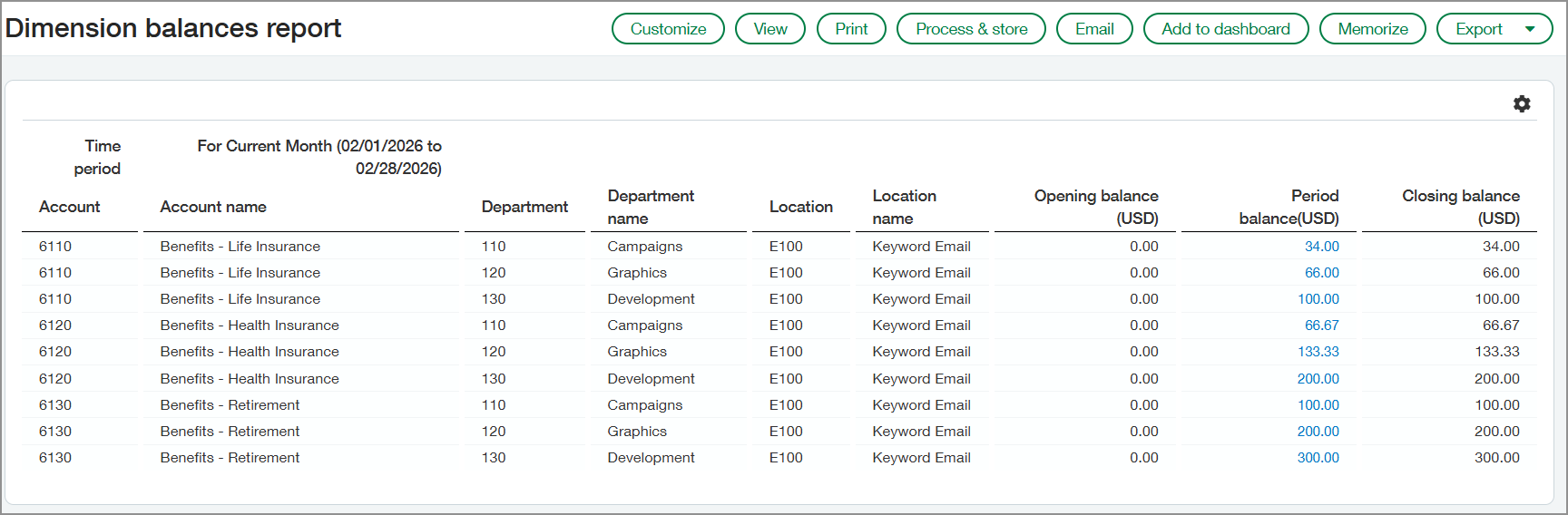
For our example, we're going to look at the Dimension Balances report, which is available on the General Ledger > All menu. The report shows the matches the expected balances for the benefits accounts as shown in the tables above.
Allocation journal entry
You can review the journal entry generated by the allocation.
- Go to General Ledger > All > Account allocations > Allocation log.
- Select View next to the allocation you want to view.
The journal entry for the account allocation opens. Review the journal entries for your allocation at the bottom of the page.
Automated allocation snapshot
You can go to the allocation snapshot to review the calculations that Intacct used based on your allocation definition.
- Go to General Ledger > All > Account allocations > Allocation log.
-
Select View next to the allocation that you want to view.
You'll see the list of journal entries created by the allocation, one for each account in the source pool account group.
-
Select View next to one of the journal entries.
-
Select the link under the Description heading.
For this example, it will says something like "Allocated entry for Benefits."
- On the Automated allocation snapshot page, select one of the following links:
- In the Source pool section, select the See source pool calculation link. An Excel file that contains the source pool information will be downloaded to your default downloads folder.
- In the Basis section, select the See basis calculation link. An Excel file that contains the information that Intacct used for the basis calculation will be downloaded to your default downloads folder.
- In the Target entry section, select the See dynamic split calculation. A window opens and shows the percentages that were used to allocate the benefits to the different departments.
