Work with ICRW session variables
Related information
 Related topics
Session variables are inherent to Interactive Custom Report Writer (ICRW) and can be used when creating filters for date columns. Every time you sign in to ICRW, a series of session variables are set that you can use in your reports.
For example, you might want a report that shows data for the current month, or for the most recently completed month, or year to date. Session variables provide an easy way to accomplish this task, while showing relevant data no matter when you run the report.
This topic provides examples of the different ways you can use session variables.
| Subscription | Interactive Custom Report Writer
Platform Services |
|---|---|
| Regional availability |
All regions |
| User type | Interactive Custom Report Writer: Business, Project Manager |
| Permissions |
Interactive Custom Report Writer: Run, List, View, Add, Edit, Delete Platform Services: Run, List, View, Add, Edit, Delete
|
Available session variables
ICRW includes packets of information related to calendar dates. These packets are called session variables, and can be used when building filters for date columns. Two examples of session variables are NextMonthFrom and NextMonthTo.
Session variables in ICRW reports
You can use session variables in ICRW reports to improve the user experience. For example, you might use the PriorMonthTo session variable in an As_Of_Date prompt to streamline running a report.
Users typically select the last day of the most recent completed month for an As_Of_Date prompt. You might use a session variable in the following ways:
- Set the prompt to default to the last day of the most recent completed month. This means the user only needs to make a prompt selection if they want a different date.
- Set the default date in the report filter to the last day of the recent completed month. When the user edits the report, it returns results relevant for the current date.
How you refer to a session variable in a report depends on where it is being used. Select a link in the following table to jump to the explanation for using the session variable.
| Where the session variable is used | Correct syntax |
|---|---|
| Column formula | valueof(NQ_SESSION.TodayFrom) |
| Default for a presentation variable formula | @{Selected_End_Date}{valueof(NQ_SESSION.TodayFrom)} |
| Report filter | valueof(NQ_SESSION.TodayFrom) |
| Default for a report filter | @{biServer.variables['NQ_SESSION.TodayFrom']} |
| Title View (title or subtitle field) | @{biServer.variables['NQ_SESSION.TodayFrom']} |
| Default for a presentation variable prompt | @{biServer.variables['NQ_SESSION.TodayFrom']} |
The following sections provide examples for using session variables in a variety of ways.
Use a session variable in a column formula
You can easily add a session variable to a column formula to include a relative date. For information on using calculations in ICRW, see Work with ICRW calculation columns.
- Open an ICRW report to Edit, and go to the Define tab.
- Select the column heading and choose Edit formula from the dropdown menu.
- Add the session variable syntax in the Calculation pane, and select OK.
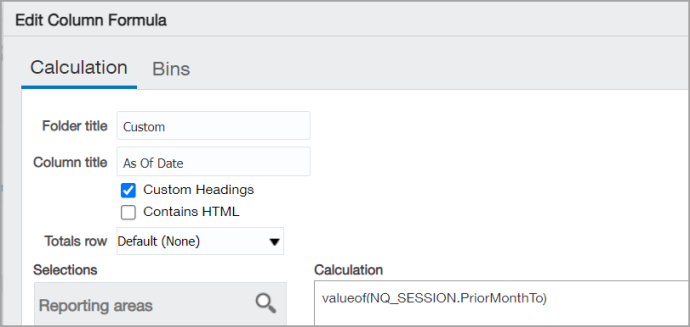
The following example adds the PriorMonthTo session variable syntax to an As Of Date column: valueof(NQ_SESSION.PriorMonthTo)
Use a session variable as the default for a presentation variable formula
Using a session variable as the default value for a presentation variable in a column formula is similar to using a session variable in a calculation.
The session variable syntax required to add the session variable to the calculation is: @{presentation variable}{valueof(NQ_SESSION.PriorMonthTo)}
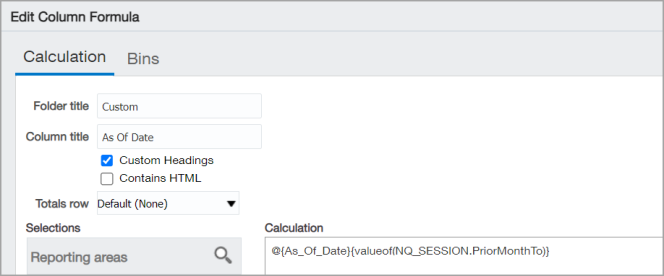
The following example shows a column calculation with the PriorMonthTo session variable set as the default for the As_Of_Date presentation variable: @{As_Of_Date}{valueof(NQ_SESSION.PriorMonthTo)}
Use a session variable in a report filter
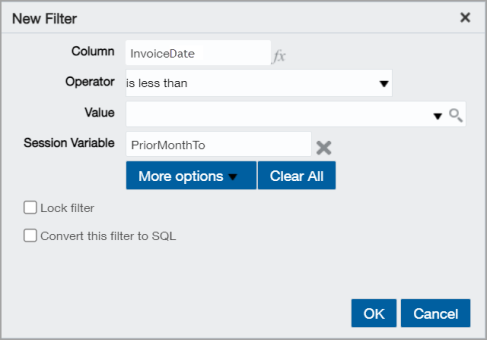
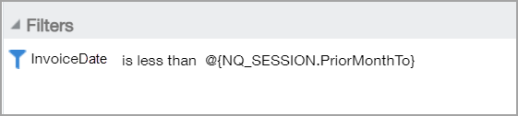
You can add a session variable to a report filter to include a relevant date. In the following example, a report filter is created that uses a session variable. The session variable syntax then appears in the Filters pane.
- Open an ICRW report to Edit and go to the Define tab.
- Go the Filters section at the bottom of the page, select the Filter icon, and choose the column name from the dropdown list.
- In the New Filter dialog, choose an Operator for the filter from the list. This example uses the
is less thanoperator. - Expand More Options and choose Session Variable from the dropdown list.
- Enter the session variable name. This example uses the PriorMonthTo session variable.
- Select OK.
The PriorMonthTo session variable filter appears in the Filters pane at the bottom of the window.
Use a session variable as the default for a presentation variable filter
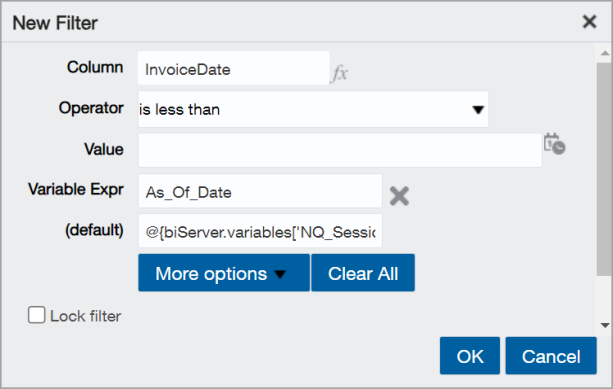
Using a session variable as the default value for a presentation variable in a report filter is similar to creating a presentation variable filter. The difference is that you specify a session variable name in the (default) field below the Variable Exp field.
The following example uses the PriorMonthTo session variable as the default value for the As_Of_Date presentation variable. This syntax used for the PriorMonthTo session variable is as follows:@{biServer.variables['NQ_Session.PriorMonthTo']}
Use a session variable in a subtitle
You can add a session variable in the subtitle field of a Title view so that the date appears beneath the title of the report.
- Open an ICRW report to Edit.
- Select the (pencil) Edit icon at the far right of the Title pane.
- Enter the correct syntax for the session variable in the Subtitle field. This example uses the PriorMonthTo session variable syntax:
@{biserver.variables['NQ_SESSION.PriorMonthTo']}![The PriorMonthTo session variable syntax was entered in the Subtitle field: @{biserver.variables['NQ_SESSION.PriorMonthTo']}](../../../../../Resources/Images/InteractiveCRW/ICRW-session-variable-example-5_596x310.png "Edit Title")
- Select Done and Save the report.
- Run the report. The session variable date appears beneath the report title.
For instructions on adding a logo to a report and performing other formatting tasks, see Format ICRW reports.
Use a session variable as a default presentation variable prompt
You can set a session variable as the default selection for a presentation variable prompt. To create a presentation variable prompt, see the instructions in Use presentation variables.
You can use the following task to edit an existing presentation variable prompt and set a session variable as the default.
- Open the ICRW report to Edit.
- Go to the Prompts tab and choose the prompt in the list, and then select the (pencil) Edit icon.
- Expand Options and go to the General tab.
- Expand Default selection and choose Variable expression from the dropdown list.
- Enter the session variable syntax in the text field below. The following example uses the PriorMonthTo session variable syntax:
@{biserver.variables['NQ_SESSION.PriorMonthTo']}![The As_Of_Date presentation variable uses the default selection variable expression: @{biserver.variables['NQ_SESSION.PriorMonthTo']}](../../../../../Resources/Images/InteractiveCRW/ICRW-session-variable-example-6_564x558.png "Edit Prompt dialog")
- Select OK and Save the report.
