Field descriptions: Bill approvals
Related information
 Related topics
The following tables describe fields that you use to configure bill approvals. These options are available on the Configure Accounts Payable page.
Configure Accounts Payable: Bill approval settings
The following table describes each item on the Configure Accounts Payable page, Bill approvals settings section:
| Field | Description |
|---|---|
|
Enable bill approval |
Turns on bill approval. Learn more about setting up bill approvals. |
|
Email notifications |
Enable approvers to receive email notifications when a bill is ready for their approval. Approvers then enable notifications for bill approvals on their Preferences page. |
|
Approval policies and Manage |
|
|
Enable delegation |
Allows approvers to delegate their approval responsibility to assigned delegates who can approve on their behalf. |
|
Manage delegates |
Appears when Enable delegation is selected. Select Manage to assign and manage delegate approvers for each of your approvers. |
|
Unrestricted |
Select a user who can terminate the rest of the approval cycle by approving or declining the bill. As a best practice, select someone who has no lower-level approval responsibilities. |
| Skip bill approvals for bills created from customer refunds |
Bills created from customer refunds can participate in standard bill approval workflows. Admins can configure Accounts Payable to skip bill approvals for bills created from customer refunds. Bills created from customer refunds cannot be recalled after submission for approval. Learn more about customer refunds. |
Bill approval policy page
| Field | Description |
|---|---|
|
Rule type |
Use the rule type column to create a sequence of approvals. For example, you might want a bill to be approved first based on the department for the transaction and the amount. Then, you might want it approved by a specific user. The rule types are:
|
|
Rule set |
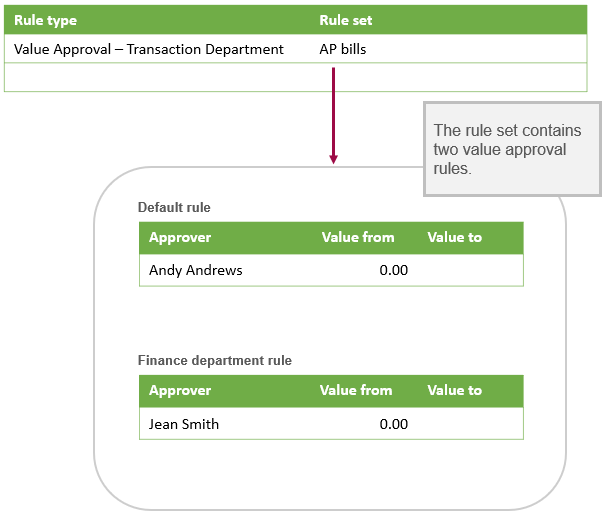
If you selected Value Approval - Transaction Department as a rule type, you must set up a rule set. A rule set enables you to define a collection of value approval rules for the Value Approval: Transaction Department rule type. A value approval rule defines the approvers you want and their approval amounts. A rule set contains:
Learn more about value approval rule sets and value approval rules. |
|
Manage rule |
This column is applicable when Value Approval is selected as the rule type. You can select Edit to add or edit the value approval rule used to route the approval requests. The approval rule for this rule type defines the number of levels of approval needed and the approval amounts for each level. The approvers for a specific level are those users who have permission for Bill Approvals and appropriate approval amount levels. Learn more about the value approval rule for permission-based approvals. |
Value approval rule set page
| Field | Description |
|---|---|
|
Rule set name |
The name of the rule set. |
|
Rule type |
This is a read-only field. Department dimension-based means that these value approval rules are based on transaction departments. |
Default for departments without specific rules
| Field | Description |
|---|---|
|
Approver |
Select a user who will receive a approval request for the range of values on each line. For each approver, specify approvable amounts by the Value from and Value to fields. For a user to appear in the list, the following must be true:
Learn more about assigning permissions. The amounts that can be approved by each approver is the limit specified by Value from and Value to. For example, you might define the following three approvers:
Depending on the total amount of the bill, here's how the approval routing would work:
|
|
Value from |
The minimum amount that can be approved. Anything below the minimum amount will automatically post and skip any approvals. |
|
Value to |
The maximum amount that can be approved for a particular level. For the last approver, leave Value to empty, which ensures any transaction amount over the last approver's minimum amount is always approved. |
Default-specific rules
| Field | Description |
|---|---|
|
Department ID and Department name |
The ID and name of the department with its own value approval rule. |
|
Description |
The optional note that was entered for the department's value approval rule when the rule was added or edited. |
|
Trash can icon |
Select this icon to delete the value approval rule for the department. |
Value approval rule page
Page for department-based value approval rules
| Field | Description |
|---|---|
|
Department ID |
The department for the value approval rule. |
|
Description |
An optional note about the value approval rule. |
|
Approver |
Select a user who will receive approval requests for the range of values on each line. If the total bill amount is greater than the approver's Value to amount, the approver will still need to approve the bill before it can continue up the approval chain. For a user to appear in the list, the following must be true:
|
|
Value from |
The minimum amount that can be approved. If there are no approval levels below this one, then anything below the minimum amount will post automatically. |
|
Value to |
The maximum amount that the Approver can approve. Transaction Department approvals work differently from Permission-based approvals. If there are multiple approval levels, the bill must proceed through each level of approvals through to the level with a Value to that either exceeds the bill amount or is open-ended. For the last approver, leave Value to empty, which ensures any transaction amount over the last approver's minimum amount is always approved. |
Page for permission-based value approval rule
|
|
|
|---|---|
| Field | Description |
|
Description |
An optional note about the value approval rule. |
|
Level |
Specify how many levels of approval you want, the amounts that require approval, and the number of required approvers. Sage Intacct supports a maximum of 6 approval levels. Value approval requests are sent directly to the approvers for the level in which the transaction amount falls. Example:
Assume that your value approval rule is defined with the following three levels:
If the total bill amount is:
|
|
Value from |
The minimum amount that can be approved. Anything below the minimum amount will automatically post and skip any approvals. |
|
Value to |
The maximum amount that can be approved. For the last approver, leave Value to empty, which ensures any transaction amount over the last approver's minimum amount is always approved. |
|
Minimum approvers |
Specify the required number of approvers for the level. Bills can be approved by anyone with permission for that level of approval. |
