Vendor remittance with Vendor Payments powered by MineralTree
Related information
 Related topics
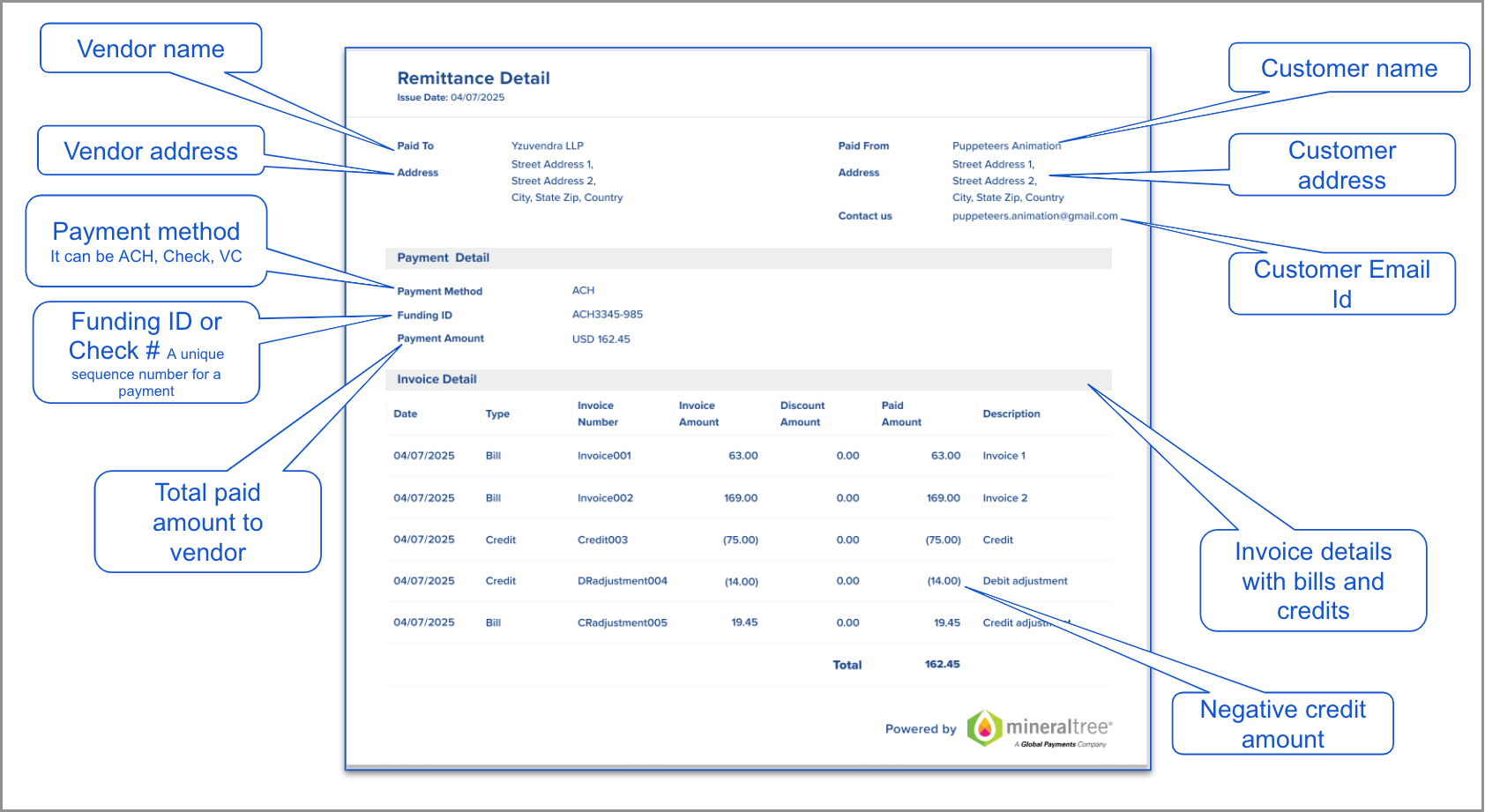
After MineralTree processes the payment, MineralTree sends your vendors a remittance email that includes the payment information.
Here's an example of what a vendor remittance looks like:
Update your company email address in MineralTree remittances
You can change your company's email address used in vendor remittances sent from MineralTree.
-
Go to Cash Management > All or Setup > Accounts > Checking.
- Find the MineralTree-enabled account.
-
Select Edit at the end of the row.
- On the Payment providers tab, enter the Email address for remittances.
- Select Save.
-
Go to Cash Management > All or Setup > Accounts > Checking.
- Select Edit next to the MineralTree-enabled account.
- On the Payment providers tab, enter the Email address for remittances.
- Select Save.
Resend remittance to a single vendor
Before you resend a remittance, verify the vendor's email address to make sure it goes to the right person.
You can resend remittance for a single payment from the posted payment. Resend remittance for multiple payments from the Posted Payments list.
-
Go to Accounts Payable > All > Payments > Posted payments.
From here, you can drill down to a single posted payment or select payments from the list to resend remittance.
-
If you drilled down to a single posted payment, go to the History tab.
-
Select Resend remittance.
Resend remittance to multiple vendors
-
Go to Accounts Payable > All > Payments > Posted payments.
From here, you can drill down to a single posted payment or select payments from the list to resend remittance.
-
If you drilled down to a single posted payment, go to the History tab.
-
Select Resend remittance.
